

Appearance
Protecting Resources from AI
Some parts of a project are too important to let an agent rewrite: a checkout page that took weeks to get right, a pricing table, the design system everything else depends on. Protecting a resource keeps it visible to WeWeb AI for context, while refusing any attempt to change it.
Protections apply to WeWeb AI in the editor and to external agents connected over WeWeb MCP. Locking a resource once covers both.
You can lock resources one at a time, or lock a whole category at once with a rule, such as every page or every API endpoint of the project.
Plan availability
Resource protection is available on the Pro and Partner plans. On other plans the shield controls are hidden, and Agent permissions explains how to get access.
What a protection does
A protected resource is read only for agents. They can still open it and use it as context, which matters: an agent that cannot see your header will build pages that do not match it.
What agents can no longer do to a protected resource:
- Edit, rename, replace, or delete it
- Add anything inside it
- Change its data, for a table
A rule goes one step further: agents also cannot create new resources in the category it covers.
You are never restricted. Protections only apply to agents, so you keep editing everything by hand as usual.
Protecting a resource
Open the resource's settings and turn on Protect from AI changes, then choose Enable.
The control sits with the rest of the resource's settings:
| Resource | Where to find the toggle |
|---|---|
| Page | Pages tab in the left panel, then open a page's settings |
| Section | Select the section, then look at the bottom of the right panel |
| Library component | Assets tab in the left panel, then select a component in the Library panel |
| Page, app, or function workflow | Open the workflow, then open its settings |
| Backend workflow, API endpoint, or middleware | Open it in the Data & API tab, then open its settings |
| Variable | Variables tab in the left panel, then select a variable |
| Formula | Formulas tab in the left panel, then select a formula |
| Table | Data & API tab, then the table's settings |
| Table view | Data & API tab, then the table view's settings |
| Design system token or class | Assets tab in the left panel, then select a color, typography, spacing, radius, shadow, border, or class |
| The whole library | Assets tab in the left panel, then click Library to open its overview |
Two resources have a shortcut instead of a settings row:
- Right-click a section on the page or in the layout tree, then choose
Protect from AI changes. The same menu offersAllow AI changesonce it is locked. - For a coded component, open
Add→Coded components, then useLock for AIin the component's...menu.
Protecting a whole category with a rule
Protecting resources one by one works well for a few finished pages. When you want agents to stay away from a whole part of the project, such as your backend, clicking every shield takes time, and anything created afterwards, including by the AI itself, is not covered.
A rule protects every resource of a category in one go, both the ones that exist today and the ones added later. To add one:
- Open the
Settingstab in the top bar, then theAgent permissionssubtab. - Click
Block allabove theProtected resourcestable. - Tick the categories you want to protect. Each one applies right away: there is nothing to save.
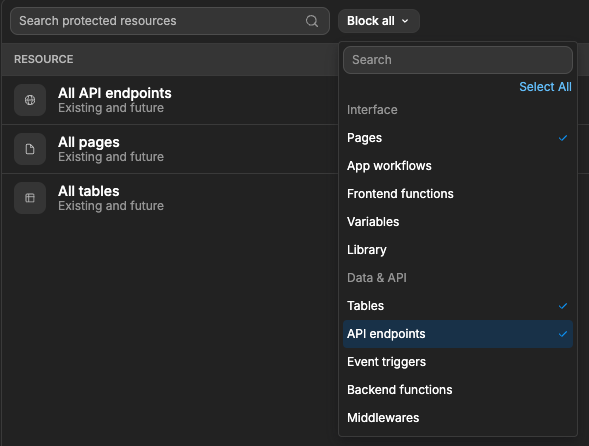
The menu lists the categories under two groups:
| Group | Categories |
|---|---|
Interface | Pages, App workflows, Frontend functions, Variables, Library |
Data & API | Tables, API endpoints, Event triggers, Backend functions, Middlewares |
Select All at the top of the menu ticks every category at once. Library is the same lock as the one at the top of the Library panel, so ticking one updates the other.
Agents can still retrieve and use everything a rule covers. They can also still run your backend workflows: a rule on API endpoints stops them from changing or creating endpoints, not from calling the ones you already have.
A resource covered by a rule shows Protected by rule under its Protect from AI changes setting. You cannot turn the toggle off from there: to give agents access again, remove the rule from Agent permissions.
RULES AND SINGLE PROTECTIONS STACK
Removing a rule puts things back the way they were. If you protected an API endpoint by hand before adding the API endpoints rule, that endpoint stays protected once the rule is gone, while the others become editable by agents again.
Sections and table views have no rule of their own: a rule on Pages or Tables already covers them. Formulas, components, and coded components can only be protected one by one.
Reading the shield
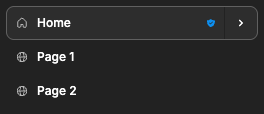
A protected resource shows a shield next to its name, everywhere it appears, such as in the pages list, the tables list, the layout tree, the library panels, the page selector, and the edition panel header.
How protections cascade
Protecting a container protects what it holds, so you do not have to lock things one by one:
- Protecting a page also protects every section and element it contains, along with its page workflows.
- Protecting a section also protects every element it contains.
- Protecting a table also protects every table view built on it.
- Protecting the library also protects every token, class, and component it contains.
Each toggle spells out its own cascade underneath, so you can see how far a lock reaches before turning it on.
Two consequences worth knowing:
- Agents cannot add anything to a protected page or section, not just edit what is already there. Asking for "a new testimonial section on the home page" fails if the home page is locked.
- A protected section can still be reordered inside its own page. Its content is untouched, so moving it up or down is allowed unless the page itself is protected.
START WITH THE CONTAINER
If a whole page is finished, protect the page rather than each of its sections. You get the same result with one lock, and new sections added later are covered too.
Managing every protection in one place
Open the Settings tab in the top bar, then the Agent permissions subtab. Protected resources lists everything currently locked in the project.
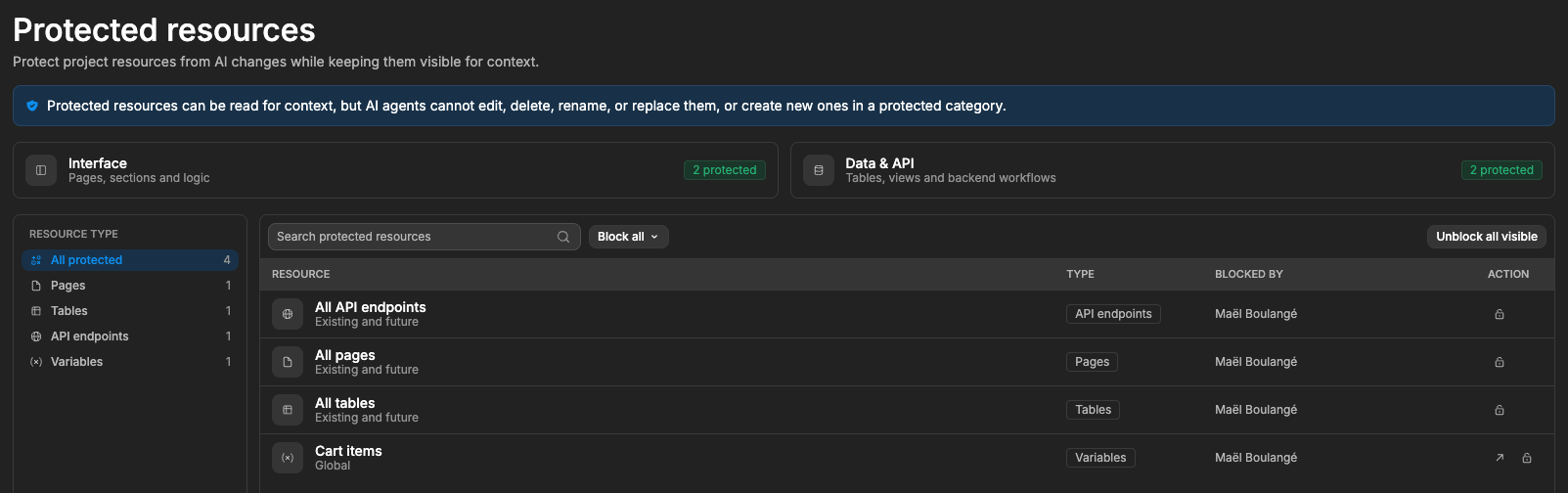
Two cards at the top count what is locked on each side of the project: Interface for pages, sections, and logic, and Data & API for tables, views, and backend workflows.
For each resource the table shows its name, its type, and who locked it. Rules sit at the top of the table, named after their category (All pages, All API endpoints, and so on) with Existing and future underneath. From there you can:
- Filter by resource type in the left column, or search by name
- Add or remove rules from the
Block allmenu - Click the arrow icon (
Open in the editor) to jump straight to the resource - Click the lock icon (
Unblock) to remove a single protection, or a rule - Click
Unblock all visibleto clear everything matching the current filter and search
Rules have no arrow icon, since they do not point to a single resource. The Library rule is the exception and opens the library.
This panel is also where you find a resource you cannot reach otherwise, such as a section on a page you are not currently on.
What happens when an agent hits a protection
The agent is told which resource is locked and who locked it, or which rule covers it, then explains the situation in the chat and suggests another way to get what you asked for. It does not fail silently and does not retry.
Agents also see the protection before they start, so a well-behaved agent plans around a locked page instead of running into it.
Protections and deleted resources
When you delete a resource, its protection goes with it. There is nothing to clean up by hand.
RENAMING A WEWEB TABLE
WeWeb tables are identified by their name, so renaming a protected table leaves its protection behind, pointing at a name that no longer exists. The Protected resources table shows these leftovers as No longer exists so you can remove them, then protect the table again under its new name.