

Appearance
Supabase Realtime
Realtime lets your app update by itself when something changes. For example, a new message appears in a chat as soon as someone sends it, without the user reloading the page.
WeWeb doesn't have a built-in Supabase Realtime workflow action yet. However, you can add Supabase Realtime to your WeWeb app by pasting a small code snippet into a Custom JavaScript action. No JavaScript knowledge is required. Each recipe on this page shows you exactly what to copy, where to paste it, and which values to customize.
This page has three recipes:
- Show new rows live: new rows of a Supabase table appear on your page as soon as they're created. Start here.
- Send messages between users: users on the same page see each other's messages instantly, without saving them in a table.
- Show who is online: see the list of users who have the page open right now.
Show new rows live
In this recipe, a page shows new rows of a Supabase table (for example messages) as soon as they're created.
Step 1: turn on realtime for the table in Supabase
Supabase only sends live updates for the tables you choose.
- In your Supabase dashboard, open
Database, thenPublications. - Click
supabase_realtime. - Turn on your table (for example
messages).
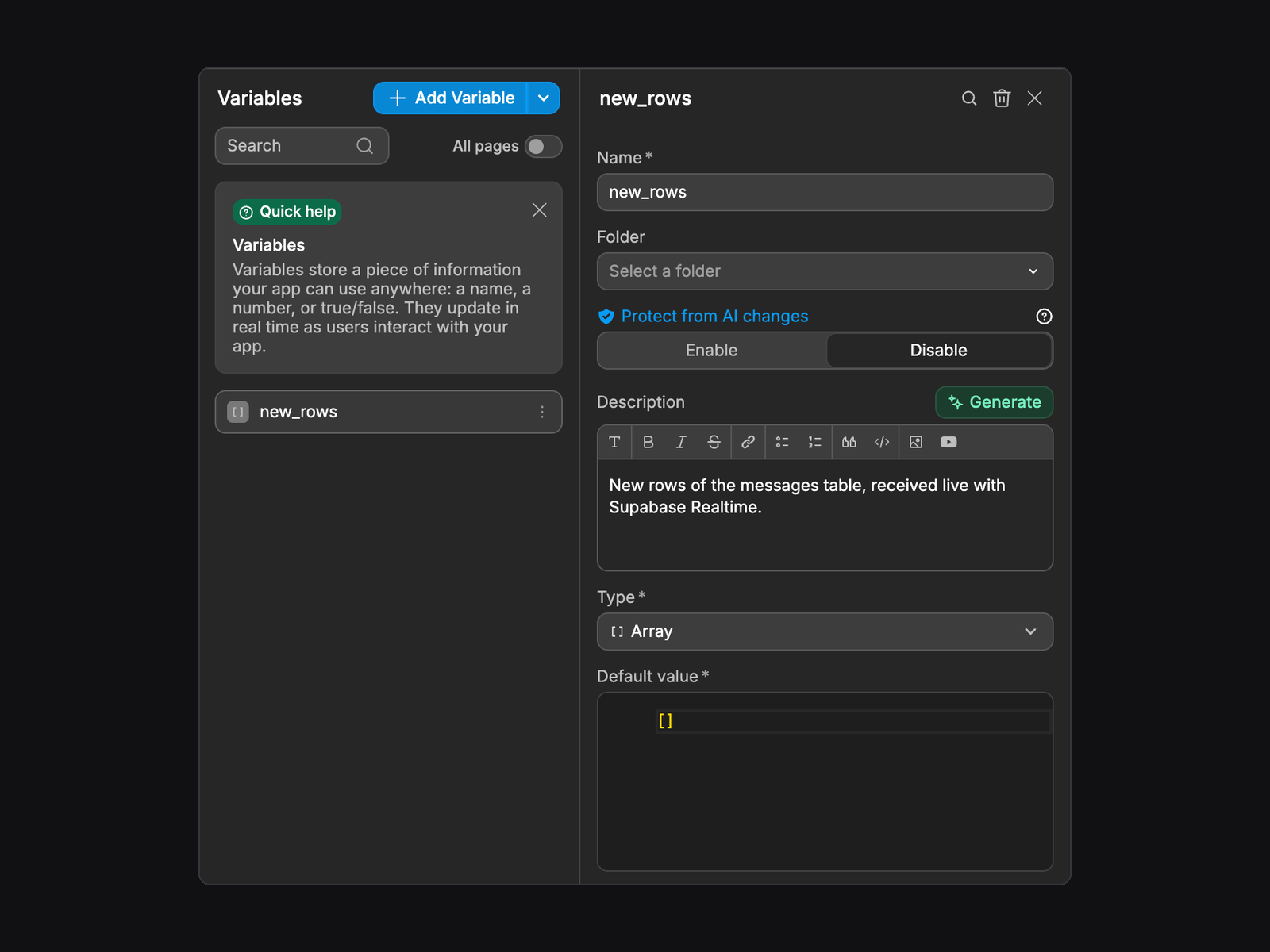
Step 2: create a variable to store the new rows
- In the left panel of the
Interfacetab, open theVariablestab. - Create a variable of type
Array, namednew_rows, with[]as its default value.
Step 3: find the id of the variable
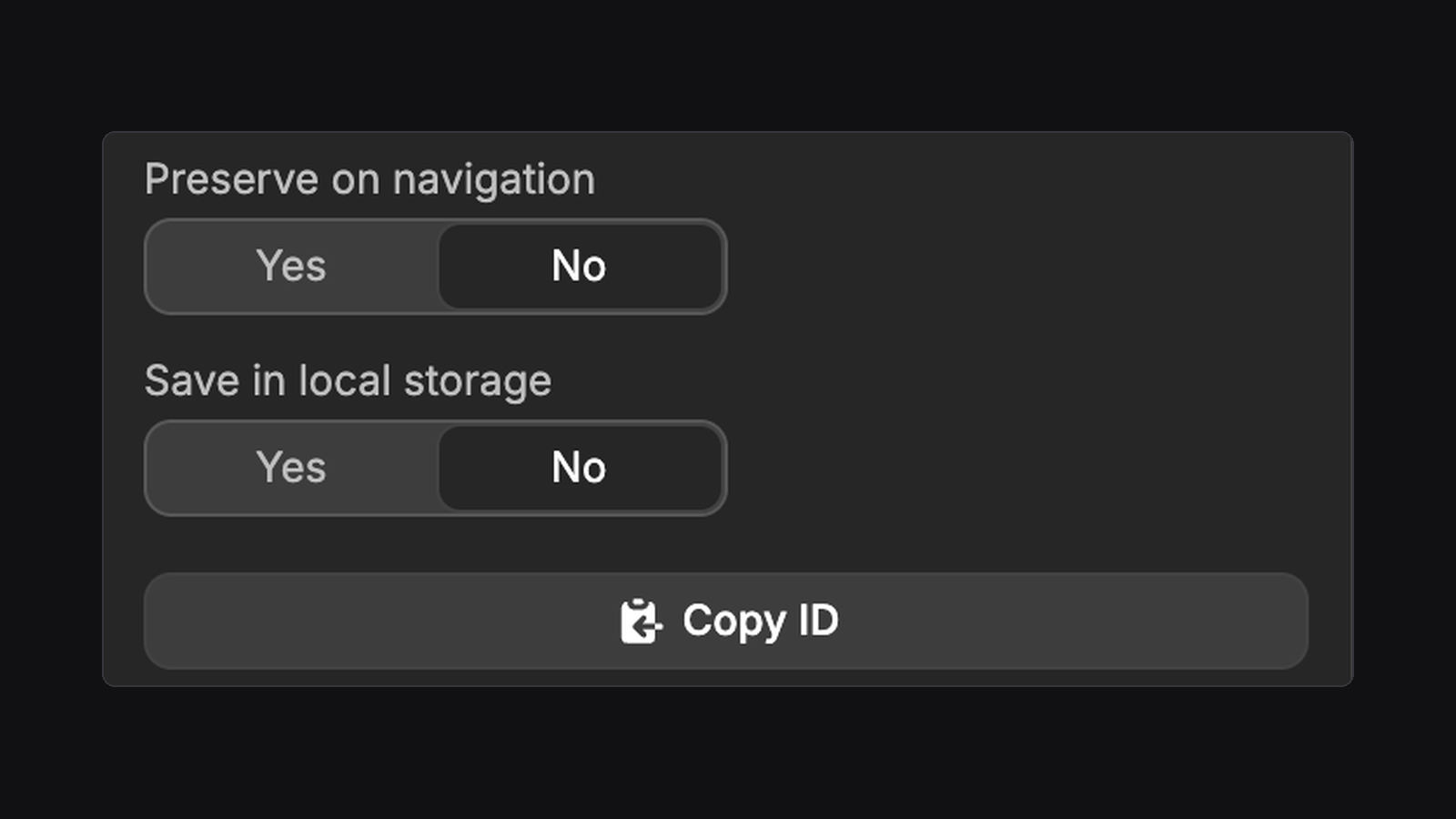
The code needs the id of your variable, a unique code that WeWeb gives it.
- Turn on Show dev information.
- In the
Variablestab, clicknew_rows. - At the bottom of the variable settings, click
Copy ID.
Step 4: start listening when the page opens
- In the left panel, open the
Workflowstab, thenPage Triggers. - Create a workflow with the
On page loadtrigger. - Add a
Custom JavaScriptaction, clickEdit code, and paste this code. - Replace
messageswith the name of your table, andPASTE-THE-VARIABLE-ID-HEREwith the id you copied in step 3. Keep the quotes around them.
js
// 1. The name of your Supabase table
const TABLE_NAME = 'messages';
// 2. The id of your new_rows variable
const VARIABLE_ID = 'PASTE-THE-VARIABLE-ID-HERE';

// Nothing to change below this line
const supabase = integrations.supabase;
const channelName = 'live-' + TABLE_NAME;
if (supabase.getChannels().some(c => c.topic === 'realtime:' + channelName)) return;

supabase
  .channel(channelName)
  .on('postgres_changes', { event: 'INSERT', schema: 'public', table: TABLE_NAME }, change => {
    const rows = wwLib.wwVariable.getValue(VARIABLE_ID) || [];
    wwLib.wwVariable.updateValue(VARIABLE_ID, [change.new, ...rows]);
  })
  .subscribe();
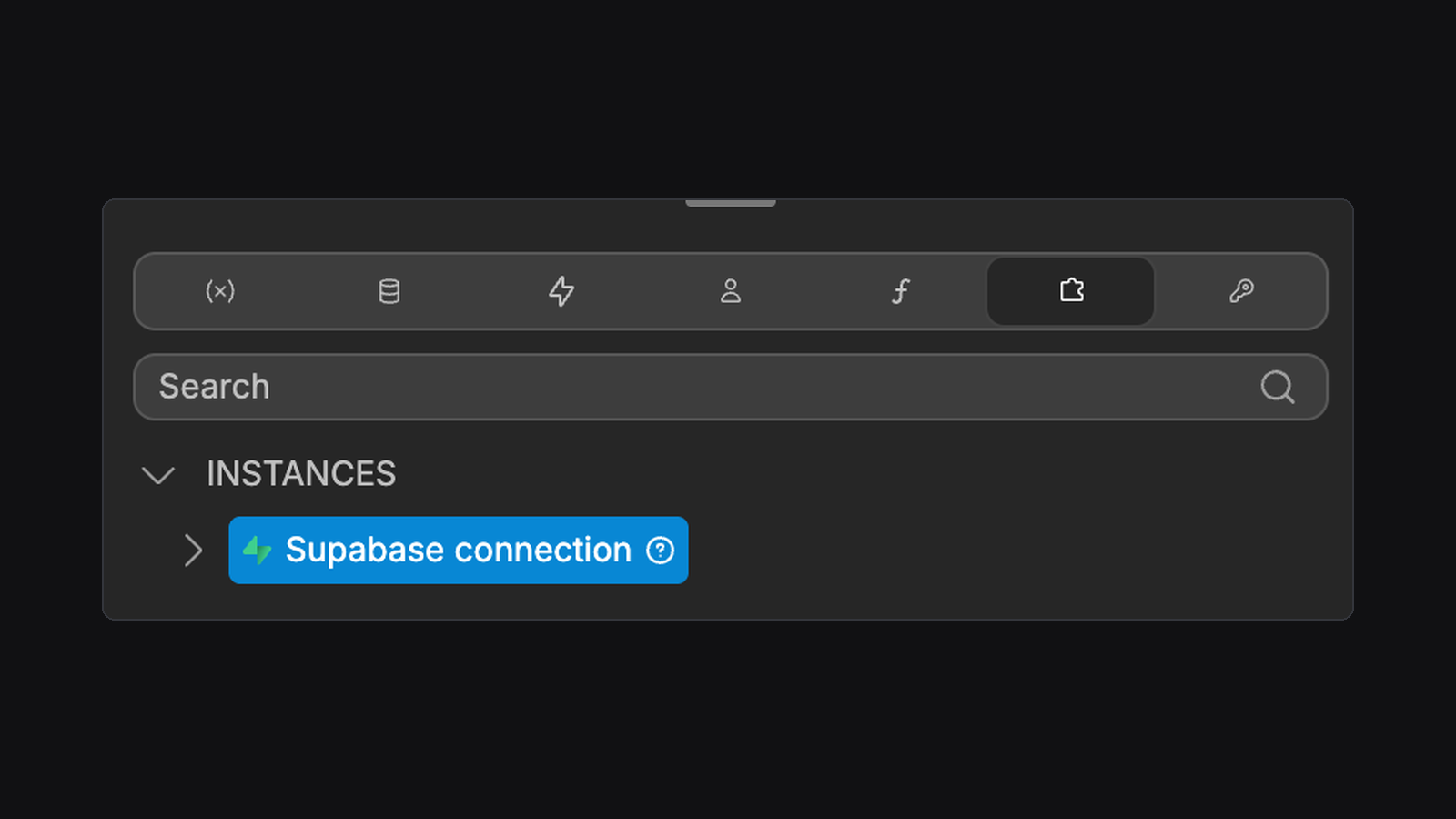
SEVERAL SUPABASE CONNECTIONS?
integrations.supabase works when your project has one Supabase connection. If it has several, replace it with the name of the connection you want, for example integrations['Supabase connection']. You can find your connections in the Integrations tab below the code editor, under Instances.
Step 5: stop listening when the user leaves the page
- In
Page Triggers, create a second workflow with theOn page unloadtrigger. - Add a
Custom JavaScriptaction and paste this code. Replacemessageswith the name of your table, like in step 4.
js
// The name of your Supabase table
const TABLE_NAME = 'messages';

// Nothing to change below this line
const supabase = integrations.supabase;
const channel = supabase.getChannels().find(c => c.topic === 'realtime:live-' + TABLE_NAME);
if (channel) await supabase.removeChannel(channel);
Step 6: show the rows and test
- Add a list to your page (for example a
Divwith a repeat) and bind it to thenew_rowsvariable. - Inside the list, bind a text to a column of the row, for example
content. - Open
Preview. - Create a row in your table, from your app or from the Supabase dashboard. It appears in the list right away.
new_rows only contains the rows created while the page is open. To also show older rows, display a table view of the same table above the list.
Send messages between users
In this recipe, users who have the same page open see each other's messages instantly. The messages are not saved in your database: they disappear when the page is closed. This is a good fit for a quick chat or a "someone is typing" signal.
- Create a variable of type
Array, namedmessages, with[]as its default value. Copy its id (see step 3 above). - In a workflow with the
On page loadtrigger, add aCustom JavaScriptaction with this code. ReplacePASTE-THE-VARIABLE-ID-HEREwith the id ofmessages.
js
// The id of your messages variable
const VARIABLE_ID = 'PASTE-THE-VARIABLE-ID-HERE';

// Nothing to change below this line
const supabase = integrations.supabase;
if (supabase.getChannels().some(c => c.topic === 'realtime:chat')) return;

supabase
  .channel('chat', { config: { broadcast: { self: true } } })
  .on('broadcast', { event: 'message' }, message => {
    const messages = wwLib.wwVariable.getValue(VARIABLE_ID) || [];
    wwLib.wwVariable.updateValue(VARIABLE_ID, [...messages, message.payload]);
  })
.subscribe();- Add an
Inputand aSendbutton to your page. - On the button, create a workflow with the
On clicktrigger, add aCustom JavaScriptaction, and paste this code. - Replace
'Hello!'with the value of your input: delete'Hello!', then open thePagetab below the code editor (the(x)icon) and click thevalueof your input.
js
// The text to send (replace with the value of your input)
const TEXT = 'Hello!';

// Nothing to change below this line
const supabase = integrations.supabase;
const channel = supabase.getChannels().find(c => c.topic === 'realtime:chat');
await channel.send({ type: 'broadcast', event: 'message', payload: { text: TEXT } });- In a workflow with the
On page unloadtrigger, add aCustom JavaScriptaction with this code, so the user stops receiving messages when they leave the page:
js
// Nothing to change in this code
const supabase = integrations.supabase;
const channel = supabase.getChannels().find(c => c.topic === 'realtime:chat');
if (channel) await supabase.removeChannel(channel);- Bind a list to the
messagesvariable, and a text inside it totext. - Open the page in two browser windows, send a message from one: it appears in both.
Show who is online
In this recipe, the page shows the list of users who have it open right now. The list updates by itself when someone arrives or leaves.
- Create a variable of type
Array, namedonline_users, with[]as its default value. Copy its id (see step 3 above). - In a workflow with the
On page loadtrigger, add aCustom JavaScriptaction with this code. - Replace
PASTE-THE-VARIABLE-ID-HEREwith the id ofonline_users, and'Guest'with the name of the user: delete'Guest', open theAuthenticationtab below the code editor, and click the name (or the email) of the signed-in user.
js
// The id of your online_users variable
const VARIABLE_ID = 'PASTE-THE-VARIABLE-ID-HERE';
// The name to show for this user
const USER_NAME = 'Guest';

// Nothing to change below this line
const supabase = integrations.supabase;
if (supabase.getChannels().some(c => c.topic === 'realtime:online')) return;

const channel = supabase.channel('online');
channel
  .on('presence', { event: 'sync' }, () => {
    wwLib.wwVariable.updateValue(VARIABLE_ID, Object.values(channel.presenceState()).flat());
  })
  .subscribe(status => {
    if (status === 'SUBSCRIBED') channel.track({ name: USER_NAME });
});- In a workflow with the
On page unloadtrigger, add aCustom JavaScriptaction with this code, so the user leaves the list when they leave the page:
js
// Nothing to change in this code
const supabase = integrations.supabase;
const channel = supabase.getChannels().find(c => c.topic === 'realtime:online');
if (channel) await supabase.removeChannel(channel);- Bind a list to the
online_usersvariable, and a text inside it toname. - Open the page in two browser windows: both names appear in the list. Close one window (or go to another page) and its name disappears after a few seconds.
If nothing shows up
- Check that the table is turned on in
supabase_realtimein Supabase (only for Show new rows live). - Check that the table name and the variable id in the code are correct. Table names are case-sensitive:
Messagesandmessagesare two different tables. - If your project has several Supabase connections, replace
integrations.supabasewith the name of your connection (see the tip in step 4). - If your table uses Row Level Security (RLS), users only receive the rows they are allowed to see. Check your RLS policies in Supabase.
CONTINUE LEARNING
See every Supabase action you can use in workflows, and what each one needs.