

Appearance
Notion integration
Notion is a workspace for notes, wikis and databases. This integration lets your WeWeb backend query Notion databases, create, update and archive pages, read and edit the content of a page, list the people in your workspace, and show the pages of a database in a table.
It is a good fit when your team already keeps its data in Notion (a task list, a content calendar, a list of clients) and you want to build an app on top of it without moving that data somewhere else.
Use cases
- Show the pages of a Notion database in a Data Grid, through a table.
- Create a page in a Notion database when a user submits a form in your app.
- Update a page's status or owner from an admin screen.
- Read the content of a Notion page to display it in your app, for example a help article or a changelog.
- Add a paragraph or a to-do list to a page from a backend workflow.
Setup
Notion connects with an internal integration: a private connection that belongs to your Notion workspace. You create it once in Notion, copy its secret into WeWeb, and then give it access to each database or page you want to use, the same way you would share a page with a person.
- Open Notion's integrations page and create a new internal integration for your workspace. You need to be a workspace owner to do this. Notion's newer developer portal calls it a connection.
- In the integration settings, check its capabilities:
- You need
Read contentfor every action and for tables. - You need
Update contentto update pages and blocks, archive pages and delete blocks. - You need
Insert contentto create pages and add blocks. - You need a user information capability (with or without email addresses) for
List usersandRetrieve user.
- You need
- Copy the
Internal Integration Secret. - In Notion, open each database or page you want to use in WeWeb, click the
•••menu at the top right, go toConnections(orAdd connections), and select your integration. Sharing a page also shares the pages and databases inside it. - In WeWeb, open
Data & API→Integrations, selectNotion, and clickAdd Connection. - Paste the secret in the
API Keyfield for each environment you use (Editor,Staging,Production).Stagingonly appears if your plan includes it. - Click
Create. - Test in WeWeb by adding a table from
Tables→Add Table→Notion: theDatabasedropdown should list the databases you shared in step 4. You can also run theSearch databasesaction in a backend workflow.
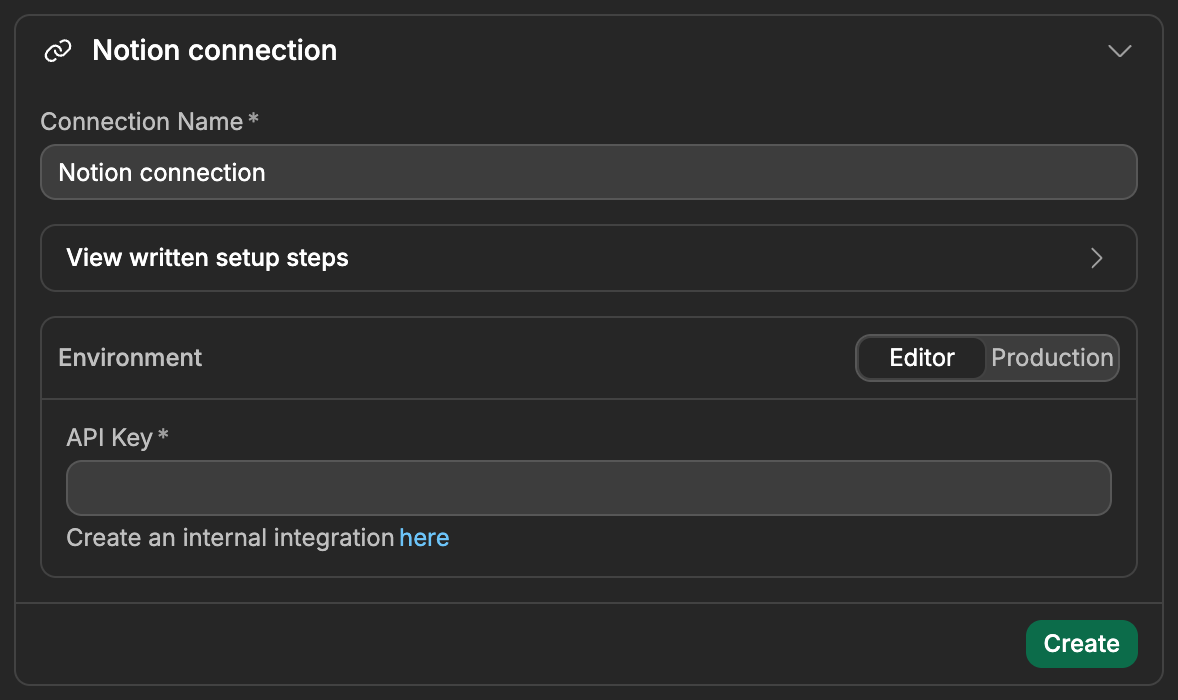
USE THE SAME NOTION WORKSPACE IN EVERY ENVIRONMENT
The Database dropdowns are always filled with the key of the Editor environment. Your workflows store the ID of the database you picked, and your live app looks for that same ID with the Production key. If Production points to an integration in another workspace, or one that the database isn't shared with, your live app gets a 404 error. Using the same secret everywhere avoids this.
How Notion works with WeWeb
A few Notion concepts shape every action on this page.
Share content with the integration
Your integration only sees what has been shared with it. A database you haven't connected to the integration doesn't appear in the Database dropdowns, and any action that targets it fails with 404 Not Found, even if the ID is correct.
If no database is shared yet, WeWeb shows the message No databases found. Make sure your integration has access to at least one database. when it loads the dropdown. After you share a new database in Notion, click the refresh icon next to the Database dropdown to load it.
Databases, pages and blocks
Notion stores everything in three kinds of objects:
- Databases are lists of pages that share the same properties (the columns). In WeWeb, you pick a database from a dropdown in the actions and tables that need one.
- Pages are the rows of a database. Each page has properties (for example
Name,Status,Due date) and content. - Blocks are the content of a page: each paragraph, heading, to-do or image is a block. Blocks can contain other blocks, for example the items of a toggle list.
Properties and content are handled by different actions. Create page and Update page change properties. List block children, Append block children, Update block and Delete block change content.
Every page and block has an ID, for example a1b2c3d4-e5f6-7890-abcd-ef1234567890. Actions return it as id. You can also find a page's ID at the end of its Notion link: in https://app.notion.com/p/My-task-a1b2c3d4e5f67890abcdef1234567890, the ID is the last 32 characters, and Notion accepts it with or without dashes.
DATABASE IDS
WeWeb uses the ID of the database's data source, which Notion returns as id in Search databases and Retrieve database. The ID you see in a database's Notion link is a different ID, returned as parent.database_id. Because you pick databases from a dropdown, you rarely need either one, but if you use the ID from the link, Notion answers Could not find data_source.
Property values
When you pick a database in Create page or Update page, WeWeb loads its properties and shows one field per property you can change. Fill them with plain values: WeWeb turns them into the format Notion expects before sending them.
| Notion property | Field in WeWeb | Value to send |
|---|---|---|
| Title, Text | Text | "Write the onboarding guide" |
| Number | Number | 5 |
| Checkbox | Toggle | true |
| Select, Status | Dropdown with the property's options | The option name, like "In progress" |
| Multi-select | Dropdown with several choices | A list of option names, like ["Bug","Urgent"] |
| Date | Text | "2026-10-16" or "2026-10-16T09:00:00.000Z" |
| URL, Email, Phone | Text | "https://weweb.io" |
| Relation | List | A list of page IDs |
| Person | List | A list of Notion user IDs (see List users) |
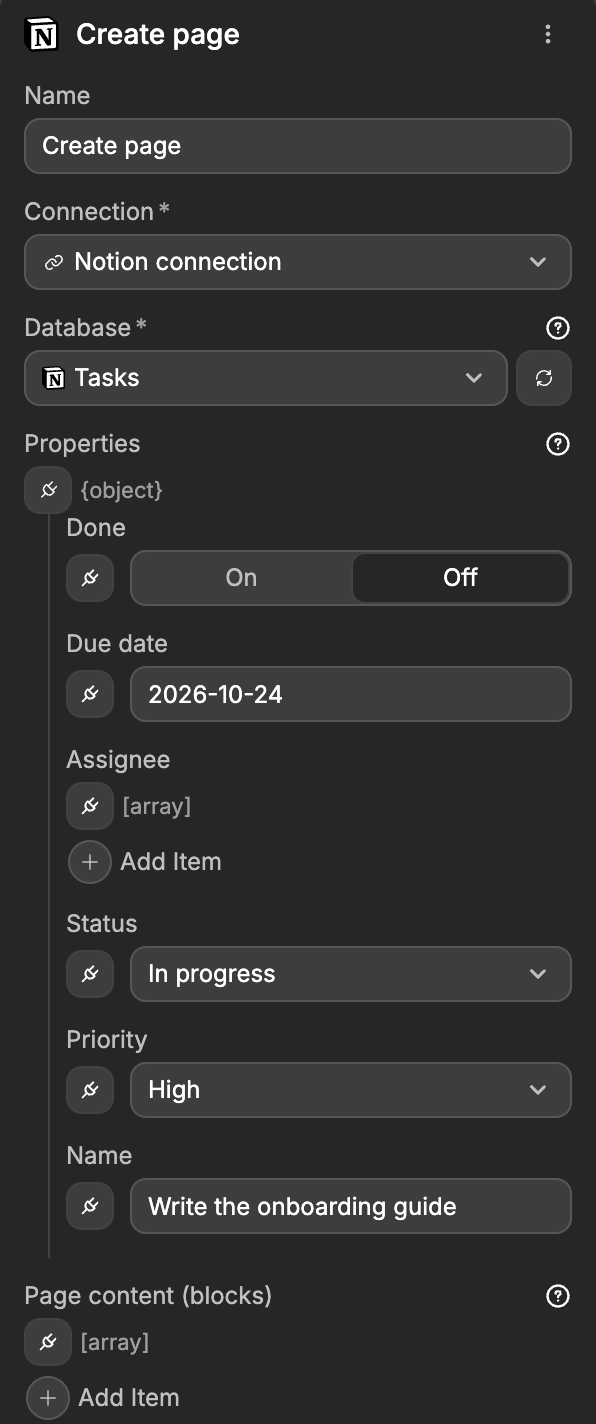
Notion computes some properties on its own, so they don't appear in the form: formulas, rollups, created time, created by, last edited time, last edited by and unique IDs.
For anything plain values can't express, send the property in Notion's own format: WeWeb passes it as is. For example, a date with an end is {"date":{"start":"2026-10-16","end":"2026-10-18"}}. This is also the only way to fill a Files property: a plain value sent to a Files property is ignored. Notion's property value reference lists every format.
Property names must match Notion exactly, including spaces and capital letters.
Filters and sorts
Query database and Notion tables use Notion's own filter format. A filter names a property, its type, and a condition:
json
{ "property": "Priority", "select": { "equals": "High" } }The type key (select here) must match the property's type in Notion. A Status property uses status, a Checkbox uses checkbox, and so on. To combine conditions, wrap them in and or or:
json
{
  "and": [
    { "property": "Priority", "select": { "equals": "High" } },
    { "property": "Done", "checkbox": { "equals": false } }
  ]
}
Notion's filter reference lists the conditions for each property type.
Notion doesn't guarantee any order for query results, so add a sort when the order matters. A sort is a property and a direction, ascending or descending. To sort by when pages were created or last edited, bind Sorts to a list that uses timestamp instead of property:
json
[{ "timestamp": "last_edited_time", "direction": "descending" }]Loading more results
Notion returns at most 100 results at a time. When there are more, the response has has_more set to true and a next_cursor. To get the next batch, run the same action again with Start cursor bound to that next_cursor. Notion can only give the next batch, not jump to a given page number.
Actions and tables return different formats
Actions return Notion's own format, where each property is an object, for example {"Status":{"type":"status","status":{"name":"Done"}}}. Tables turn each page into a simple row instead, like {"Status":"Done"}. If you only need to display the pages of a database, a table is easier to bind.
Using Notion as a data source for tables
Besides calling Notion actions from workflows, you can use a Notion database as a data source for tables in WeWeb. A table linked to Notion lists the pages of one database. That table can be bound to table components (e.g. Data Grid) or fetched from the interface with the Table View: Fetch action.
Add a Notion table
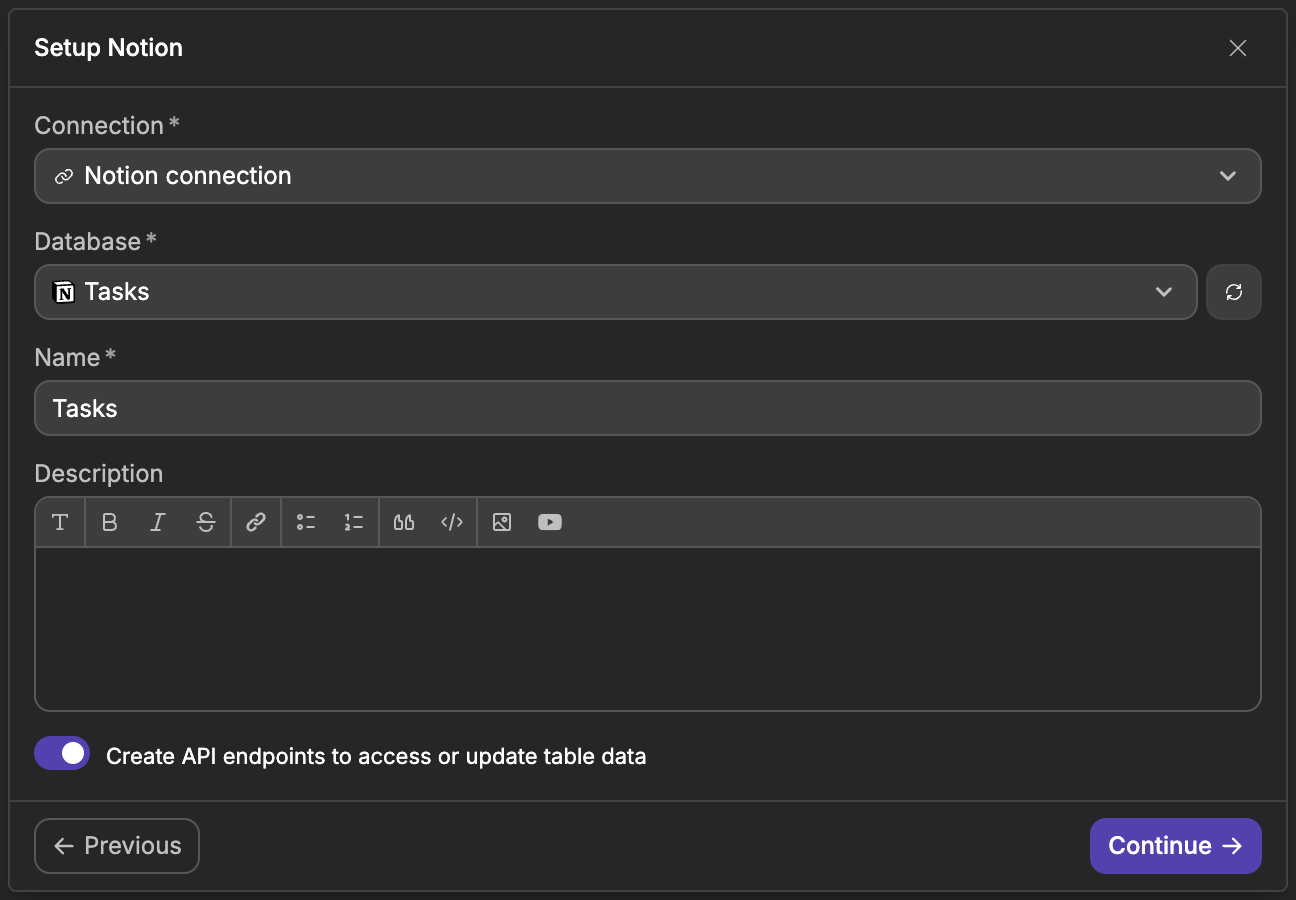
- In WeWeb, go to the
Data & APItab, then open theTablessubtab →Add Table. - Choose Notion as the data source.
- Select your Notion
Connection. - Select the
Databasewhose pages fill the table. Only databases shared with your integration appear here. - Give the table a
Name. - Keep
Create API endpoints to access or update table dataon if you want WeWeb to create the APIs described below. - Click
Continue. The table is now available in your project.
Each row has an id (the page ID) and one column per property, named like the property in Notion. Values are simplified:
- Title, text, URL, email and phone properties come back as text.
- Select and status properties come back as the option name, and multi-select as a list of names.
- Dates come back as the start date only.
- Relations come back as a list of page IDs, and files as a list of links.
- Person properties come back as a list of Notion users, and created by and last edited by as the person's name.
- Formulas and rollups come back as their result, and unique IDs with their prefix, like
TASK-12.
FILE LINKS EXPIRE
Notion gives files uploaded to Notion a temporary link that stops working after about an hour. Fetch the table again before showing them, rather than saving the links.
Configure a view
Views define which pages the table returns. On the Notion table you added:
- Create or edit a view for that table.
- Open
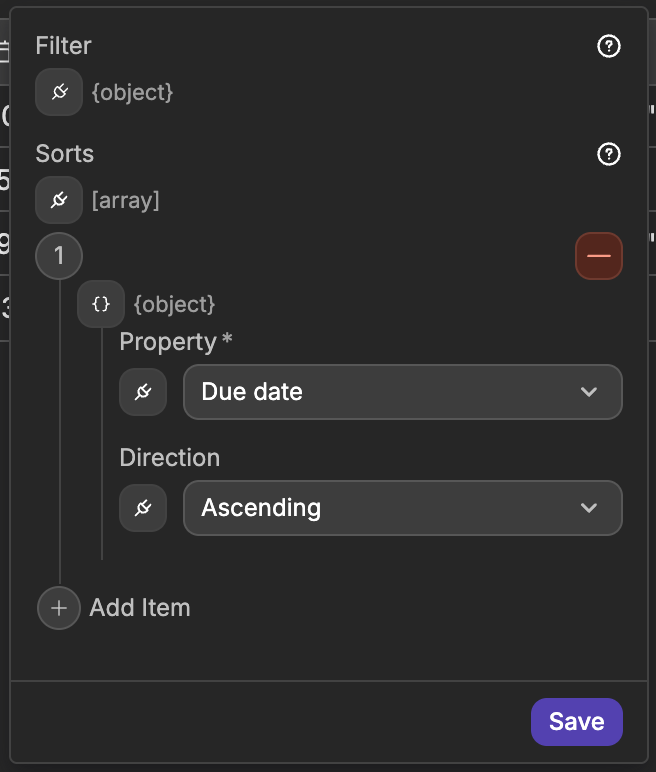
Configurationand set any of these optional fields:- Filter: bind it to a Notion filter, as described in Filters and sorts. You can build it from a value on your page, for example a search field.
- Sorts: click
Add Itemfor each sort, then pick aPropertyfrom the database and aDirection(AscendingorDescending).
- Click
Save.
NEW VIEWS ARE PUBLIC
A new view starts as Public: anyone who can open your app can fetch it. If your Notion database holds private data, click Public in the view header and switch it to Authenticated. Learn more about view access →
The view loads 100 pages at a time, which is also the maximum. Notion only tells WeWeb how to get the next batch, so use a Load more button rather than numbered pages. When everything is loaded, the load more action returns the error No more data to load.: put it inside a Try/Catch and use the Catch branch to show an end-of-list message.
Use the table in the interface
- Bind a view: in the binding menu, under Table Views, select the view. Bind it to a Data Grid, repeating group, or list.
- Table View: Fetch: in an interface workflow, add the
Table View: Fetchaction, choose your Notion table view, and pass any parameters the view expects.
For the general pattern of tables, views, and fetching data, see Working with data and Table View: Fetch.
Auto-generated APIs for the table
When Create API endpoints to access or update table data is on, WeWeb creates four APIs in a Notion: <table name> folder:
- Get Page:
GETwith aPage IDparameter. Returns one page. - Create Page:
POSTwith the new page's values. Creates a page in the table's database. - Update Page:
PUTwith aPage IDparameter and the values to change. - Archive Page:
DELETEwith aPage IDparameter. Moves the page to the Notion trash.
They are only available to signed-in users (Authenticated). If a Notion action fails, they answer with a 500 status and the error message in an error field.
CREATE PAGE AND UPDATE PAGE NEED FINISHING
As created, Create Page and Update Page ignore the data they receive: the Notion action inside them has an empty Properties form, so Create Page makes an empty Untitled page and Update Page changes nothing. Before using them, add the parameters you need to each API (for example Name and Priority), then open the Notion action and bind each property to the matching parameter.
Learn more about securing APIs →
Common pitfalls (setup & usage)
A database doesn't appear in the dropdown
The database isn't shared with your integration yet. In Notion, open it, click ••• → Connections, and select your integration. Then click the refresh icon next to the Database dropdown. The dropdown lists the 100 databases edited most recently: if yours is older, edit it once in Notion.
Actions fail with 404 Not Found
Notion answers 404 both when an ID is wrong and when the page or database isn't shared with the integration. Check the sharing first. If the action uses a database ID you pasted from a Notion link, see Database IDs.
It works in the editor but not in the live app
The Production key belongs to another integration, or the database isn't shared with it. See the tip above.
List users fails with 403 Forbidden
Your integration has no user information capability. Turn one on in the integration settings in Notion. Without email addresses, users come back without their email.
A filter is refused
The type key of the filter must match the property's type in Notion. For example, a Status property needs {"status":{"equals":"Done"}}, not {"select":{"equals":"Done"}}. Run Retrieve database to check each property's type.
A property isn't updated
Property names are case-sensitive and must match Notion exactly. Computed properties (formulas, rollups, created and edited times) can't be changed. A Files property only accepts Notion's own format.
My page gets "Internal Server Error" instead of the real error
When a Notion action fails inside an API endpoint you built yourself, the endpoint answers with a generic 500 Internal Server Error, and your page never sees the reason. To send the real message to your page:
- Add a
Try/Catchto the endpoint and put the Notion action in theTrybranch. - In the
Catchbranch, add aSend Response. - Bind its data to the error message of the
Try/Catch(caughtError.message).
The APIs WeWeb creates for a Notion table already do this.
All Actions
Thirteen actions, grouped like in the action list: databases, pages, blocks and users. Each action name links to its details below.
| Action | Description |
|---|---|
| Query database | List the pages of a database, with filters, sorts and pagination. |
| Retrieve database | Get a database's properties and their types. |
| Search databases | Find shared databases or pages by title. |
| Retrieve page | Get one page and its properties. |
| Create page | Create a page in a database, with properties and content. |
| Update page | Change some properties of a page. |
| Archive page | Move a page to the Notion trash. |
| List block children | Get the content blocks of a page or block. |
| Append block children | Add content blocks at the end of a page or block. |
| Update block | Change the content of one block. |
| Delete block | Move a block to the Notion trash. |
| List users | List the people and bots of the workspace. |
| Retrieve user | Get one user by ID. |
Action details
Query database
List the pages of a database. Filter, Sorts and Pagination appear once you pick a database.
Inputs
| Display Key | Example Input | Description | Restrictions |
|---|---|---|---|
Database | Tasks | Database to query, picked from the databases shared with your integration. | Required. Can't be bound |
FilterOptional | {"property":"Priority","select":{"equals":"High"}} | Notion filter that narrows the results. Empty returns every page. | See Filters and sorts |
SortsOptional | [{"property":"Due date","direction":"ascending"}] | Sorts, each with a Property name and a Direction. | Valid directions: Ascending (ascending), Descending (descending). Bind it to sort by created_time or last_edited_time |
Start cursorOptional | "b1c2d3e4-…" | The next_cursor of a previous response, to get the next batch. | Under Pagination |
Page sizeOptional | 100 | How many pages to return. | 1 to 100. Default 100. Under Pagination |
Example output
json
{
  "object": "list",
  "results": [
    {
      "object": "page",
      "id": "a1b2c3d4-e5f6-7890-abcd-ef1234567890",
      "created_time": "2026-10-01T09:00:00.000Z",
      "last_edited_time": "2026-10-15T14:30:00.000Z",
      "archived": false,
      "properties": {
        "Name": { "type": "title", "title": [{ "plain_text": "Write the onboarding guide" }] },
        "Priority": { "type": "select", "select": { "name": "High" } },
        "Done": { "type": "checkbox", "checkbox": false }
      },
      "url": "https://app.notion.com/p/Write-the-onboarding-guide-a1b2c3d4e5f67890abcdef1234567890"
    }
  ],
  "has_more": true,
  "next_cursor": "b1c2d3e4-f5a6-7890-abcd-ef1234567890"
}
Documentation of API endpoint that powers action: Notion API – Query a data source (POST /v1/data_sources/{data_source_id}/query)
Retrieve database
Get a database's title and properties, with the type of each property. Use it to check property names and types before writing a filter or setting page properties.
Inputs
| Display Key | Example Input | Description | Restrictions |
|---|---|---|---|
Database | Tasks | Database to retrieve, picked from the databases shared with your integration. | Required. Can't be bound |
Example output
json
{
  "object": "data_source",
  "id": "c3d4e5f6-a7b8-9012-cdef-123456789012",
  "title": [{ "plain_text": "Tasks" }],
  "parent": { "type": "database_id", "database_id": "d4e5f6a7-b8c9-0123-def1-234567890123" },
  "properties": {
    "Name": { "id": "title", "name": "Name", "type": "title", "title": {} },
    "Priority": {
      "id": "%3FbTe",
      "name": "Priority",
      "type": "select",
      "select": { "options": [{ "name": "High", "color": "red" }, { "name": "Low", "color": "gray" }] }
    },
    "Done": { "id": "Xk%7Cq", "name": "Done", "type": "checkbox", "checkbox": {} }
  }
}
Documentation of API endpoint that powers action: Notion API – Retrieve a data source (GET /v1/data_sources/{data_source_id})
Search databases
Find the databases (or pages) shared with your integration whose title contains some text. Search only looks at titles, not at page content.
Inputs
| Display Key | Example Input | Description | Restrictions |
|---|---|---|---|
QueryOptional | "Tasks" | Text to look for in titles. Empty returns everything shared with the integration. | Text |
FilterOptional | {"value":"data_source","property":"object"} | What to search for. The default only returns databases. | property is always object. Valid value: data_source (databases), page (pages). Empty returns both |
Start cursorOptional | "b1c2d3e4-…" | The next_cursor of a previous response, to get the next batch. | Under Pagination |
Page sizeOptional | 100 | How many results to return. | 1 to 100. Default 100. Under Pagination |
Example output
json
{
  "object": "list",
  "results": [
    {
      "object": "data_source",
      "id": "c3d4e5f6-a7b8-9012-cdef-123456789012",
      "title": [{ "plain_text": "Tasks" }],
      "parent": { "type": "database_id", "database_id": "d4e5f6a7-b8c9-0123-def1-234567890123" }
    }
  ],
  "has_more": false,
  "next_cursor": null
}
Documentation of API endpoint that powers action: Notion API – Search by title (POST /v1/search)
Retrieve page
Get one page and its properties. The content of the page comes from List block children.
Inputs
| Display Key | Example Input | Description | Restrictions |
|---|---|---|---|
Page ID | a1b2c3d4-e5f6-7890-abcd-ef1234567890 | ID of the page to retrieve. | Required |
Example output
json
{
  "object": "page",
  "id": "a1b2c3d4-e5f6-7890-abcd-ef1234567890",
  "created_time": "2026-10-01T09:00:00.000Z",
  "last_edited_time": "2026-10-15T14:30:00.000Z",
  "parent": {
    "type": "data_source_id",
    "data_source_id": "c3d4e5f6-a7b8-9012-cdef-123456789012",
    "database_id": "d4e5f6a7-b8c9-0123-def1-234567890123"
  },
  "archived": false,
  "properties": {
    "Name": { "type": "title", "title": [{ "plain_text": "Write the onboarding guide" }] },
    "Priority": { "type": "select", "select": { "name": "High" } }
  },
  "url": "https://app.notion.com/p/Write-the-onboarding-guide-a1b2c3d4e5f67890abcdef1234567890"
}
Documentation of API endpoint that powers action: Notion API – Retrieve a page (GET /v1/pages/{page_id})
Create page
Create a page in a database, with its property values and, if you want, its content. Properties and Page content (blocks) appear once you pick a database.
Inputs
| Display Key | Example Input | Description | Restrictions |
|---|---|---|---|
Database | Tasks | Database to create the page in. Picking another database resets Properties. | Required. Can't be bound |
PropertiesOptional | {"Name":"New task","Priority":"High","Done":false} | Values of the new page, one field per property of the database. | See Property values. Computed properties aren't listed |
Page content (blocks)Optional | [{"object":"block","type":"paragraph","paragraph":{"rich_text":[{"text":{"content":"Hello"}}]}}] | Content of the page, as a list of Notion blocks. | Up to 100 blocks |
Example output
json
{
  "object": "page",
  "id": "e5f6a7b8-c9d0-1234-ef12-345678901234",
  "created_time": "2026-10-16T10:00:00.000Z",
  "parent": {
    "type": "data_source_id",
    "data_source_id": "c3d4e5f6-a7b8-9012-cdef-123456789012",
    "database_id": "d4e5f6a7-b8c9-0123-def1-234567890123"
  },
  "archived": false,
  "properties": {
    "Name": { "type": "title", "title": [{ "plain_text": "New task" }] },
    "Priority": { "type": "select", "select": { "name": "High" } },
    "Done": { "type": "checkbox", "checkbox": false }
  },
  "url": "https://app.notion.com/p/New-task-e5f6a7b8c9d01234ef12345678901234"
}
Keep the returned id: Retrieve page, Update page, Archive page and the block actions take it as Page ID or Block / Page ID.
Documentation of API endpoint that powers action: Notion API – Create a page (POST /v1/pages)
Update page
Change some properties of a page. Only the properties you include are changed, the others keep their value.
Inputs
| Display Key | Example Input | Description | Restrictions |
|---|---|---|---|
Page ID | a1b2c3d4-e5f6-7890-abcd-ef1234567890 | ID of the page to update. | Required |
DatabaseOptional | Tasks | The page's database. WeWeb uses it to show the Properties form. It doesn't move the page to another database. | Can't be bound. Needed to see Properties |
PropertiesOptional | {"Priority":"Low","Done":true} | New values, one field per property of the database. | See Property values |
Example output
json
{
  "object": "page",
  "id": "a1b2c3d4-e5f6-7890-abcd-ef1234567890",
  "last_edited_time": "2026-10-16T10:05:00.000Z",
  "archived": false,
  "properties": {
    "Name": { "type": "title", "title": [{ "plain_text": "Write the onboarding guide" }] },
    "Priority": { "type": "select", "select": { "name": "Low" } },
    "Done": { "type": "checkbox", "checkbox": true }
  },
  "url": "https://app.notion.com/p/Write-the-onboarding-guide-a1b2c3d4e5f67890abcdef1234567890"
}
Documentation of API endpoint that powers action: Notion API – Update page (PATCH /v1/pages/{page_id})
Archive page
Move a page to the Notion trash. You can restore it from the trash in Notion, and Retrieve page still finds it, with archived set to true.
Inputs
| Display Key | Example Input | Description | Restrictions |
|---|---|---|---|
Page ID | a1b2c3d4-e5f6-7890-abcd-ef1234567890 | ID of the page to archive. | Required |
Example output
json
{
  "object": "page",
  "id": "a1b2c3d4-e5f6-7890-abcd-ef1234567890",
  "archived": true,
  "in_trash": true,
  "url": "https://app.notion.com/p/Write-the-onboarding-guide-a1b2c3d4e5f67890abcdef1234567890"
}
Documentation of API endpoint that powers action: Notion API – Update page (PATCH /v1/pages/{page_id})
List block children
Get the content of a page, or the blocks nested inside a block, in the order they appear. Blocks nested deeper come with has_children set to true: run the action again with their id to get them.
Inputs
| Display Key | Example Input | Description | Restrictions |
|---|---|---|---|
Block / Page ID | a1b2c3d4-e5f6-7890-abcd-ef1234567890 | ID of the page or block whose content you want. | Required |
Start cursorOptional | "b1c2d3e4-…" | The next_cursor of a previous response, to get the next batch. | Under Pagination |
Page sizeOptional | 100 | How many blocks to return. | 1 to 100. Default 100. Under Pagination |
Example output
json
{
  "object": "list",
  "results": [
    {
      "object": "block",
      "id": "f6a7b8c9-d0e1-2345-f123-456789012345",
      "type": "heading_2",
      "has_children": false,
      "heading_2": { "rich_text": [{ "plain_text": "Before you start" }] }
    },
    {
      "object": "block",
      "id": "a7b8c9d0-e1f2-3456-1234-567890123456",
      "type": "paragraph",
      "has_children": false,
      "paragraph": { "rich_text": [{ "plain_text": "Make sure you have access to the shared drive." }] }
    }
  ],
  "has_more": false,
  "next_cursor": null
}
Documentation of API endpoint that powers action: Notion API – Retrieve block children (GET /v1/blocks/{block_id}/children)
Append block children
Add content blocks at the end of a page, or inside a block that can hold other blocks (like a toggle).
Inputs
| Display Key | Example Input | Description | Restrictions |
|---|---|---|---|
Block / Page ID | a1b2c3d4-e5f6-7890-abcd-ef1234567890 | ID of the page or block to add content to. | Required |
Children blocks | [{"object":"block","type":"paragraph","paragraph":{"rich_text":[{"text":{"content":"New paragraph"}}]}}] | Blocks to add, as a list of Notion blocks. | Required. Up to 100 blocks |
Example output
json
{
  "object": "list",
  "results": [
    {
      "object": "block",
      "id": "b8c9d0e1-f2a3-4567-2345-678901234567",
      "type": "paragraph",
      "paragraph": { "rich_text": [{ "plain_text": "New paragraph" }] }
    }
  ]
}
Documentation of API endpoint that powers action: Notion API – Append block children (PATCH /v1/blocks/{block_id}/children)
Update block
Change the content of one block. The content must use the block's own type: you can change the text of a paragraph, but not turn it into a heading.
Inputs
| Display Key | Example Input | Description | Restrictions |
|---|---|---|---|
Block ID | a7b8c9d0-e1f2-3456-1234-567890123456 | ID of the block to update. | Required |
Block content | {"paragraph":{"rich_text":[{"text":{"content":"Updated text"}}]}} | New content, with the block's type as the key. | Required. The key must match the block's type |
Example output
json
{
  "object": "block",
  "id": "a7b8c9d0-e1f2-3456-1234-567890123456",
  "type": "paragraph",
  "last_edited_time": "2026-10-16T10:10:00.000Z",
  "paragraph": { "rich_text": [{ "plain_text": "Updated text" }] }
}
Documentation of API endpoint that powers action: Notion API – Update a block (PATCH /v1/blocks/{block_id})
Delete block
Move a block to the Notion trash.
Inputs
| Display Key | Example Input | Description | Restrictions |
|---|---|---|---|
Block ID | a7b8c9d0-e1f2-3456-1234-567890123456 | ID of the block to delete. | Required |
Example output
json
{
  "object": "block",
  "id": "a7b8c9d0-e1f2-3456-1234-567890123456",
  "type": "paragraph",
  "archived": true,
  "in_trash": true
}
Documentation of API endpoint that powers action: Notion API – Delete a block (DELETE /v1/blocks/{block_id})
List users
List the people and bots of the Notion workspace, including the IDs that Person properties need. Requires a user information capability on the integration.
Inputs
| Display Key | Example Input | Description | Restrictions |
|---|---|---|---|
Start cursorOptional | "b1c2d3e4-…" | The next_cursor of a previous response, to get the next batch. | Under Pagination |
Page sizeOptional | 100 | How many users to return. | 1 to 100. Default 100. Under Pagination |
Example output
json
{
  "object": "list",
  "results": [
    {
      "object": "user",
      "id": "c9d0e1f2-a3b4-5678-3456-789012345678",
      "type": "person",
      "name": "Alex Martin",
      "avatar_url": null,
      "person": { "email": "alex@example.com" }
    },
    {
      "object": "user",
      "id": "d0e1f2a3-b4c5-6789-4567-890123456789",
      "type": "bot",
      "name": "WeWeb app",
      "bot": {}
    }
  ],
  "has_more": false,
  "next_cursor": null
}
person.email is only returned when the integration can read user information with email addresses.
Documentation of API endpoint that powers action: Notion API – List all users (GET /v1/users)
Retrieve user
Get one user of the workspace by ID. Requires a user information capability on the integration.
Inputs
| Display Key | Example Input | Description | Restrictions |
|---|---|---|---|
User ID | c9d0e1f2-a3b4-5678-3456-789012345678 | ID of the user, as returned by List users or a Person property. | Required |
Example output
json
{
  "object": "user",
  "id": "c9d0e1f2-a3b4-5678-3456-789012345678",
  "type": "person",
  "name": "Alex Martin",
  "avatar_url": null,
  "person": { "email": "alex@example.com" }
}
Documentation of API endpoint that powers action: Notion API – Retrieve a user (GET /v1/users/{user_id})
Error handling
Errors from Notion stop the workflow, and the workflow logs show Notion's own message, such as Could not find data_source with ID: …. Inside an API endpoint, the caller only gets 500 Internal Server Error unless you return the error yourself (see the pitfall above).
Fields you leave empty, such as an empty Filter or Start cursor, are not sent to Notion, so they never cause an error.
| Error code and type | Reason |
|---|---|
| 400 Bad Request | Notion refused the values sent (validation_error): a filter whose type key doesn't match the property, a sort on a property that doesn't exist, block content that doesn't match the block's type, or more than 100 blocks at once. The message names the field at fault. |
| 401 Unauthorized | The API Key is wrong, or the integration was deleted in Notion (unauthorized). |
| 403 Forbidden | The integration lacks a capability for this action (restricted_resource), for example user information for List users, or Insert content for Create page. |
| 404 Not Found | The page, block or database doesn't exist, or isn't shared with the integration (object_not_found). Check the sharing first. |
| 409 Conflict | Two changes collided on the same object (conflict_error). Retry. |
| 429 Too Many Requests | Notion's rate limit was reached (rate_limited). Notion allows about three requests per second on average: space out your calls and retry. |
| 500, 502, 503 or 504 | A Notion-side error or timeout. Retry later. |
FAQs
Why is my database missing from the Database dropdown?
It isn't shared with your integration. In Notion, open the database, click ••• → Connections, and select your integration, then click the refresh icon next to the dropdown. The dropdown shows the 100 databases edited most recently.
How do I find a page ID?
Pages returned by Query database, Create page or a Notion table have an id. In Notion, it is also the last 32 characters of the page's link. Notion accepts it with or without dashes.
How do I get the content of a page?
Retrieve page only returns the properties. Run List block children with the page ID to get the content, block by block.
How do I set a Person property?
Send a list of Notion user IDs. Run List users to find them. Your integration needs a user information capability for this.
How do I get all the pages of a large database?
Notion returns 100 pages at most per call. Run Query database, then run it again with Start cursor bound to the next_cursor of the previous result, as long as has_more is true. In a table, use a Load more button.
Can I delete a page for good?
No. Archive page moves it to the Notion trash, where it can be restored. Emptying the trash is done in Notion.
CONTINUE LEARNING
Notion is one of several tools you can use as a data source for tables. See how Airtable works the same way, with its own tables and actions.