

Appearance
Google Calendar integration
Google Calendar is Google's calendar service. This integration lets your WeWeb backend list calendars, create, update and delete events (timed, all-day or repeating), and show the events of a calendar in a table.
It is a good fit for booking, appointment and scheduling features: each booking becomes an event on a calendar your team already uses.
Use cases
- Create an event on a shared calendar when a user books a slot in your app.
- Show the upcoming events of a calendar in a Data Grid, through a table.
- Reschedule or cancel bookings from an admin screen.
- Block time on a team calendar, for example holidays or maintenance windows.
- Check a calendar on a schedule to react to new, changed or cancelled events.
Setup
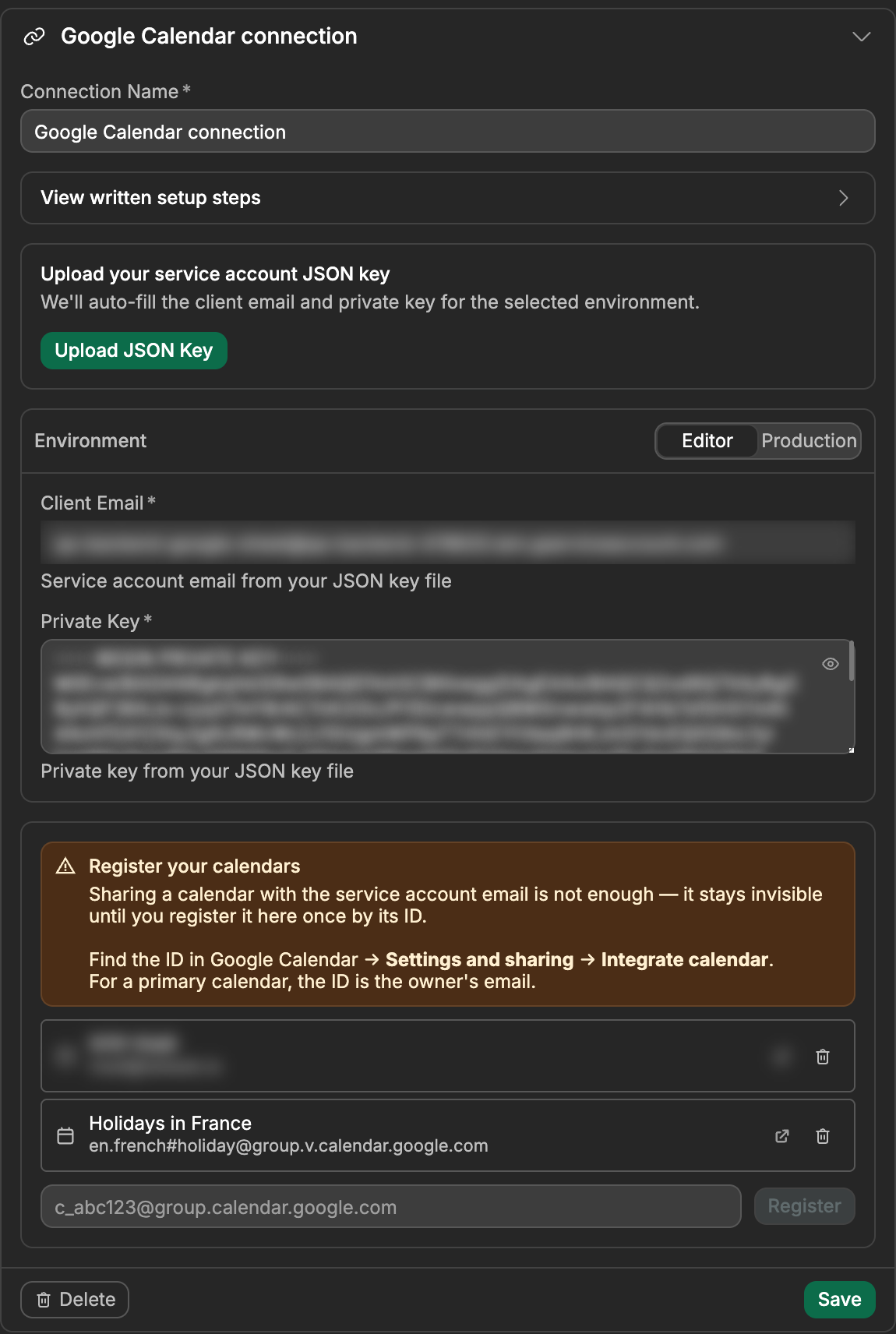
Google Calendar authenticates with a service account: a robot Google identity that belongs to your Google Cloud project. You create it once, download its JSON key, share your calendars with its email address the same way you would share with a person, and then register each calendar by its ID.
Sign in to Google Cloud Console.
Create a project or select an existing one.
Enable the Google Calendar API.
Go to
IAM & Admin→Service Accountsand clickCreate service account.Name the service account and click
Create and continue.Skip role assignment and click
Done.Open the service account menu (three dots) →
Manage keys→Add key→Create new key→JSON, then download the key file.Copy the service account email from the
Detailstab.In Google Calendar settings, open each calendar you want to use in WeWeb, go to
Settings and sharing→Share with specific people, paste the service account email, pickMake changes to events(needed to create, update or delete events), and clickSend.In WeWeb, open
Data & API→Integrations, selectGoogle Calendar, and clickAdd Connection.Add your credentials for each environment you use (
Editor,Staging,Production):Client Email— from the JSON key (client_email)Private Key— from the JSON key (private_key)
You can also upload the JSON key file in the connection screen to auto-fill these fields.
Stagingonly appears if your plan includes it.Save the connection. Then, for each calendar shared in step 9, copy its ID from Google Calendar (
Settings and sharing→Integrate calendar, for examplec_abc123@group.calendar.google.com), paste it in theRegister your calendarsbox of the connection, and clickRegister.Test in WeWeb by running the
List Calendarsaction: it should return the calendars you registered in step 12.
USE THE SAME JSON KEY IN EVERY ENVIRONMENT
Calendars are shared with, and registered for, one service account. WeWeb always registers calendars with the key of the Editor environment. If Production uses a different key, its service account has no registered calendars and List Calendars comes back empty in your live app. Using the same JSON key everywhere avoids this.
How Google Calendar works with a service account
A few Calendar concepts shape every action on this page.
Share the calendar, then register it
Sharing a calendar with the service account gives it access, but the calendar still doesn't show up anywhere in WeWeb. You also need to register it once by its ID in the connection (step 10 above). After that, it appears in every Calendar dropdown and in List Calendars.
If registering fails with Not Found, either the ID is wrong or the calendar isn't shared with the service account email yet.
To stop using a calendar, click the trash icon next to it (Remove from this connection). This only removes it from the connection: the calendar and its sharing settings stay as they are.
The Calendar dropdown of Create Event, Update Event and Delete Event only lists the calendars the service account can change (shared with Make changes to events). In List Events and Get Event, the other calendars appear with (read-only) after their name.
Calendar IDs
Every calendar has a permanent ID, found in Google Calendar under Settings and sharing → Integrate calendar. A shared calendar has an ID that looks like an email address, such as c_abc123@group.calendar.google.com. A person's main calendar has their email address as its ID.
You can't use primary as a calendar ID. For a service account, it would point to its own private calendar, which nobody can open, so WeWeb refuses it before calling Google. Use a real calendar ID from List Calendars instead.
Dates and times
Event times are a date and a time with a time zone, written like 2026-09-23T10:00:00Z. The Z at the end means UTC. You can also end the value with an offset, such as 2026-09-23T10:00:00+02:00 for Paris in summer.
When you pick a Time Zone (for example Europe/Paris), you can also send a date and time without a time zone, like 2026-09-23T10:00:00: WeWeb reads it as 10:00 in the zone you picked. Without a Time Zone, the value must end with Z or an offset, otherwise it is refused.
In the editor, picking a Time Zone keeps the time you see on screen: 10:00 stays 10:00 in the new zone.
DATES COMING FROM A PAGE
A date picker on a page usually sends its value in UTC, with a Z at the end. That value already fixes the exact moment, so Time Zone only labels the event: 10:00 picked in Paris and sent with America/New_York lands at 04:00 in New York. To book 10:00 in a given zone, send the date and time without the Z together with Time Zone.
Timed and all-day events
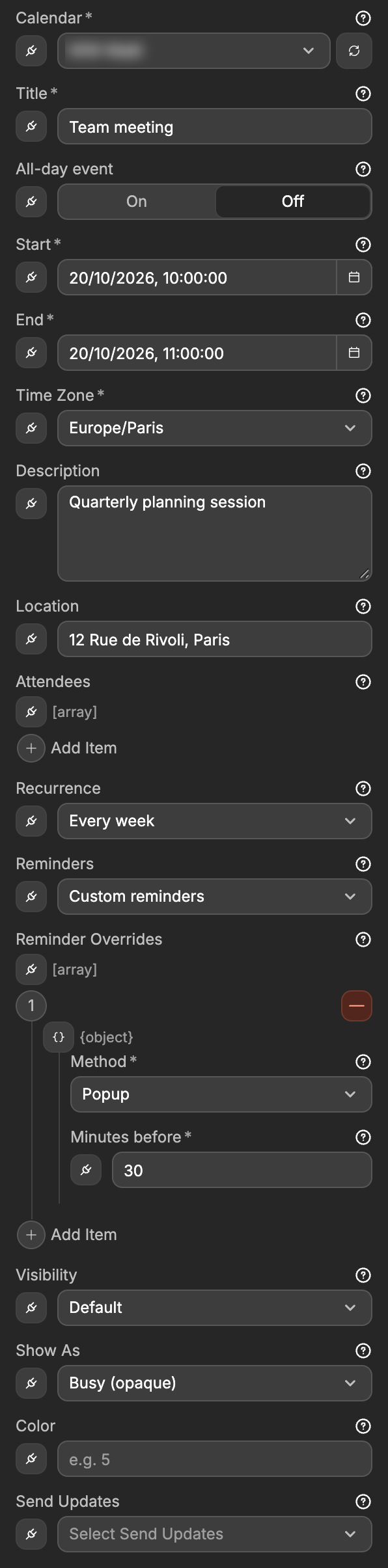
Create Event and Update Event handle both kinds of events with the All-day event toggle:
- Timed events (toggle off, the default):
StartandEndare a date and a time. - All-day events (toggle on):
StartandEndare dates only (2026-09-23), and the time zone doesn't apply.
For an all-day event, End is the day after the last day. A one-day event on 2026-09-23 has End set to 2026-09-24. When you switch All-day event on for an event that starts and ends on the same day, WeWeb moves End to the next day for you.
You can bind All-day event to a value, so one action can create both kinds of events (for example, from a checkbox on your booking form). Make sure the Start and End you bind match it.
Repeating events
Recurrence offers the common choices: Does not repeat, Every day, Every weekday (Mon–Fri), Every week, Every 2 weeks, Every month and Every year, all starting from the start date.
For anything else (specific days, an end date, a number of times), bind a repeat rule written in the standard calendar format (RRULE). For example, RRULE:FREQ=WEEKLY;BYDAY=TU,TH;COUNT=5 repeats every Tuesday and Thursday, 5 times. The RRULE generator builds one for you, and Google's guide to recurring events explains the format.
A repeating timed event needs a Time Zone. The form makes it required as soon as you pick a recurrence.
When List Events returns a repeating event, each occurrence comes back as its own event, with its own id and a recurringEventId that points to the series. Deleting an occurrence's id removes just that day. Deleting the series ID removes every occurrence.
Updating an event
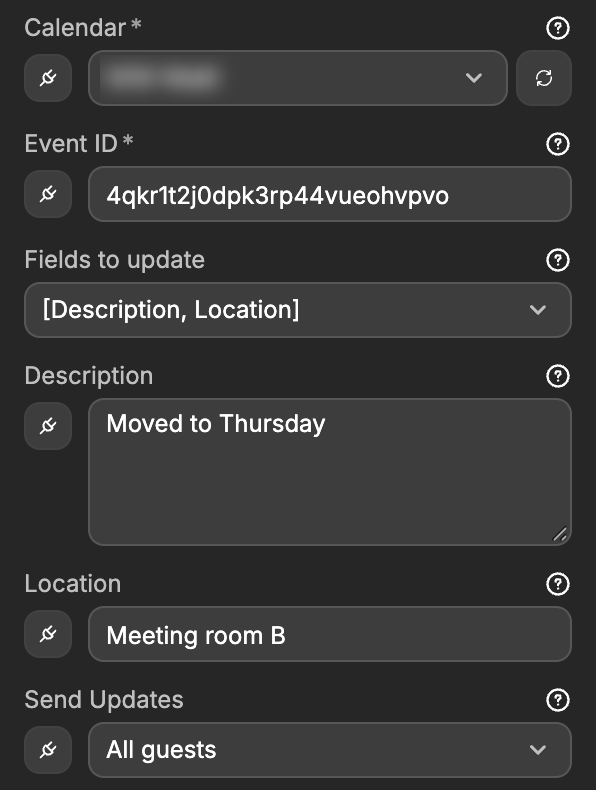
In Update Event, start by choosing what to change in Fields to update, for example Title or Description. Only those fields appear in the form, and only those are changed. Everything else on the event stays as it is.
A field you pick and leave empty is cleared: an empty Description removes the description, an empty Recurrence stops the event from repeating, and empty Reminders go back to the calendar's default reminders. Title can't be cleared, and the time (Start, End, All-day event, Time Zone) is only changed when you fill it in.
You can also use Update Event to:
- Turn a timed event into an all-day event, or the other way round: pick
Time (Start, End, All-day, Time Zone), switchAll-day event, and fillStartandEndin the matching format. - Move an event to another time zone while keeping its time: fill only
Time Zone. 10:00 in Paris becomes 10:00 in Tokyo.
Guests
A service account can't invite guests on its own. Google refuses any event with Attendees (error 403 Service accounts cannot invite attendees without Domain-Wide Delegation of Authority), unless a Google Workspace admin has given the service account Domain-Wide Delegation.
Without it, leave Attendees empty and use the calendar as a schedule rather than an invitation system. Send Updates only matters for events that already have guests, for example guests added by hand in Google Calendar.
Checking a calendar for changes
There is no trigger that runs a workflow when an event is created or changed in Google Calendar. Instead, check the calendar on a schedule:
- Store the time of the last check in a table or a variable.
- In
Data & API→Backend Workflows→Scheduled Tasks, create a task that runsList EventswithUpdated Sincebound to that stored time, andInclude deleted eventsturned on so cancelled events come back too. - Act on the returned events, then save the current time as the new last check.
Don't use Time Min for this: it filters on when events end, not on when they were changed.
Using Google Calendar as a data source for tables
Besides calling Google Calendar actions from workflows, you can use Google Calendar as a data source for tables in WeWeb. A table linked to Google Calendar lists the events of one calendar. That table can be bound to table components (e.g. Data Grid) or fetched from the interface with the Table View: Fetch action.
Add a Google Calendar table
- In WeWeb, go to the
Data & APItab, then open theTablessubtab →Add Table. - Choose Google Calendar as the data source.
- Select your Google Calendar connection.
- Select the
Calendarwhose events fill the table. Only calendars registered in the connection appear here. - Save. The table is now available in your project.
Rows come with these columns: id, summary (the title), description, location, status, start, end, allDay, htmlLink (the link to the event in Google Calendar), organizerEmail, attendeesCount, created, updated and recurringEventId (empty unless the row is an occurrence of a repeating event). Each occurrence of a repeating event is its own row. For an all-day event, end is the day after the last day.
Configure a view
Views define which events the table returns. On the Google Calendar table you added:
- Create or edit a view for that table.
- Open
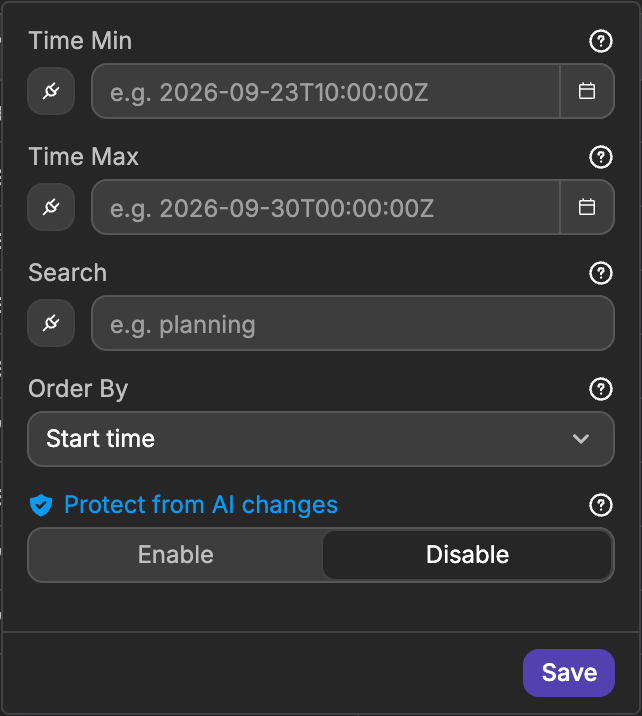
Configurationand set any of these optional fields:- Time Min — Only events that end after this date and time.
- Time Max — Only events that start before this date and time.
- Search — Words to look for in the event title, description, location and guests.
- Order By —
Start timeorLast modified.
The view loads 100 events at a time by default, up to 250. Google only tells WeWeb how to get the next batch, not how to jump to a given page, so use a Load more button rather than numbered pages. When everything is loaded, the load more action returns the error No more data to load.: put it inside a Try/Catch and use the Catch branch to show an end-of-list message.
Use the table in the interface
- Bind a view — In the binding menu, under Table Views, select the view. Bind it to a Data Grid, repeating group, or list.
- Table View: Fetch — In an interface workflow, add the
Table View: Fetchaction, choose your Google Calendar table view, and pass any parameters the view expects.
For the general pattern of tables, views, and fetching data, see Working with data and Table View: Fetch.
Common pitfalls (setup & usage)
A shared calendar doesn't appear in the dropdowns
Sharing alone isn't enough. Register the calendar once by its ID in the connection (Register your calendars), and it appears in every Calendar dropdown and in List Calendars.
A calendar is missing from Create Event
The write actions only list calendars the service account can change. In Google Calendar, share the calendar with Make changes to events instead of a read-only option.
Registering a calendar fails with Not Found
Either the calendar ID is wrong, or the calendar isn't shared with the service account. Check the ID in Settings and sharing → Integrate calendar, and check that the calendar is shared with the exact Client Email of the connection.
Not Found on Get, Update or Delete Event
Google sends the same Not Found error when the calendar ID is wrong and when the event doesn't exist. Run List Calendars to check the calendar first, then the event ID.
Adding guests fails with a 403 error
A service account needs Domain-Wide Delegation to invite guests. See Guests.
An all-day event is refused
For an all-day event, End must be the day after the last day. An event whose End is the same day as Start is refused, and the error tells you which end date to use. This mostly happens with bound values: when you switch All-day event on in the form, WeWeb already moves End to the next day.
A repeating event is refused
A repeating timed event needs a Time Zone, even when Start and End end with Z or an offset. Google's error message blames the time zone, not the repeat rule. If you bind Recurrence, bind Time Zone too.
Order By start time is refused
Sorting by Start time only works while Expand recurring events is on (the default). When you turn it off, only Last modified is offered.
My page gets "Internal Server Error" instead of the real error
When a Google Calendar action fails inside an API endpoint, the endpoint answers with a generic 500 Internal Server Error, and your page never sees the reason. To send the real message to your page:
- Add a
Try/Catchto the endpoint and put the Google Calendar action in theTrybranch. - In the
Catchbranch, add aSend Response. - Bind its data to the error message of the
Try/Catch(caughtError.message), and its status code to Google's own code (caughtError.cause.code), with400as a fallback for errors that WeWeb catches itself.
All Actions
Six actions: one for calendars, five for events. Each action name links to its details below.
| Action | Description |
|---|---|
| List Calendars | List the calendars registered in the connection, with the ID the other actions need. |
| List Events | List the events of a calendar, filtered by dates, last change or search words. |
| Get Event | Get one event by its ID. |
| Create Event | Create a timed, all-day or repeating event. |
| Update Event | Change or clear the fields you pick on an event. |
| Delete Event | Delete an event, one occurrence of a repeating event, or a whole series. |
Action details
List Calendars
List the calendars registered in the connection, including the ID that the other actions and the events table need.
This action takes no inputs.
Example output
json
{
  "calendars": [
    {
      "id": "c_abc123@group.calendar.google.com",
      "summary": "Bookings",
      "timeZone": "Europe/Paris",
      "accessRole": "writer"
    }
  ]
}
accessRole is writer or owner when the service account can change the calendar, and reader when it can only see it.
Documentation of API endpoint that powers action: Google Calendar API – CalendarList: list (GET /users/me/calendarList)
List Events
List the events of a calendar. All matching events are returned at once, up to Max Results.
Inputs
| Display Key | Example Input | Description | Restrictions |
|---|---|---|---|
Calendar | c_abc123@group.calendar.google.com | Calendar to list events from. A binding takes a calendar ID. | Required |
Time MinOptional | 2026-09-23T10:00:00Z | Only events that end after this date and time. | Date and time ending with Z or an offset. A date alone is refused |
Time MaxOptional | 2026-09-30T00:00:00Z | Only events that start before this date and time. | Date and time ending with Z or an offset |
Updated SinceOptional | 2026-09-23T10:00:00Z | Only events created, changed or cancelled after this date and time. Use it to check a calendar for changes on a schedule. | Date and time ending with Z or an offset |
SearchOptional | planning | Words to look for in the event title, description, location and guests. | Text |
Expand recurring eventsOptional | true | Return each occurrence of a repeating event separately. Turn it off to get each series once. | Default true |
Order ByOptional | startTime | Sort order. Empty keeps Google's order. | Valid: Start time (startTime, only while Expand recurring events is on), Last modified (updated) |
Max ResultsOptional | 250 | Maximum number of events to return. | Whole number of at least 1. Default 250 |
Include deleted eventsOptional | false | Also return cancelled events, with status set to cancelled. | Default false |
Time ZoneOptional | Europe/Paris | Time zone used for the event times in the result. | Time zone name from the list. Default: the calendar's time zone |
Event TypesOptional | ["default"] | Only return these kinds of events. Empty returns all of them. | Valid: Default (default), Birthday (birthday), Focus time (focusTime), From Gmail (fromGmail), Out of office (outOfOffice), Working location (workingLocation) |
Example output
json
{
  "events": [
    {
      "id": "4qkr1t2j0dpk3rp44vueohvpvo_20260923T080000Z",
      "status": "confirmed",
      "summary": "Team meeting",
      "start": { "dateTime": "2026-09-23T10:00:00+02:00", "timeZone": "Europe/Paris" },
      "end": { "dateTime": "2026-09-23T11:00:00+02:00", "timeZone": "Europe/Paris" },
      "htmlLink": "https://www.google.com/calendar/event?eid=NHFrcjF0...",
      "recurringEventId": "4qkr1t2j0dpk3rp44vueohvpvo",
      "updated": "2026-09-01T09:00:00.000Z",
      "eventType": "default"
    }
  ],
  "count": 1
}
Timed events have start.dateTime and end.dateTime. All-day events have start.date and end.date instead.
Documentation of API endpoint that powers action: Google Calendar API – Events: list (GET /calendars/{calendarId}/events)
Get Event
Get one event of a calendar by its ID.
Inputs
| Display Key | Example Input | Description | Restrictions |
|---|---|---|---|
Calendar | c_abc123@group.calendar.google.com | Calendar the event belongs to. | Required |
Event ID | 4qkr1t2j0dpk3rp44vueohvpvo | ID of the event, as returned by List Events, Create Event or the events table. | Required |
Time ZoneOptional | Europe/Paris | Time zone used for the event times in the result. | Time zone name from the list. Default: the calendar's time zone |
Example output
json
{
  "id": "4qkr1t2j0dpk3rp44vueohvpvo",
  "status": "confirmed",
  "summary": "Team meeting",
  "description": "Quarterly planning session",
  "location": "12 Rue de Rivoli, Paris",
  "start": { "dateTime": "2026-09-23T10:00:00+02:00", "timeZone": "Europe/Paris" },
  "end": { "dateTime": "2026-09-23T11:00:00+02:00", "timeZone": "Europe/Paris" },
  "recurrence": ["RRULE:FREQ=WEEKLY"],
  "reminders": { "useDefault": true },
  "htmlLink": "https://www.google.com/calendar/event?eid=NHFrcjF0...",
  "created": "2026-09-01T09:00:00.000Z",
  "updated": "2026-09-01T09:00:00.000Z",
  "eventType": "default"
}
Documentation of API endpoint that powers action: Google Calendar API – Events: get (GET /calendars/{calendarId}/events/{eventId})
Create Event
Create an event on a calendar the service account can change.
Inputs
| Display Key | Example Input | Description | Restrictions |
|---|---|---|---|
Calendar | c_abc123@group.calendar.google.com | Calendar to create the event on. Only calendars shared with Make changes to events are listed. | Required. primary is refused |
Title | Team meeting | Title of the event. | Required. A title made only of spaces is refused |
Start | 2026-09-23T10:00:00Z | Start of the event: a date and time, or a date when All-day event is on. | Required. See Dates and times |
End | 2026-09-23T11:00:00Z | End of the event. For an all-day event, the day after the last day. | Required. Must be after Start |
All-day eventOptional | false | Turn on for an all-day event: Start and End then take dates only, like 2026-09-23. | Default false |
Time ZoneOptional | Europe/Paris | Time zone of Start and End. Empty uses the calendar's time zone. Hidden for all-day events. | Time zone name from the list. Required when Recurrence is set |
DescriptionOptional | Quarterly planning session | Description of the event. It can contain basic HTML. | Text |
LocationOptional | 12 Rue de Rivoli, Paris | Where the event takes place. | Text |
AttendeesOptional | [{"email":"guest@example.com"}] | Guests to invite, each with an Email. | Needs Domain-Wide Delegation (Google Workspace), otherwise Google returns a 403 error. See Guests |
RecurrenceOptional | RRULE:FREQ=WEEKLY | How often the event repeats, starting from the start date. | Valid: Does not repeat, Every day, Every weekday (Mon–Fri), Every week, Every 2 weeks, Every month, Every year. A binding takes any RRULE |
RemindersOptional | custom | Which reminders the event uses. Empty uses the calendar's default reminders. | Valid: Custom reminders (custom), No reminders (none) |
Reminder OverridesOptional | [{"method":"popup","minutes":30}] | Your own reminders. Appears when Reminders is Custom reminders. | Max 5. See structure below |
VisibilityOptional | private | Who can see the event details. | Valid: Default (default, the calendar's setting), Public (public), Private (private) |
Show AsOptional | opaque | Whether the event blocks time on the calendar. | Valid: Busy (opaque), Free (transparent) |
ColorOptional | 5 | Color of the event, from Google's event color list. | 1 to 11 |
Send UpdatesOptional | all | Whether Google emails the guests about the event. Empty sends no email. | Valid: All guests (all), External guests only (externalOnly), None (none) |
Reminder Overrides structure
| Field | Example input | Description | Restrictions |
|---|---|---|---|
Method | popup | How the reminder is sent. | Valid: Popup (popup), Email (email) |
Minutes before | 30 | How many minutes before the event starts the reminder is sent. | 0 to 40320 (4 weeks) |
Example output
json
{
  "id": "4qkr1t2j0dpk3rp44vueohvpvo",
  "status": "confirmed",
  "summary": "Team meeting",
  "start": { "dateTime": "2026-09-23T10:00:00+02:00", "timeZone": "Europe/Paris" },
  "end": { "dateTime": "2026-09-23T11:00:00+02:00", "timeZone": "Europe/Paris" },
  "htmlLink": "https://www.google.com/calendar/event?eid=NHFrcjF0...",
  "creator": { "email": "my-service-account@my-project.iam.gserviceaccount.com" },
  "reminders": { "useDefault": true },
  "created": "2026-09-01T09:00:00.000Z",
  "updated": "2026-09-01T09:00:00.000Z",
  "eventType": "default"
}
Keep the returned id: Get Event, Update Event and Delete Event take it as Event ID.
Documentation of API endpoint that powers action: Google Calendar API – Events: insert (POST /calendars/{calendarId}/events)
Update Event
Change or clear the fields you pick in Fields to update. Fields you don't pick keep their current value.
Inputs
| Display Key | Example Input | Description | Restrictions |
|---|---|---|---|
Calendar | c_abc123@group.calendar.google.com | Calendar the event belongs to. Only calendars shared with Make changes to events are listed. | Required |
Event ID | 4qkr1t2j0dpk3rp44vueohvpvo | ID of the event to update. | Required |
Fields to updateOptional | ["summary","description"] | What to change on the event. The matching fields appear once picked. A picked field left empty is cleared. | Valid: Title, Time (Start, End, All-day, Time Zone), Description, Location, Attendees, Recurrence, Reminders, Color, Visibility, Show As |
TitleOptional | Team meeting (moved) | New title. | Can't be cleared. A title made only of spaces is refused |
All-day eventOptional | false | Switch it, with matching Start and End, to turn a timed event into an all-day event or the other way round. | Default false |
StartOptional | 2026-09-24T10:00:00Z | New start. | Same formats as Create Event |
EndOptional | 2026-09-24T11:00:00Z | New end. | Must be after Start |
Time ZoneOptional | Asia/Tokyo | Time zone of Start and End. Filled alone, it moves the event to that zone and keeps its time. | Time zone name from the list. Refused on an all-day event |
DescriptionOptional | Moved to Thursday | New description. Empty clears it. | Text |
LocationOptional | Meeting room B | New location. Empty clears it. | Text |
AttendeesOptional | [{"email":"guest@example.com"}] | Guests, each with an Email. | Needs Domain-Wide Delegation. See Guests |
RecurrenceOptional | RRULE:FREQ=WEEKLY | New repeat rule. Empty stops the event from repeating. | Same choices as Create Event |
RemindersOptional | none | Which reminders the event uses. Empty goes back to the calendar's default reminders. | Valid: Custom reminders (custom), No reminders (none) |
Reminder OverridesOptional | [{"method":"email","minutes":60}] | Your own reminders, when Reminders is Custom reminders. | Max 5 |
VisibilityOptional | private | Who can see the event details. | Valid: Default, Public, Private |
Show AsOptional | transparent | Whether the event blocks time. | Valid: Busy (opaque), Free (transparent) |
ColorOptional | 5 | Color of the event. | 1 to 11 |
Send UpdatesOptional | all | Whether Google emails the guests about the change. Empty sends no email. | Valid: All guests, External guests only, None |
Example output
json
{
  "id": "4qkr1t2j0dpk3rp44vueohvpvo",
  "status": "confirmed",
  "summary": "Team meeting (moved)",
  "start": { "dateTime": "2026-09-24T10:00:00+02:00", "timeZone": "Europe/Paris" },
  "end": { "dateTime": "2026-09-24T11:00:00+02:00", "timeZone": "Europe/Paris" },
  "htmlLink": "https://www.google.com/calendar/event?eid=NHFrcjF0...",
  "updated": "2026-09-02T08:00:00.000Z",
  "eventType": "default"
}
Documentation of API endpoint that powers action: Google Calendar API – Events: patch (PATCH /calendars/{calendarId}/events/{eventId})
Delete Event
Delete an event. Use an occurrence's own id to delete one day of a repeating event, or the series ID to delete every occurrence.
Inputs
| Display Key | Example Input | Description | Restrictions |
|---|---|---|---|
Calendar | c_abc123@group.calendar.google.com | Calendar the event belongs to. Only calendars shared with Make changes to events are listed. | Required |
Event ID | 4qkr1t2j0dpk3rp44vueohvpvo | ID of the event, or of one occurrence, to delete. | Required |
Send UpdatesOptional | all | Whether Google emails the guests about the cancellation. Empty sends no email. | Valid: All guests, External guests only, None |
Example output
json
{ "success": true }Documentation of API endpoint that powers action: Google Calendar API – Events: delete (DELETE /calendars/{calendarId}/events/{eventId})
Error handling
Errors come from two places, and they read differently:
- WeWeb checks some values before calling Google, and explains what to fix when one is wrong: a missing
Client EmailorPrivate Key,primaryas a calendar ID, a date or time in the wrong format or without a time zone, an all-dayEndthat isn't afterStart, a title made only of spaces,Titlepicked inFields to updatebut left empty, an unknownRemindersvalue, aMax Resultsthat isn't a whole number, aTime Zoneon an all-day event, or a table with no calendar. - Errors from Google stop the workflow, and the workflow logs show Google's own message, such as
Not Found. Inside an API endpoint, the caller only gets500 Internal Server Errorunless you return the error yourself (see the pitfall above).
| Error code and type | Reason |
|---|---|
| 400 Bad Request | Order By set to start time while Expand recurring events is off, an invalid repeat rule, or a repeating timed event without a time zone (the message blames the time zone). |
| 401 Unauthorized | Invalid or malformed service account credentials (Client Email / Private Key mismatch). |
| 403 Forbidden | The Google Calendar API isn't enabled in the Google Cloud project, the calendar is shared read-only (You need to have writer access to this calendar), or the event has guests and the service account has no Domain-Wide Delegation. |
| 404 Not Found | The calendar ID is wrong or not shared with the service account, or the event doesn't exist. Check the calendar first. |
| 429 Too Many Requests | Calendar API rate limit reached; reduce concurrency and retry with backoff. |
| 500 Internal Server Error | Google-side error; retry with backoff. |
FAQs
Where do I find the calendar ID?
In Google Calendar, open Settings and sharing → Integrate calendar → Calendar ID. A shared calendar's ID looks like c_abc123@group.calendar.google.com. A person's main calendar has their email address as its ID. Once the calendar is registered, List Calendars also returns it.
Why doesn't my calendar appear after I shared it?
Sharing gives access but doesn't make the calendar appear in WeWeb. Register it once by its ID in the connection (Register your calendars). It then appears in every Calendar dropdown and in List Calendars.
Can I use primary as the calendar ID?
No. For a service account, primary points to its own private calendar, which nobody can open, so WeWeb refuses it. Use a real calendar ID from List Calendars.
How do I make an event repeat on specific days?
Bind Recurrence to a repeat rule. For example, RRULE:FREQ=WEEKLY;BYDAY=MO,WE,FR;UNTIL=20261231 repeats every Monday, Wednesday and Friday until the end of 2026. The RRULE generator builds one for you. A repeating timed event also needs a Time Zone.
Can I invite guests?
Only if a Google Workspace admin has given the service account Domain-Wide Delegation. Without it, Google refuses any event with Attendees. See Guests.
How do I run a workflow when an event is created or changed?
There is no trigger for this. Create a scheduled task that runs List Events with Updated Since bound to the time of the last check and Include deleted events turned on. See Checking a calendar for changes.
How do I remove the description of an event?
In Update Event, pick Description in Fields to update and leave the field empty. The same works for the location, the guests, the repeat rule and the other fields, except the title.
How do I delete one occurrence of a repeating event?
Run List Events with Expand recurring events on (the default). Each occurrence has its own id: pass it to Delete Event to remove only that day. Passing the series ID (recurringEventId) removes every occurrence.
CONTINUE LEARNING
Google Calendar is one of several Google services you can connect with the same kind of service account. See how Google Sheets works as a data source for tables.