

Appearance
Xano Realtime
Realtime lets your app update by itself when something happens. For example, a new message appears in a chat as soon as someone sends it, without the user reloading the page.
WeWeb doesn't have a built-in Xano Realtime workflow action yet. However, you can add Xano Realtime to your WeWeb app by pasting a small code snippet into a Custom JavaScript action. No JavaScript knowledge is required. Each recipe on this page shows you exactly what to copy, where to paste it, and which values to customize.
This page has two recipes:
- Send messages between users: users on the same page see each other's messages instantly. Start here.
- Show how many people are online: show a live count of the users who have the page open.
These recipes use the current Xano Realtime, with realtime servers and channels. If your project still uses the legacy Realtime of your workspace settings, see Legacy Xano Realtime.
Send messages between users
In this recipe, users who have the same page open see each other's messages as soon as they're sent.
Step 1: set up the channel in Xano
In Xano, open Realtime and make sure it's enabled for your workspace. Then:
- Create a realtime server, or open an existing one. Copy its connection address. It has this format:
wss://<your Xano domain>/ws/<server canonical>, where the server canonical is the code Xano gives the server (not its name). - Add a channel with these settings:
Path template:chat.Who may publish: The option that lets clients send messages.Channel active: Checked.Allow anonymous clients: Checked if users don't need to be signed in.Enable transcript(Optional): checked if users who join should also receive the latest messages.
- In the channel, add a message named
send, withDeliver toset toChannel (broadcast, default).
Your app sends its messages to this send message, and Xano delivers them to everyone in the channel. If you name it differently, use that name in step 5.
Learn more about realtime channels in the Xano docs →
Step 2: create a variable to store the messages
- In the left panel of the
Interfacetab, open theVariablestab. - Create a variable of type
Array, namedchat_messages, with[]as its default value.
Step 3: find the id of the variable
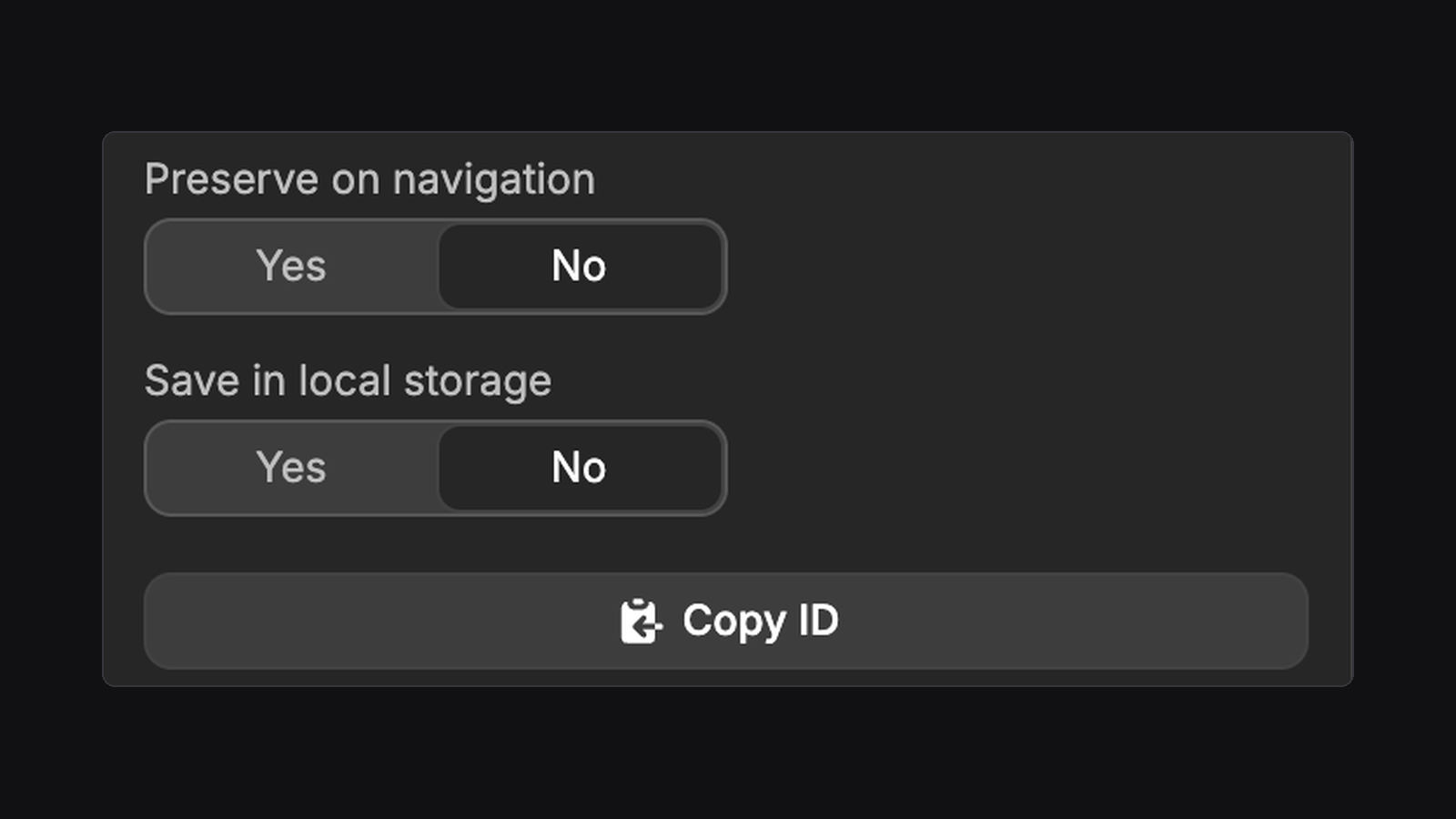
The code needs the id of your variable, a unique code that WeWeb gives it.
- Turn on Show dev information.
- In the
Variablestab, clickchat_messages. - At the bottom of the variable settings, click
Copy ID.
Step 4: join the channel when the page opens
- In the left panel, open the
Workflowstab, thenPage Triggers. - Create a workflow with the
On page loadtrigger. - Add a
Custom JavaScriptaction, clickEdit code, and paste this code. - Replace
PASTE-YOUR-SERVER-ADDRESS-HEREwith the address you copied in step 1, andPASTE-THE-VARIABLE-ID-HEREwith the id you copied in step 3. Keep the quotes around them.
js
// 1. The address of your Xano realtime server
const SERVER_URL = 'PASTE-YOUR-SERVER-ADDRESS-HERE';
// 2. The name of your channel
const CHANNEL_NAME = 'chat';
// 3. The id of your chat_messages variable
const VARIABLE_ID = 'PASTE-THE-VARIABLE-ID-HERE';

// Nothing to change below this line
if (window.xanoRealtime) return;
const socket = new WebSocket(SERVER_URL);
window.xanoRealtime = socket;

socket.addEventListener('open', () => {
  socket.send(JSON.stringify({ action: 'join', channel: CHANNEL_NAME }));
});

socket.addEventListener('message', event => {
  const data = JSON.parse(event.data);
  if (data.channel !== CHANNEL_NAME || data.action !== 'message') return;
  const messages = wwLib.wwVariable.getValue(VARIABLE_ID) || [];
  wwLib.wwVariable.updateValue(VARIABLE_ID, [...messages, data.payload]);
});
Step 5: send a message
- Add an
Inputand aSendbutton to your page. - On the button, create a workflow with the
On clicktrigger, add aCustom JavaScriptaction, and paste this code. - Replace
'Hello!'with the value of your input: delete'Hello!', then open thePagetab below the code editor (the(x)icon) and click thevalueof your input.
js
// 1. The text to send (replace with the value of your input)
const TEXT = 'Hello!';
// 2. The name of your channel
const CHANNEL_NAME = 'chat';
// 3. The name of the message you added to your channel in Xano
const MESSAGE_TYPE = 'send';

// Nothing to change below this line
window.xanoRealtime.send(JSON.stringify({
  action: 'broadcast',
  channel: CHANNEL_NAME,
  type: MESSAGE_TYPE,
  payload: { text: TEXT },
}));
Step 6: leave the channel when the user leaves the page
- In
Page Triggers, create a workflow with theOn page unloadtrigger. - Add a
Custom JavaScriptaction and paste this code.
js
// Nothing to change in this code
if (window.xanoRealtime) {
  window.xanoRealtime.close();
  window.xanoRealtime = null;
}
Step 7: show the messages and test
- Add a list to your page (for example a
Divwith a repeat) and bind it to thechat_messagesvariable. - Inside the list, bind a text to the content of the message. Each message contains what your Xano message returns. In our example, the text is in
value. To check yours, open thechat_messagesvariable after sending a message and look at itsCurrent value. - Open the page in two browser windows, send a message from one: it appears in both.
If you checked Enable transcript, a user who joins the channel also receives the latest messages, up to the Limit you set, for the TTL you set.
Show how many people are online
In this recipe, the page shows how many users have it open right now. The count updates by itself when someone arrives or leaves, even if they close their browser without leaving the page.
This recipe builds on the previous one, and uses the same connection to Xano.
- In Xano, open your
chatchannel and checkTrack presence. - In WeWeb, create a variable of type
Number, namedonline_count, with0as its default value. Copy its id (see step 3 above). - In your
On page loadworkflow, replace the code of step 4 with this version. Fill in the address, and the ids ofchat_messagesandonline_count.
js
// 1. The address of your Xano realtime server
const SERVER_URL = 'PASTE-YOUR-SERVER-ADDRESS-HERE';
// 2. The name of your channel
const CHANNEL_NAME = 'chat';
// 3. The id of your chat_messages variable
const MESSAGES_VARIABLE_ID = 'PASTE-THE-CHAT-MESSAGES-ID-HERE';
// 4. The id of your online_count variable
const ONLINE_VARIABLE_ID = 'PASTE-THE-ONLINE-COUNT-ID-HERE';

// Nothing to change below this line
if (window.xanoRealtime) return;
const socket = new WebSocket(SERVER_URL);
window.xanoRealtime = socket;

socket.addEventListener('open', () => {
  socket.send(JSON.stringify({ action: 'join', channel: CHANNEL_NAME }));
});

socket.addEventListener('message', event => {
  const data = JSON.parse(event.data);
  if (data.channel !== CHANNEL_NAME) return;
  const online = wwLib.wwVariable.getValue(ONLINE_VARIABLE_ID) || 0;

  if (data.action === 'message') {
    const messages = wwLib.wwVariable.getValue(MESSAGES_VARIABLE_ID) || [];
    wwLib.wwVariable.updateValue(MESSAGES_VARIABLE_ID, [...messages, data.payload]);
  }
  if (data.action === 'presence_full') wwLib.wwVariable.updateValue(ONLINE_VARIABLE_ID, data.payload.members.length + 1);
  if (data.action === 'presence_join') wwLib.wwVariable.updateValue(ONLINE_VARIABLE_ID, online + 1);
  if (data.action === 'presence_leave') wwLib.wwVariable.updateValue(ONLINE_VARIABLE_ID, online - 1);
});- Add a text to your page and bind it to
online_count, for exampleonline_count + ' online'. - Open the page in two browser windows: both show
2 online. Close one, and the other goes back to1 online.
A COUNT, NOT A LIST OF NAMES
With anonymous clients, Xano gives every user the same id, so this recipe counts users rather than listing them. To show who is online by name, your channel needs signed-in users: turn off Allow anonymous clients in Xano, then send the user's Xano token when you open the connection, as described in the Xano docs →
Legacy Xano Realtime
If your project still uses the legacy Realtime, the one you enable in the Realtime panel of your workspace settings, it uses a different address and a realtime canonical (previously called connection hash). For new projects, Xano recommends the current Realtime described above.
You can connect to the legacy Realtime through the Xano client of your WeWeb connection:
js
// 1. The id of your Xano connection
const CONNECTION_ID = 'PASTE-THE-CONNECTION-ID-HERE';
// 2. The realtime canonical of your workspace (Realtime settings in Xano)
const REALTIME_CANONICAL = 'PASTE-THE-CANONICAL-HERE';
// 3. The name of your channel, exactly as in Xano
const CHANNEL_NAME = 'Chat';
// 4. The id of your chat_messages variable
const VARIABLE_ID = 'PASTE-THE-VARIABLE-ID-HERE';

// Nothing to change below this line
const xano = integrations[CONNECTION_ID];
xano.config.realtimeConnectionHash = REALTIME_CANONICAL;
const channel = xano.channel(CHANNEL_NAME);
window.xanoLegacyChannel = channel;

channel.on(event => {
  if (event.action !== 'message') return;
  const messages = wwLib.wwVariable.getValue(VARIABLE_ID) || [];
  wwLib.wwVariable.updateValue(VARIABLE_ID, [...messages, event.payload]);
});
To send a message, use window.xanoLegacyChannel.message({ text: 'Hello!' }). To leave the channel, use window.xanoLegacyChannel.destroy().
To get the id of your connection, open the Integrations tab below the code editor and click your connection under Instances: WeWeb inserts it in the code as integrations['…']. Copy the id between the quotes into CONNECTION_ID.
THIS RELIES ON AN INTERNAL SETTING
The Xano connection in WeWeb has no setting for the realtime canonical, so this code sets it on the Xano client directly. A future update of WeWeb or of the Xano client can stop it from working. Prefer the current Xano Realtime for new projects.
If nothing shows up
Workspace realtime is disabled: Realtime isn't enabled for your workspace in Xano. Enable it, then reload the page.Unknown message type: TheMESSAGE_TYPEin the code of step 5 doesn't match the name of a message on your channel in Xano. Names are case-sensitive.No settings for channel name(Legacy Realtime): the channel name in the code doesn't match the one in Xano exactly.Chatandchatare two different channels.- The messages appear, but their text is empty: your list reads a field that your Xano message doesn't return. Open the
chat_messagesvariable and check the field names in itsCurrent value. - Messages stop arriving after a while: the connection closed, for example after a network issue. It doesn't reopen by itself: reload the page to join the channel again.
CONTINUE LEARNING
Something else doesn't work as expected? Check the most common Xano errors and how to fix them.