

Appearance
Twilio integration
Twilio is a platform for sending text messages, making phone calls and verifying phone numbers. This integration lets your WeWeb backend send SMS, MMS and WhatsApp messages, start and control voice calls, send one-time verification codes (two-factor authentication) and check them, and show your message and call history in a table.
It is a good fit when your app needs to reach people on their phone: an order update by SMS, a reminder call, or a code to confirm that a phone number really belongs to the person signing up.
Use cases
- Send an SMS when an order ships or an appointment is confirmed.
- Send a one-time code to a user's phone and check the code they type in, to verify their number or add a second sign-in step.
- Send a WhatsApp message with the same action as an SMS.
- Call a customer and play a recorded or spoken message.
- Show the messages or calls of your Twilio account in a Data Grid, through a table.
Setup
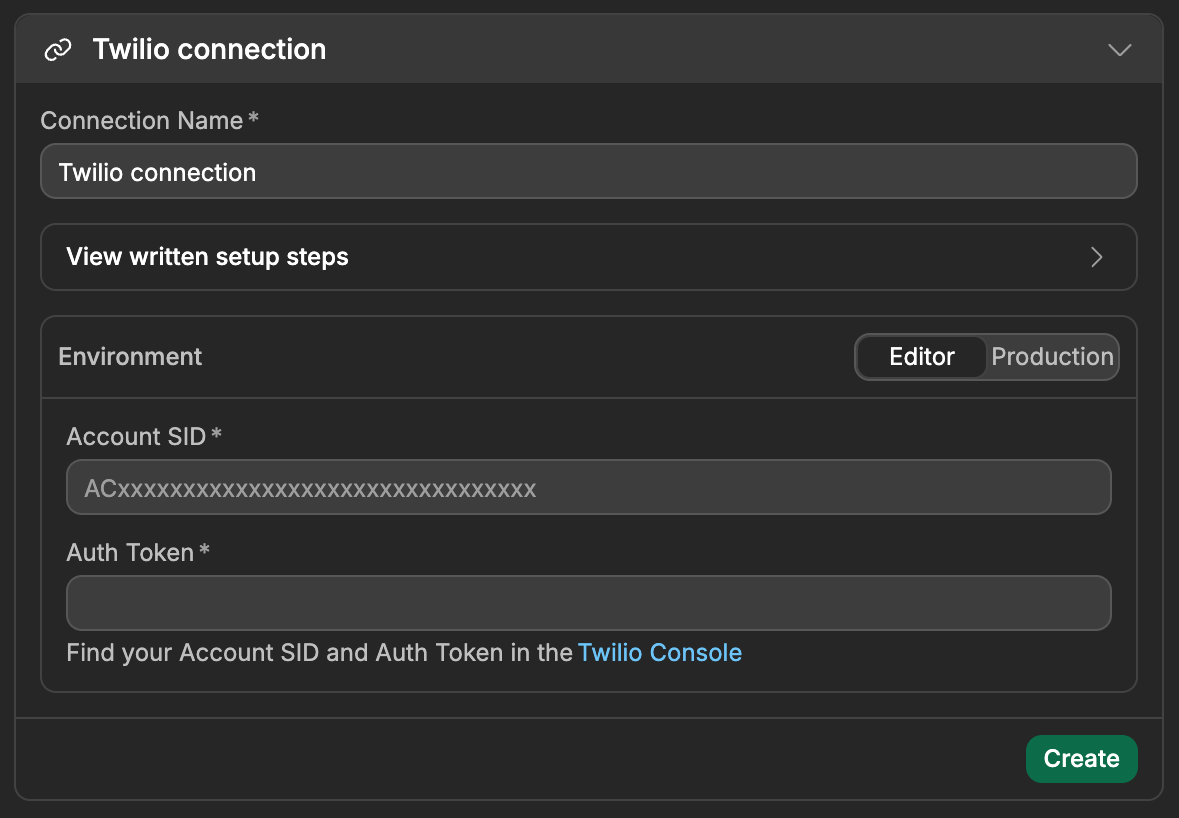
Twilio connects with two values from your Twilio account: the Account SID (the ID of your account, starting with AC) and the Auth Token (its password).
- Sign in to the Twilio Console. On the home page, the
Account Infopanel shows yourAccount SIDandAuth Token. - Copy both values.
- In WeWeb, open
Data & API→Integrations, selectTwilio, and clickAdd Connection. - Paste the
Account SIDand theAuth Tokenfor each environment you use (Editor,Staging,Production).Stagingonly appears if your plan includes it. - Click
Create. - Test the connection: in a backend workflow, add the
Send Messageaction, setToto your own phone number,Fromto your Twilio phone number, andBodyto a short text, then run the workflow. You should receive the SMS within a few seconds. - To send codes with
Start Verification, create a Verify service in the Twilio Console (Verify→Services→Create new). It then appears in theVerify Servicedropdown of the verification actions.
TESTING WITH A TRIAL ACCOUNT
A Twilio trial account can only send messages and make calls to numbers you have verified in the Twilio Console (Phone Numbers → Verified Caller IDs), and every SMS starts with "Sent from your Twilio trial account". Test with your own number first. Upgrade the account to reach anyone else.
USE THE SAME TWILIO ACCOUNT IN EVERY ENVIRONMENT
The Verify Service dropdown is always filled with the credentials of the Editor environment. Your workflows store the ID of the service you picked, and your live app looks for that same service with the Production credentials. If Production points to another Twilio account, the service isn't found there and verifications fail with a 404 error.
How Twilio works with WeWeb
A few Twilio concepts shape every action on this page.
Backend actions only
All Twilio actions run on your WeWeb server, in backend workflows, so your Auth Token never reaches your users' browsers. To send a message from a page, for example when a user clicks a button, create an API endpoint in Data & API that runs the Twilio action, then call that API from your interface.
Phone numbers in E.164 format
Twilio only accepts phone numbers in the international format called E.164: a +, the country code, then the number without spaces, dashes or the leading 0. For example, the French number 06 12 34 56 78 becomes +33612345678, and the US number (555) 123-4567 becomes +15551234567.
A number in any other format is refused with an error. If your users type their number in a form, ask for the country separately or check the format before sending.
Sender numbers and Messaging Services
Messages and calls are sent from a phone number you own in Twilio (Phone Numbers → Manage → Active numbers). For messages, you can send from a Messaging Service instead: a group of numbers that Twilio picks from for you. Its ID starts with MG and is in the Twilio Console under Messaging → Services.
SIDs
Twilio gives everything an ID called a SID, made of two letters and 32 characters. The two letters tell you what it is:
| Starts with | What it is |
|---|---|
AC | Your account |
SM or MM | A message |
CA | A call |
MG | A Messaging Service |
VA | A Verify service |
VE | A verification |
Actions return the SID as sid. Keep it if you want to check a message or a call later with Fetch Message or Fetch Call.
Delivery happens after the action
Send Message returns as soon as Twilio has accepted the message, usually with status set to queued. Twilio then sends it in the background. To know whether it was delivered, run Fetch Message later with the message's sid, or set a Status Callback URL: Twilio calls that URL each time the status changes (queued, sent, delivered, undelivered, failed).
Calls work the same way: Make Call returns with status set to queued, and the call goes through ringing, in-progress and completed.
Sending WhatsApp messages
Send Message also sends WhatsApp messages. Add whatsapp: in front of both numbers: To becomes whatsapp:+15551234567, and From becomes your WhatsApp-enabled Twilio number, like whatsapp:+15557654321.
To try it before your WhatsApp sender is approved, use the Twilio Sandbox for WhatsApp (Messaging → Try it out → Send a WhatsApp message in the Twilio Console): join it from your phone, then send from the sandbox number.
WHATSAPP RULES
WhatsApp only lets businesses send free-form text to people who messaged them in the last 24 hours. Outside that window, WhatsApp requires an approved template, which Twilio handles on its side. See Twilio's WhatsApp documentation for the details.
Verifying phone numbers with one-time codes
Twilio Verify sends a one-time code by SMS, call, email or WhatsApp, and checks the code the user types in. Twilio creates the code, sends it and remembers it: you never store it yourself.
You need a Verify service first. In the Twilio Console, open Verify → Services and click Create new. Its name appears in the messages your users receive.
A verification flow uses two backend workflows (usually two API endpoints):
- Send the code: add
Start Verification, pick yourVerify Service, setToto the user's phone number and choose aChannel(for exampleSMS). The user receives a code. - Check the code: add
Check Verificationwith the sameVerify Serviceand the sameTo, and setCodeto what the user typed. - Add a
True/False splitafterCheck Verification: the code is correct whenstatusisapproved(orvalidistrue).
A WRONG CODE IS NOT AN ERROR
When the user types a wrong code, Check Verification doesn't fail: it returns status set to pending and valid set to false. Always check status or valid before letting the user in.
A code expires after 10 minutes. Once a code has been approved or has expired, checking it again fails with a 404 error: send a new code with Start Verification.
If the Verify Service dropdown is empty, WeWeb shows No Verify services found. Please verify your Account SID and Auth Token, and create a Verify service in the Twilio Console. After you create a service, click the refresh icon next to the dropdown.
Making and controlling calls
Make Call calls a number from one of your Twilio numbers. When the person picks up, Twilio follows instructions written in TwiML, Twilio's language for calls. For example, this TwiML reads a sentence out loud:
xml
<Response><Say>Hello, your order is ready for pickup.</Say></Response>You can give these instructions in two ways, with the Call Instructions option:
- With
TwiML URL, you give the address of a page that returns TwiML. Twilio fetches it when the call is answered.https://demo.twilio.com/docs/voice.xmlis a demo page you can use for a first test. - With
Inline TwiML, you type or bind the TwiML itself in the action.
While a call is live, Update Call can hang it up, cancel it before it is answered, or switch it to new instructions.
Learn more about TwiML in Twilio's documentation →
Using Twilio as a data source for tables
Besides calling Twilio actions from workflows, you can show the messages or calls of your Twilio account in a table. That table can be bound to table components (e.g. Data Grid) or fetched from the interface with the Table View: Fetch action.
Add a Twilio table
- In WeWeb, go to the
Data & APItab, then open theTablessubtab →Add Table. - Choose Twilio as the data source.
- Select your Twilio
Connection. - Select the
Resource:MessagesorCalls. - Give the table a
Name. WeWeb suggestsTwilio MessagesorTwilio Calls. - Click
Continue. The table is now available in your project.
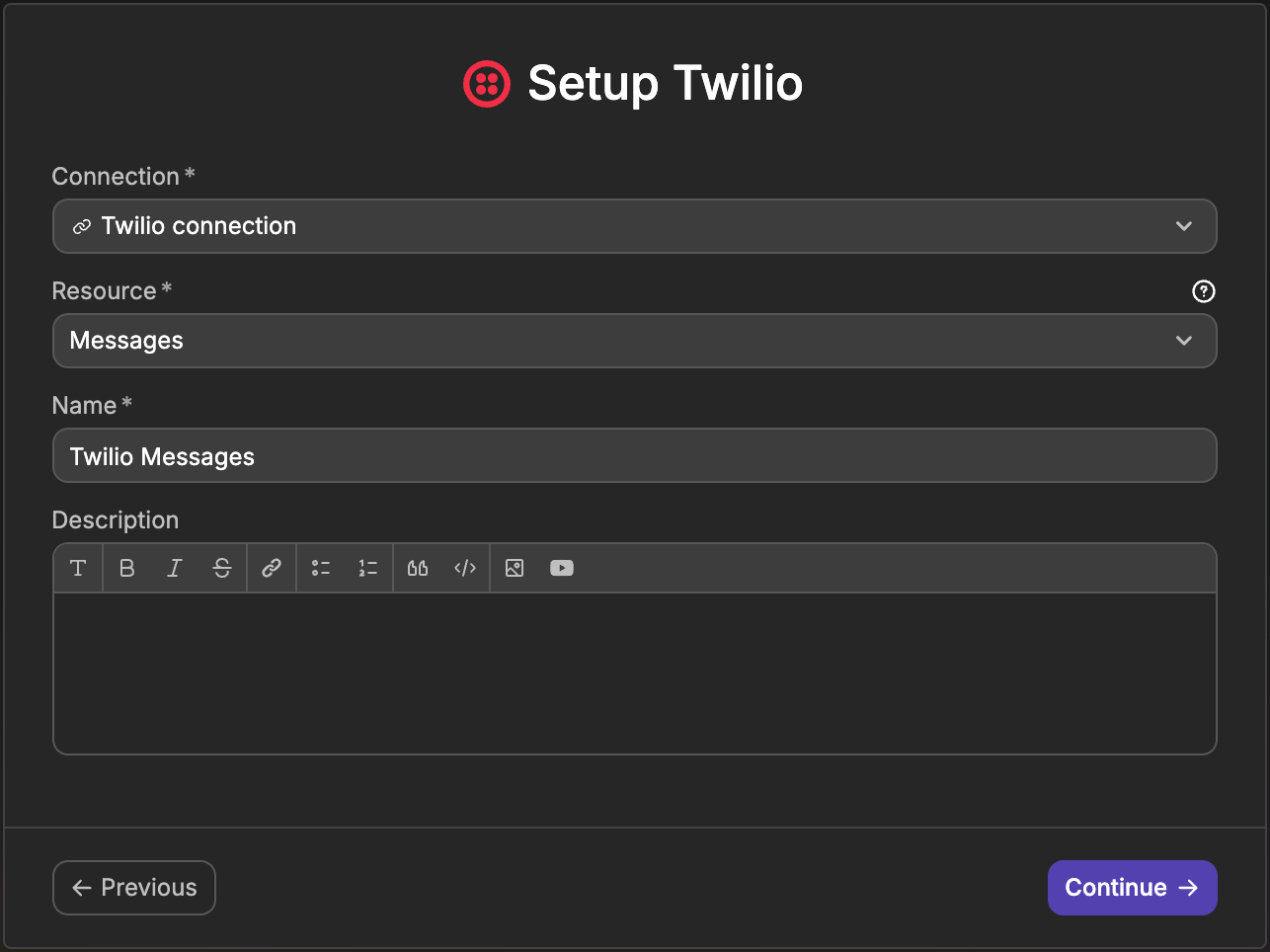
Twilio tables only display data: to send a message or make a call, use the actions. They show the most recent records first, and each row has these columns:
| Resource | Columns |
|---|---|
| Messages | sid, accountSid, from, to, body, status, direction, numSegments, numMedia, price, priceUnit, messagingServiceSid, apiVersion, errorCode, errorMessage, dateSent, dateCreated, dateUpdated, uri, subresourceUris |
| Calls | sid, accountSid, from, to, status, direction, duration, price, priceUnit, startTime, endTime, dateCreated, dateUpdated, answeredBy, forwardedFrom, callerName, uri |
Configure a view
Views define which records the table returns. On the Twilio table you added:
- Create or edit a view for that table.
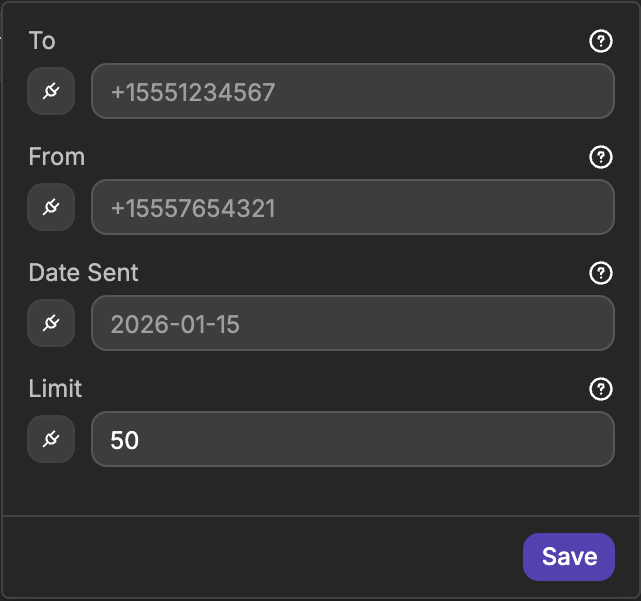
- Open
Configurationand set any of these optional filters:- For messages:
To,FromandDate Sent(a date like2026-01-15). - For calls:
To,From,StatusandStart Time(a date like2026-01-15). - For both:
Limit, the number of records per page, from1to1000(50by default).
- For messages:
- Click
Save.
The Status filter of calls takes one of: Queued, Ringing, In Progress, Completed, Busy, Failed, No Answer, Canceled.
NEW VIEWS ARE PUBLIC
A new view starts as Public: anyone who can open your app can fetch it, and your messages hold your users' phone numbers. Click Public in the view header and switch it to Authenticated, or restrict it further. Learn more about view access →
Twilio only tells WeWeb how to get the next page, so use a Load more button rather than numbered pages. When everything is loaded, the load more action returns the error No more data to load.: put it inside a Try/Catch and use the Catch branch to show an end-of-list message.
Use the table in the interface
- Bind a view: in the binding menu, under Table Views, select the view. Bind it to a Data Grid, repeating group, or list.
- Table View: Fetch: in an interface workflow, add the
Table View: Fetchaction, choose your Twilio table view, and pass any parameters the view expects.
For the general pattern of tables, views, and fetching data, see Working with data and Table View: Fetch.
Common pitfalls (setup & usage)
The message never arrives on a trial account
A trial account can only send to numbers verified in the Twilio Console, and Twilio refuses other numbers with error 21608. Add the number under Phone Numbers → Verified Caller IDs, or upgrade your account.
A phone number is refused
Twilio needs the E.164 format: +, country code, number, no spaces. 0612345678 or +33 6 12 34 56 78 fail with error 21211. See Phone numbers in E.164 format.
The From number is refused
From must be a number you own in Twilio and that can send SMS (or calls, for Make Call). Twilio refuses any other number with error 21606 for messages. Copy it from Phone Numbers → Manage → Active numbers, in E.164 format.
Send Message says "queued" but the person got nothing
queued only means Twilio accepted the message. Run Fetch Message with its sid a little later: status and errorCode tell you why it wasn't delivered (for example undelivered because the carrier blocked it, or because the person replied STOP). The Messaging → Logs page of the Twilio Console shows the same information.
The code is always refused
Check Verification must use the same Verify Service and exactly the same To as Start Verification: +33612345678 and +33 6 12 34 56 78 are two different values. A code is also refused once it is older than 10 minutes or after too many attempts. A refused code returns status set to pending, not an error.
It works in the editor but not in the live app
The Production credentials belong to another Twilio account, which doesn't have the Verify service your workflow uses, or is still a trial account. See the tip above.
Update Call fails
Update Call only works on a call that is still live (queued, ringing or in-progress). Cancel only stops a call that hasn't been answered yet: to end an answered call, use Complete (hang up).
All Actions
Nine actions, grouped like in the action list: messages, calls and verification. Each action name links to its details below.
| Action | Description |
|---|---|
| Send Message | Send an SMS, MMS or WhatsApp message. |
| Fetch Message | Get one message and its delivery status. |
| List Messages | List the messages sent and received by your account. |
| Make Call | Call a phone number and run TwiML instructions. |
| Fetch Call | Get one call, its status and its duration. |
| List Calls | List the calls made and received by your account. |
| Update Call | Hang up, cancel or redirect a live call. |
| Start Verification | Send a one-time code to a phone number or email. |
| Check Verification | Check the code a user typed in. |
Action details
Send Message
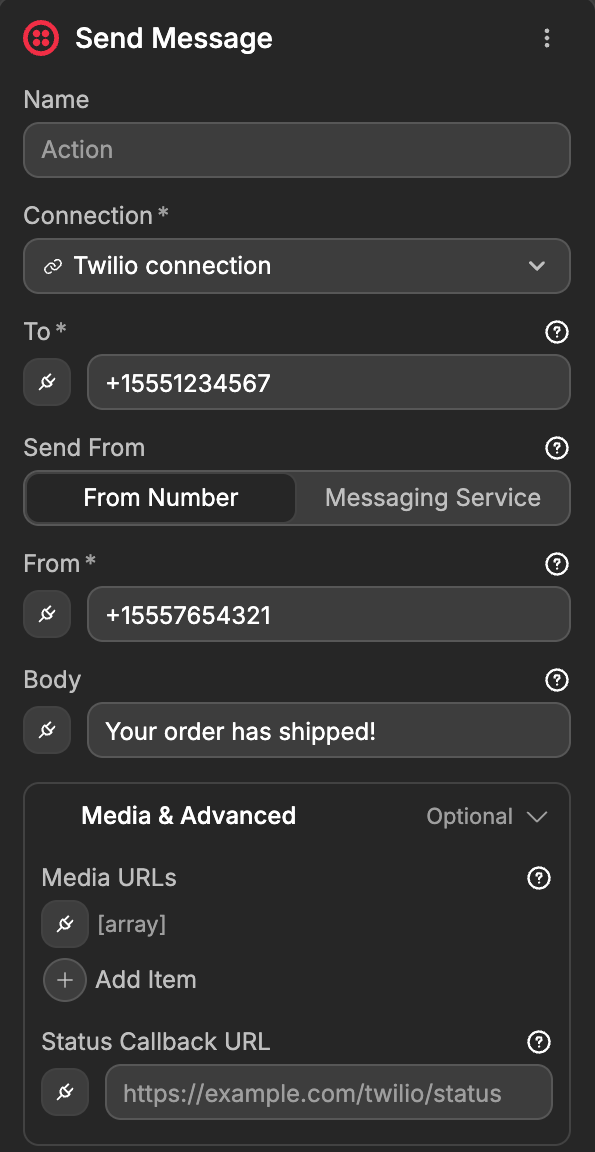
Send an SMS, MMS or WhatsApp message. Choose the sender with Send From: From Number shows the From field, Messaging Service shows Messaging Service SID. You need either a Body or at least one media URL.
Inputs
| Display Key | Example Input | Description | Restrictions |
|---|---|---|---|
To | +15551234567 | Number to send the message to. | Required. E.164 format, or whatsapp:+… for WhatsApp |
From | +15557654321 | Your Twilio number to send from. | Required when Send From is From Number. E.164 format, or whatsapp:+… for WhatsApp |
Messaging Service SID | MGxxxxxxxxxxxxxxxxxxxxxxxxxxxxxxxx | Messaging Service to send from, instead of a number. | Required when Send From is Messaging Service. Starts with MG |
Body | Your order has shipped! | Text of the message. | Required unless Media URLs has at least one URL |
Media URLsOptional | ["https://example.com/image.jpg"] | Public links to images or files to attach, which turns the SMS into an MMS. | List of URLs anyone can open. Under Media & Advanced |
Status Callback URLOptional | https://example.com/twilio/status | URL that Twilio calls each time the delivery status changes. | Under Media & Advanced |
Example output
json
{
  "sid": "SM1f0e8ae6ade43cb3c0ce4525424e404f",
  "accountSid": "ACXXXXXXXXXXXXXXXXXXXXXXXXXXXXXXXX",
  "to": "+15551234567",
  "from": "+15557654321",
  "body": "Your order has shipped!",
  "status": "queued",
  "direction": "outbound-api",
  "numSegments": "1",
  "numMedia": "0",
  "messagingServiceSid": null,
  "errorCode": null,
  "errorMessage": null,
  "price": null,
  "priceUnit": "USD",
  "dateCreated": "2026-10-16T10:00:00.000Z",
  "dateSent": null,
  "dateUpdated": "2026-10-16T10:00:00.000Z"
}
Documentation of API endpoint that powers action: Twilio API – Create a Message (POST /2010-04-01/Accounts/{AccountSid}/Messages.json)
Fetch Message
Get one message, with its current delivery status. Use it after Send Message to check whether the message was delivered.
Inputs
| Display Key | Example Input | Description | Restrictions |
|---|---|---|---|
Message SID | SM1f0e8ae6ade43cb3c0ce4525424e404f | SID of the message, as returned by Send Message or List Messages. | Required. Starts with SM or MM |
Example output
json
{
  "sid": "SM1f0e8ae6ade43cb3c0ce4525424e404f",
  "to": "+15551234567",
  "from": "+15557654321",
  "body": "Your order has shipped!",
  "status": "delivered",
  "direction": "outbound-api",
  "numSegments": "1",
  "errorCode": null,
  "errorMessage": null,
  "price": "-0.00790",
  "priceUnit": "USD",
  "dateCreated": "2026-10-16T10:00:00.000Z",
  "dateSent": "2026-10-16T10:00:01.000Z",
  "dateUpdated": "2026-10-16T10:00:03.000Z"
}
Documentation of API endpoint that powers action: Twilio API – Fetch a Message (GET /2010-04-01/Accounts/{AccountSid}/Messages/{Sid}.json)
List Messages
List the messages sent and received by your account, most recent first. Every filter is optional: with none, you get the latest messages.
Inputs
| Display Key | Example Input | Description | Restrictions |
|---|---|---|---|
ToOptional | +15551234567 | Only messages sent to this number. | E.164 format |
FromOptional | +15557654321 | Only messages sent from this number. | E.164 format |
Date SentOptional | 2026-01-15 | Only messages sent on this date. | YYYY-MM-DD |
LimitOptional | 50 | How many messages to return at most. | Number. Default 50 |
Example output
json
[
  {
    "sid": "SM1f0e8ae6ade43cb3c0ce4525424e404f",
    "to": "+15551234567",
    "from": "+15557654321",
    "body": "Your order has shipped!",
    "status": "delivered",
    "direction": "outbound-api",
    "dateSent": "2026-10-16T10:00:01.000Z"
  },
  {
    "sid": "SM9c2d1e0f3a4b5c6d7e8f9a0b1c2d3e4f",
    "to": "+15557654321",
    "from": "+15551234567",
    "body": "Thanks!",
    "status": "received",
    "direction": "inbound",
    "dateSent": "2026-10-16T10:05:12.000Z"
  }
]
direction tells you who sent the message: inbound for messages your number received, outbound-api for messages sent with Send Message.
Documentation of API endpoint that powers action: Twilio API – Read multiple Messages (GET /2010-04-01/Accounts/{AccountSid}/Messages.json)
Make Call
Call a phone number from one of your Twilio numbers. When the call is answered, Twilio runs the TwiML instructions you give with Call Instructions: TwiML URL shows the TwiML URL field, Inline TwiML shows the Inline TwiML field.
Inputs
| Display Key | Example Input | Description | Restrictions |
|---|---|---|---|
To | +15551234567 | Number to call. | Required. E.164 format |
From | +15557654321 | Your Twilio number to call from. | Required. E.164 format. Must be a number you own in Twilio |
TwiML URL | https://demo.twilio.com/docs/voice.xml | Address of a page that returns the TwiML to run when the call is answered. | Required when Call Instructions is TwiML URL |
Inline TwiML | <Response><Say>Hello from WeWeb</Say></Response> | TwiML to run when the call is answered. | Required when Call Instructions is Inline TwiML |
HTTP MethodOptional | POST | How Twilio requests the TwiML URL. | Valid: POST, GET. Under Advanced |
Status Callback URLOptional | https://example.com/twilio/call-status | URL that Twilio calls when the call ends. | Under Advanced |
Example output
json
{
  "sid": "CAe1644a7eed5088b159577c5802d8be38",
  "accountSid": "ACXXXXXXXXXXXXXXXXXXXXXXXXXXXXXXXX",
  "to": "+15551234567",
  "from": "+15557654321",
  "status": "queued",
  "direction": "outbound-api",
  "duration": null,
  "startTime": null,
  "endTime": null,
  "price": null,
  "priceUnit": "USD",
  "dateCreated": "2026-10-16T10:00:00.000Z"
}
Documentation of API endpoint that powers action: Twilio API – Create a Call (POST /2010-04-01/Accounts/{AccountSid}/Calls.json)
Fetch Call
Get one call, with its current status and, once it has ended, its duration.
Inputs
| Display Key | Example Input | Description | Restrictions |
|---|---|---|---|
Call SID | CAe1644a7eed5088b159577c5802d8be38 | SID of the call, as returned by Make Call or List Calls. | Required. Starts with CA |
Example output
json
{
  "sid": "CAe1644a7eed5088b159577c5802d8be38",
  "to": "+15551234567",
  "from": "+15557654321",
  "status": "completed",
  "direction": "outbound-api",
  "duration": "42",
  "answeredBy": null,
  "price": "-0.01400",
  "priceUnit": "USD",
  "startTime": "2026-10-16T10:00:05.000Z",
  "endTime": "2026-10-16T10:00:47.000Z"
}
duration is in seconds.
Documentation of API endpoint that powers action: Twilio API – Fetch a Call (GET /2010-04-01/Accounts/{AccountSid}/Calls/{Sid}.json)
List Calls
List the calls made and received by your account, most recent first. Every filter is optional: with none, you get the latest calls.
Inputs
| Display Key | Example Input | Description | Restrictions |
|---|---|---|---|
ToOptional | +15551234567 | Only calls to this number. | E.164 format |
FromOptional | +15557654321 | Only calls from this number. | E.164 format |
StatusOptional | Completed | Only calls with this status. | Valid: Queued, Ringing, In Progress, Completed, Busy, Failed, No Answer, Canceled. Can't be bound |
Start TimeOptional | 2026-01-15 | Only calls that started on this date. | YYYY-MM-DD |
LimitOptional | 50 | How many calls to return at most. | Number. Default 50 |
Example output
json
[
  {
    "sid": "CAe1644a7eed5088b159577c5802d8be38",
    "to": "+15551234567",
    "from": "+15557654321",
    "status": "completed",
    "direction": "outbound-api",
    "duration": "42",
    "startTime": "2026-10-16T10:00:05.000Z",
    "endTime": "2026-10-16T10:00:47.000Z"
  }
]
Documentation of API endpoint that powers action: Twilio API – Read multiple Calls (GET /2010-04-01/Accounts/{AccountSid}/Calls.json)
Update Call
Change a call that is still live. Pick what to do in Action:
- Choose
Complete (hang up)to end the call. - Choose
Cancelto stop a call that hasn't been answered yet. - Choose
Redirect to URLto switch the call to the TwiML of another page, set inTwiML URL. - Choose
Redirect to TwiMLto switch the call to the TwiML you set inInline TwiML.
Inputs
| Display Key | Example Input | Description | Restrictions |
|---|---|---|---|
Call SID | CAe1644a7eed5088b159577c5802d8be38 | SID of the live call. | Required. Starts with CA |
Action | Complete (hang up) | What to do with the call. | Valid: Complete (hang up), Cancel, Redirect to URL, Redirect to TwiML. Default Complete (hang up). Can't be bound |
TwiML URL | https://demo.twilio.com/docs/voice.xml | Address of a page that returns the new TwiML. | Required when Action is Redirect to URL |
Inline TwiML | <Response><Say>Goodbye</Say></Response> | New TwiML to run. | Required when Action is Redirect to TwiML |
HTTP MethodOptional | POST | How Twilio requests the TwiML URL. | Valid: POST, GET. Under Advanced, only shown with Redirect to URL |
Example output
json
{
  "sid": "CAe1644a7eed5088b159577c5802d8be38",
  "to": "+15551234567",
  "from": "+15557654321",
  "status": "completed",
  "direction": "outbound-api",
  "duration": "18",
  "startTime": "2026-10-16T10:00:05.000Z",
  "endTime": "2026-10-16T10:00:23.000Z"
}
Documentation of API endpoint that powers action: Twilio API – Update a Call (POST /2010-04-01/Accounts/{AccountSid}/Calls/{Sid}.json)
Start Verification
Send a one-time code to a phone number or an email address, through a Twilio Verify service. See Verifying phone numbers with one-time codes for the full flow.
Inputs
| Display Key | Example Input | Description | Restrictions |
|---|---|---|---|
Verify Service | My App | Verify service that sends the code, picked from the services of your Twilio account. | Required. Can't be bound |
To | +15551234567 | Phone number or email address to send the code to. | Required. E.164 format, or an email address with the Email channel |
Channel | SMS | How to send the code. | Required. Valid: SMS, Call, Email, WhatsApp. Can't be bound |
Example output
json
{
  "sid": "VEXXXXXXXXXXXXXXXXXXXXXXXXXXXXXXXX",
  "serviceSid": "VAXXXXXXXXXXXXXXXXXXXXXXXXXXXXXXXX",
  "accountSid": "ACXXXXXXXXXXXXXXXXXXXXXXXXXXXXXXXX",
  "to": "+15551234567",
  "channel": "sms",
  "status": "pending",
  "valid": false,
  "dateCreated": "2026-10-16T10:00:00.000Z",
  "dateUpdated": "2026-10-16T10:00:00.000Z"
}
EMAIL CODES
The Email channel needs extra setup in Twilio: an email integration with SendGrid on your Verify service. See Twilio's Verify email guide.
Documentation of API endpoint that powers action: Twilio API – Start a new Verification (POST /v2/Services/{ServiceSid}/Verifications)
Check Verification
Check the code a user typed in. The code is correct when status is approved and valid is true. A wrong code returns status set to pending, without an error.
Inputs
| Display Key | Example Input | Description | Restrictions |
|---|---|---|---|
Verify Service | My App | Verify service the code was sent with. | Required. Same service as in Start Verification. Can't be bound |
To | +15551234567 | Phone number or email address the code was sent to. | Required. Exactly the same value as in Start Verification |
Code | 123456 | Code the user typed in. | Required |
Example output
json
{
  "sid": "VEXXXXXXXXXXXXXXXXXXXXXXXXXXXXXXXX",
  "serviceSid": "VAXXXXXXXXXXXXXXXXXXXXXXXXXXXXXXXX",
  "to": "+15551234567",
  "channel": "sms",
  "status": "approved",
  "valid": true,
  "dateCreated": "2026-10-16T10:00:00.000Z",
  "dateUpdated": "2026-10-16T10:01:30.000Z"
}
Documentation of API endpoint that powers action: Twilio API – Check a Verification (POST /v2/Services/{ServiceSid}/VerificationCheck)
Error handling
Errors from Twilio stop the workflow, and the workflow logs show Twilio's message, such as The 'To' number 0612345678 is not a valid phone number. Twilio also gives each error a number, like 21211, explained in Twilio's error dictionary.
When Send Message or Make Call fails inside a Try/Catch, the caught error also has errorCode (Twilio's number), status (the HTTP code) and moreInfo (a link to the error's page), so you can show a different message for each case.
| Error code and type | Reason |
|---|---|
| 400 Bad Request | Twilio refused the values sent. Common Twilio codes: 21211 (invalid To number), 21606 (From isn't one of your numbers, or can't send SMS), 21608 (trial account sending to an unverified number), 21610 (the person replied STOP), 21220 (Update Call on a call that has already ended), 60200 (invalid value in a verification). |
| 401 Unauthorized | The Account SID or the Auth Token is wrong, or the token was changed in Twilio (code 20003). |
| 404 Not Found | The message, call or Verify service doesn't exist in this account (code 20404). For Check Verification, the code has already been approved, has expired, or was never sent to this To. |
| 429 Too Many Requests | Too many requests at once (code 20429), or too many codes sent to or checked for the same number (60203 and 60202 for Verify). Wait and retry. |
| 500, 503 | A Twilio-side error. Retry later. |
FAQs
Where do I find my Account SID and Auth Token?
On the home page of the Twilio Console, in the Account Info panel. The Auth Token is hidden until you choose to show it.
Can I send a message from a page?
Not directly: Twilio actions only run in backend workflows. Create an API endpoint in Data & API that runs Send Message, and call it from your page's workflow. Protect it so only signed-in users can call it, or anyone could send messages with your Twilio account.
How do I know if a message was delivered?
Send Message returns queued. Run Fetch Message with the returned sid a little later, or set a Status Callback URL so Twilio tells you each time the status changes. delivered means it reached the phone.
How do I confirm a user's phone number?
Build two API endpoints: one that runs Start Verification with the number the user typed, and one that runs Check Verification with the code they received. When status is approved, save the number as confirmed, for example in your users table. See Verifying phone numbers with one-time codes.
How do I send WhatsApp messages?
Use Send Message and add whatsapp: in front of both To and From. See Sending WhatsApp messages.
Why is the Verify Service dropdown empty?
Your account has no Verify service yet, or the Editor credentials are wrong. Create a service in the Twilio Console under Verify → Services, then click the refresh icon next to the dropdown.
CONTINUE LEARNING
Twilio actions run in backend workflows. Learn how to build an API endpoint that your pages can call to send a message or a verification code.