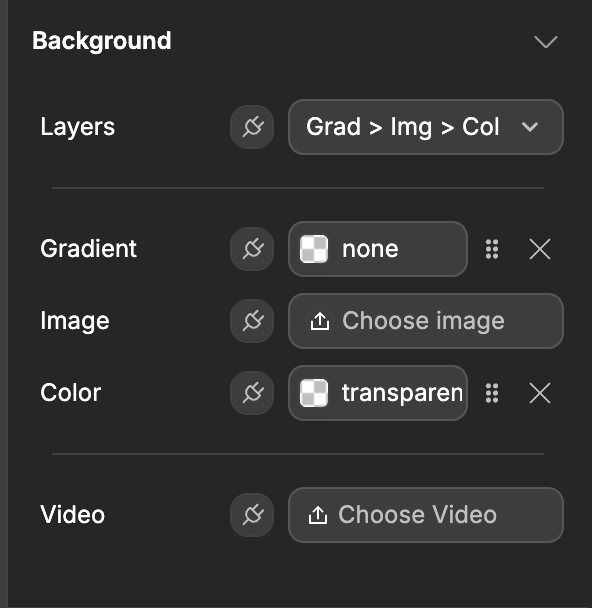

Appearance
Sections
Sections are the first building blocks of any web page.
Think of them as chapters in a book. Each section serves a purpose to keep the story interesting.
At the end of each section, you want the reader to take action, read on or click on a button.
Add a section on the canvas
We can drag a section anywhere onto the page.
If you’re working on a blank page, the canvas shows Your page is empty, with an Ask the AI button to let AI build it for you and an Add button to build it manually.
If you’re working on a page that already has one or more sections, you can browse template sections in the Add Element: 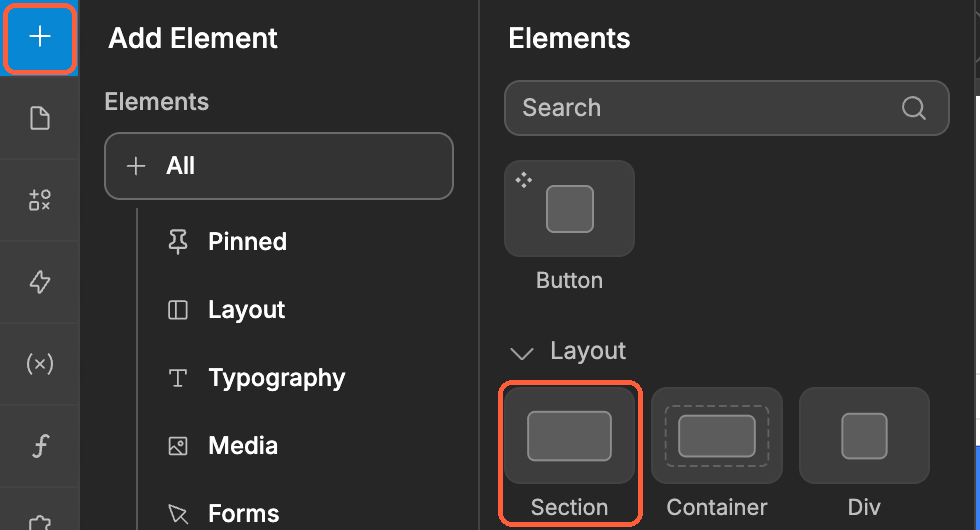
Save a section template
To save an element or section as a template, select it on the page, and click on the Save to assets icon:
- Click the "Save to assets" icon
- "Create" a new template
- Name the template
- Decide if you want to include variables & workflows
- Click on "Create" to finalize the creation of the template
To add a section template on the canvas, open Add Element: your templates are listed in All, under Elements. Templates from a library linked to your project are under UI Kits:
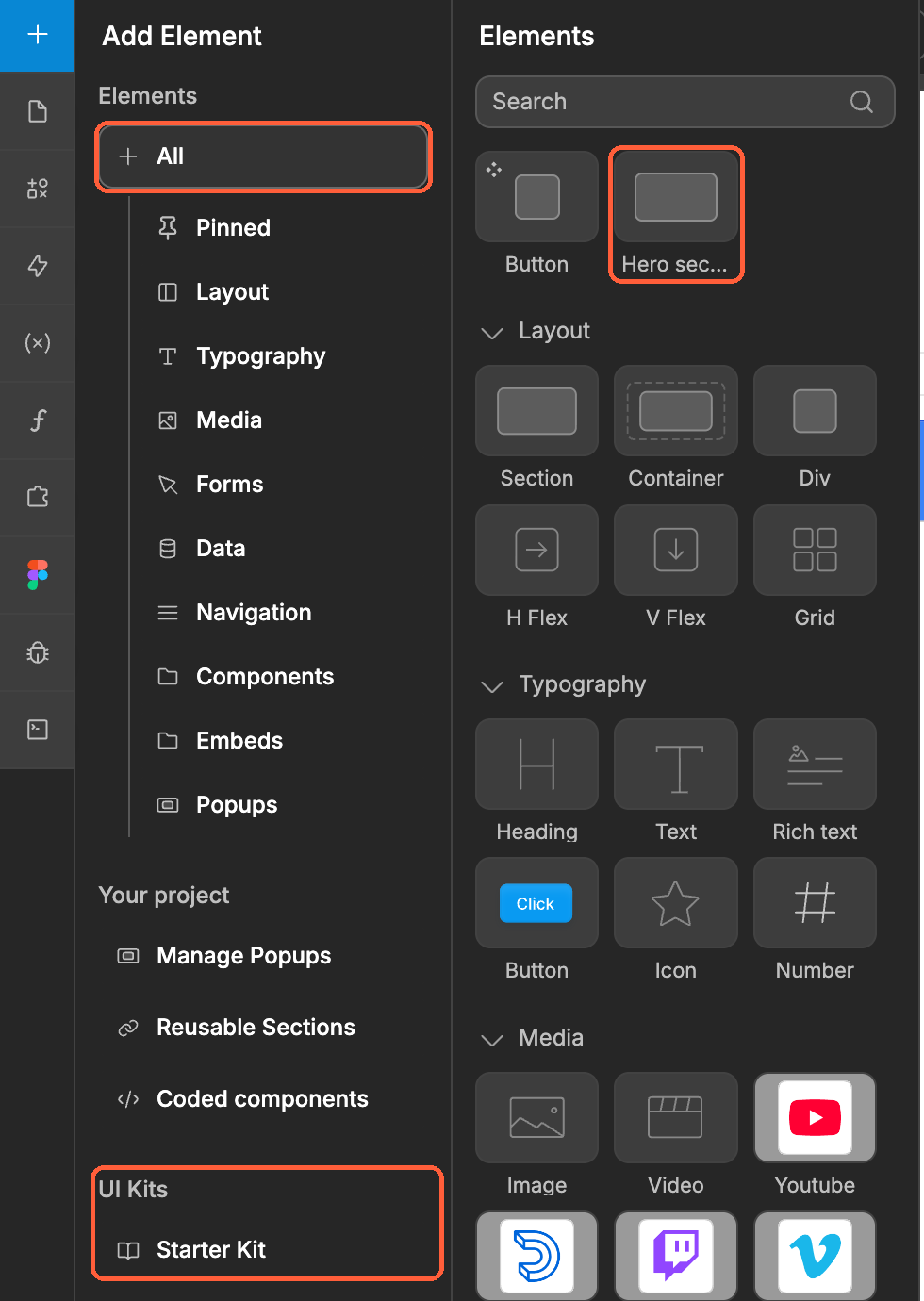
Learn more about building with WeWeb libraries.
Duplicate a section
In the Reusable Sections of the Add Element, you can see all the sections used in your project, page by page.
You can copy or create a new instance of an existing section by dragging it onto the canvas or in the Layout Tree: 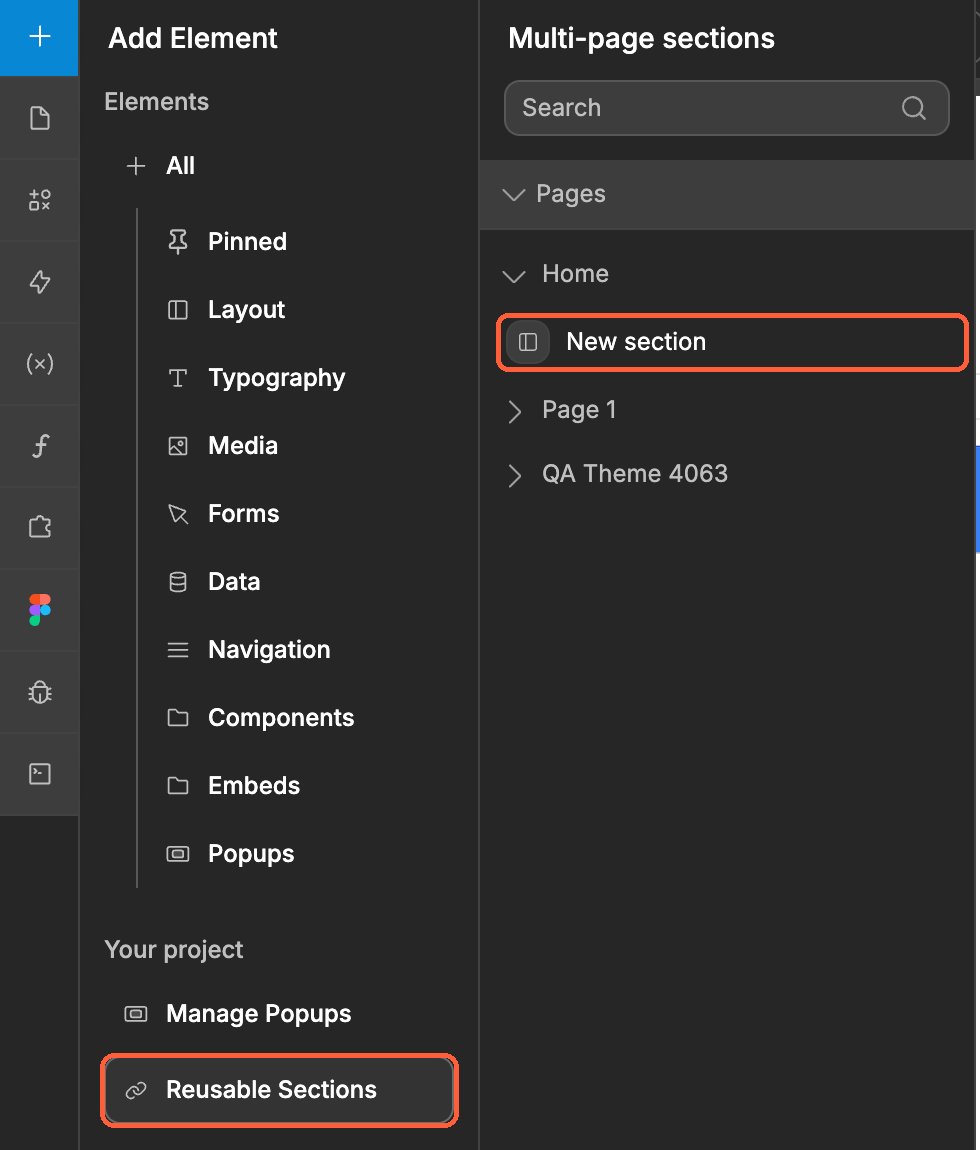
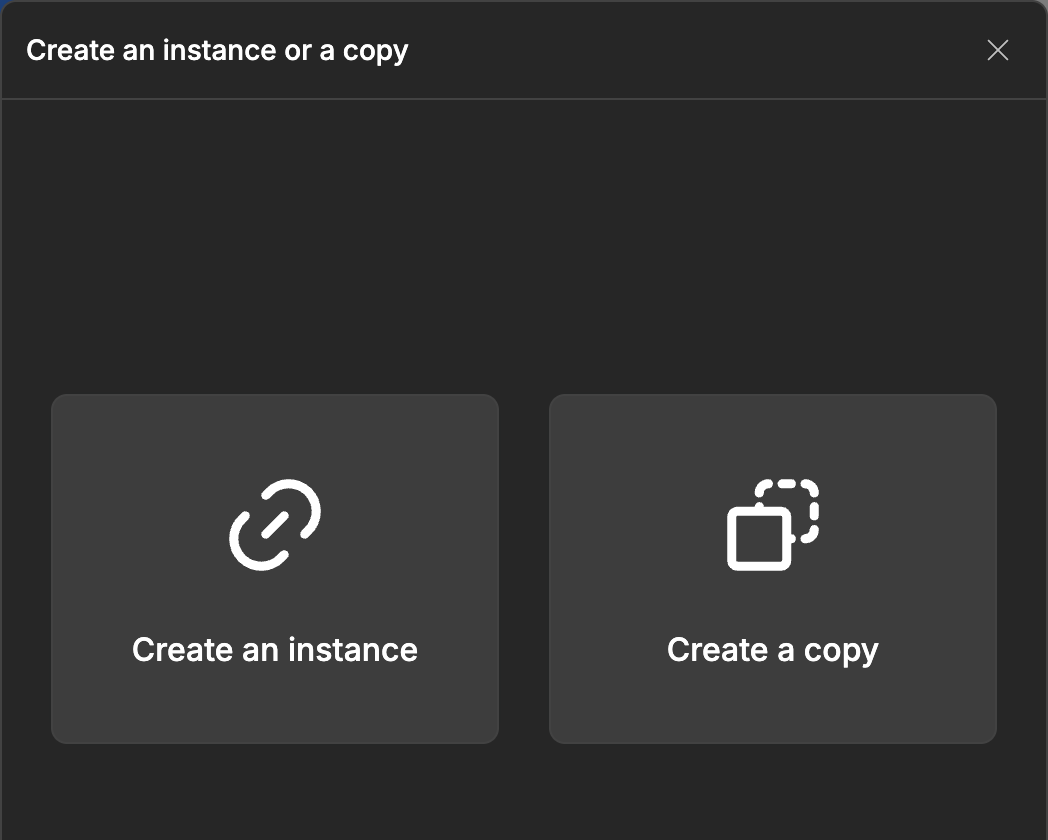
Create an instance – if you want changes you make in the section to be applied to all the instances of this section throughout your project.
Create a copy – if you want to create an independent copy of an existing section so that the changes you make in the copy do not affect the original section.
Learn more about leveraging multi-page sections to improve the performance of your web-apps.
Re-order sections
The sections you see in the Layout are usually displayed from top to bottom on the canvas.
There are exceptions to this, like sidebars and hidden sections that appear in the Layout but not on the canvas, but it helps to think of sections as the logical succession of the content on the page.
A classic list of Sections on a blog article page:
- Top navigation menu
- Sidebar navigation with related articles
- Hero section with a big heading, excerpt, featured image, and author info
- Article content
- Comments section
- Call-to-action to subscribe to the newsletter
- Footer
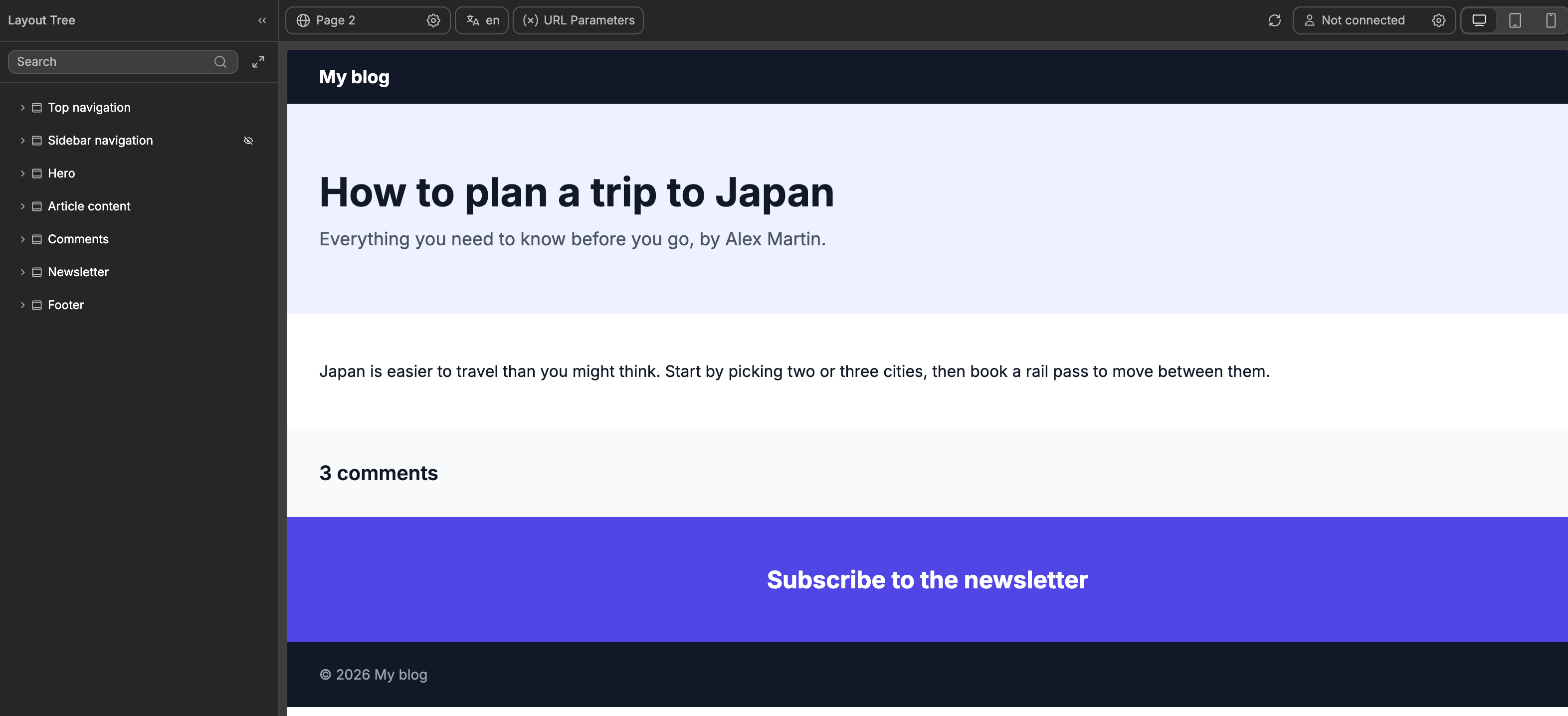
If you need to re-organize the content on the page, you can select a section, then drag-and-drop it elsewhere on the canvas or in the Layout Tree.
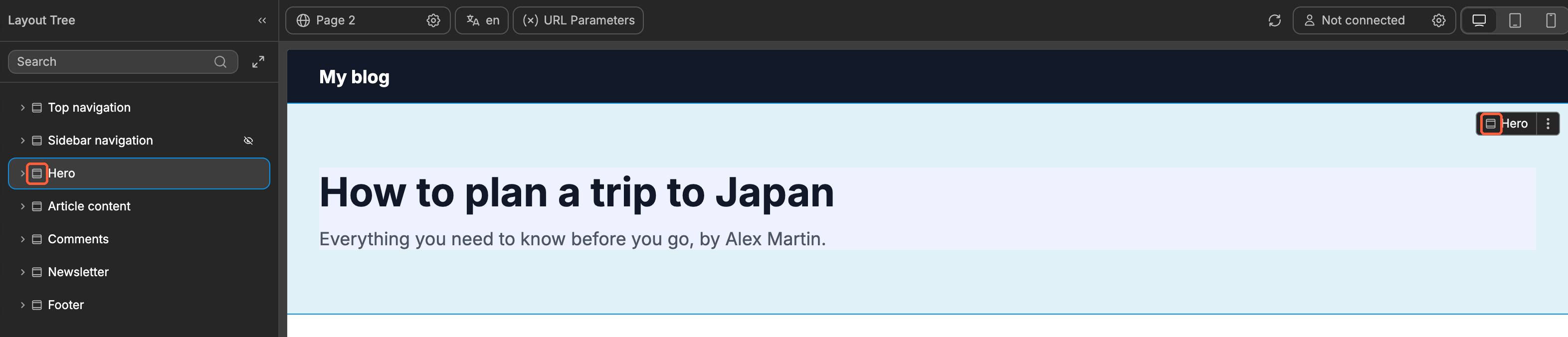
Sometimes, it’s tricky to select a section and you end up selecting a container instead.
You can ensure that you are selecting a Section, by clicking on the section icon in the Layout Tree or on the canvas:
Style a section
Sizing
By default, blank sections will take up the entire width of the page.
When you add content inside the Section, the height of the Section will adjust automatically.
As you put something inside like a heading, it adds to the height of the section, same thing with a paragraph or a button.
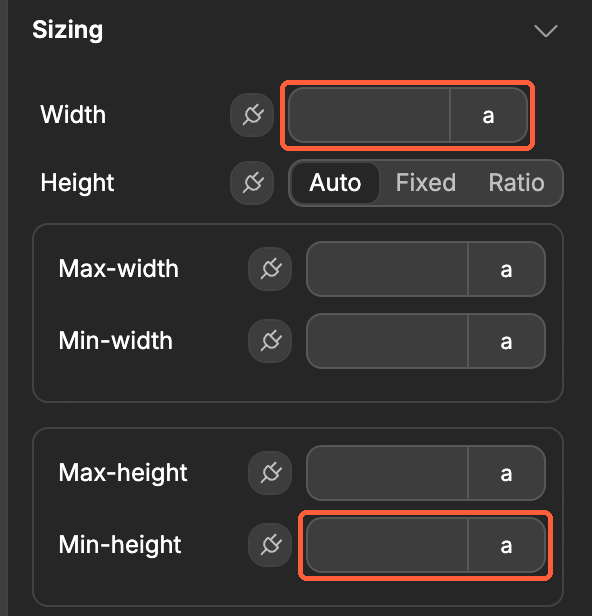
That said, you can override the automatic width and height of the section.
You can set a box width or minimum height, use viewport width and viewport height or pixels to size your section:
Spacing
You can add margins and padding to give a bit more breathing room to your design:
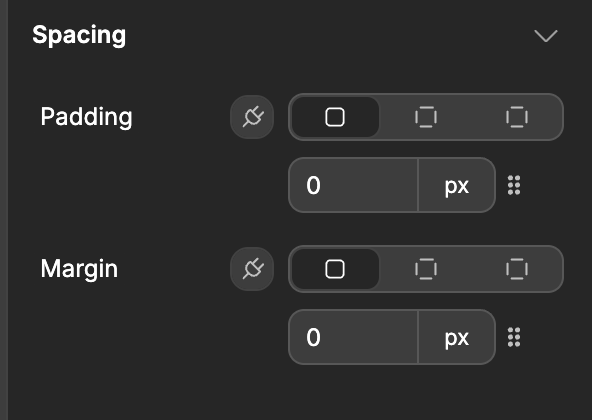
Remember to check if it still looks good on mobile devices and adjust accordingly.
Background
You can set a background color to a section, add an image or video: