

Appearance
AWS S3 storage
AWS S3 is a common storage provider for files (images, PDFs, uploads). You can connect it to WeWeb so your project keeps its Public and Private files in your own AWS account instead of in WeWeb Storage.
What you need before you start
Two things, both on the AWS side:
- Two separate buckets in the same region, one for private files and one for public files. In S3, the bucket is the only thing that separates private from public, so you cannot use the same bucket for both. WeWeb refuses two identical bucket names.
- A user in AWS with an access key, so WeWeb can read and write files in those buckets.
You do not need to prepare permissions, CORS rules or policies in advance. WeWeb writes all three for you later, already filled with your bucket names.
THE PUBLIC BUCKET IS OPTIONAL
If your app never needs files that anyone can open with a link, set up the private bucket only and leave Public bucket (optional) empty.
Step 1: create your buckets and your access key in AWS
- In the AWS
S3 Console, create a bucket for your private files. - Create a second bucket, in the same region, for your public files.
- In the AWS
IAM Console, create a user and an access key for it. Copy the access key ID and the secret access key. AWS only shows the secret once.
Step 2: add the connection in WeWeb
- Go to the
Data & APItab, then open theIntegrationssubtab. - Open
AWS S3and clickAdd Connection. - Give it a name in
Connection Name. - Choose the environment you are configuring (
Editor,StagingorProduction), then fill inAccess Key ID,Secret Access KeyandRegion. The region is the one your buckets live in. - Repeat for each environment you use, then click
Save.
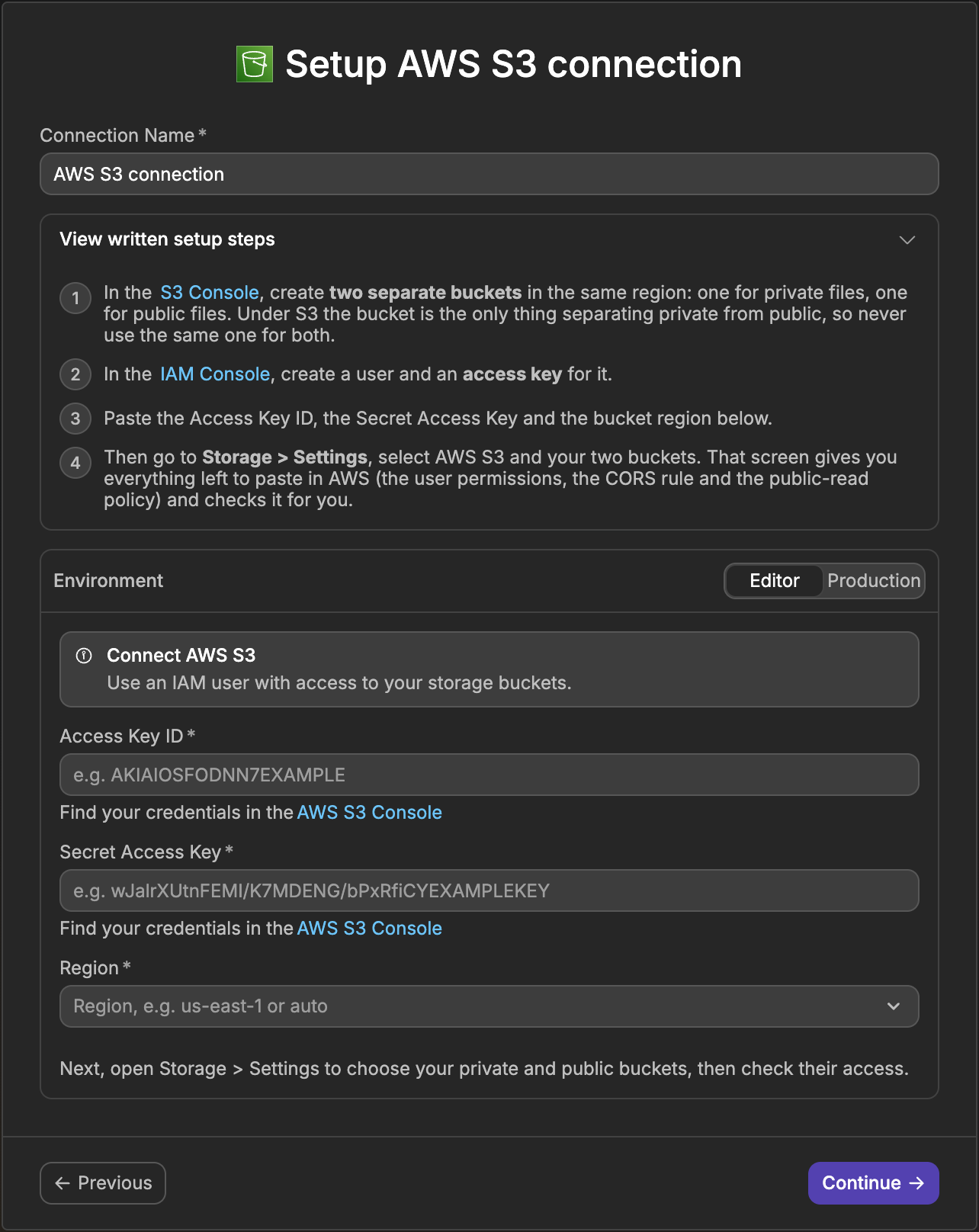
ONE SET OF BUCKETS PER ENVIRONMENT
The credentials, the bucket names and the CDN URL are all saved per environment. You can point every environment at the same buckets, or give production its own so test files never end up next to real user files.
If you leave Staging or Production empty, your published app uses the connection of another environment instead: Production uses the Staging one if you filled it in, otherwise the Editor one. To run the bucket checks in an environment, though, it needs its own credentials.
Step 3: select AWS S3 in your storage settings
- Go to the
Data & APItab, then open theStoragesubtab. If another provider is already set up, go toSettingsand useSwitch Storage Providerfirst. - In
Connect your storage, selectAWS S3. - Pick the connection you just created in
Connection. - Choose the environment, then fill in
Private bucketand, if you created one,Public bucket (optional). - Leave
CDN URL (optional)empty unless you serve your public bucket through CloudFront. See Public file URLs below. - Click
Continue.
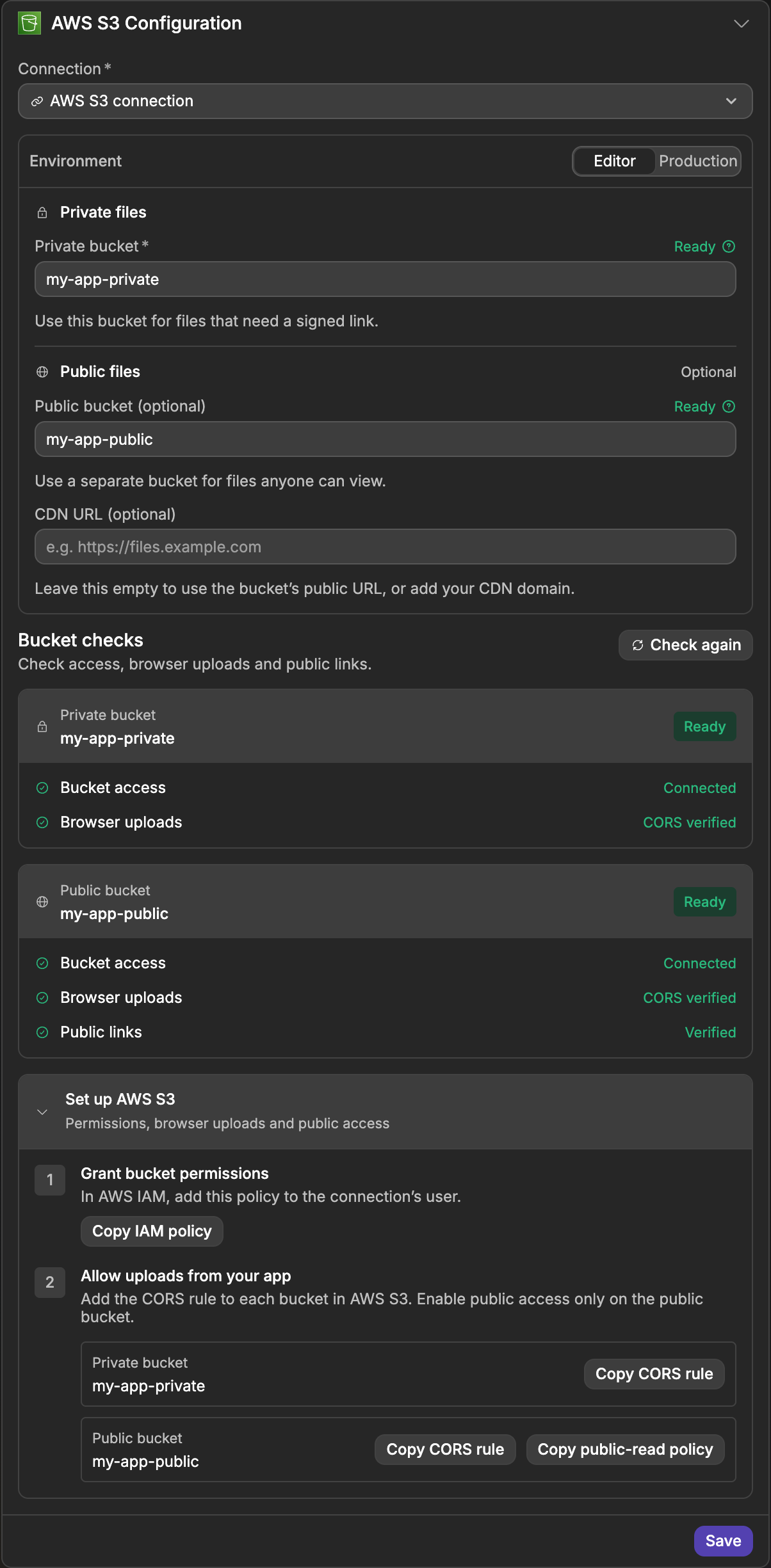
To change these settings later, open the Settings tab of the Storage subtab. The AWS S3 Configuration panel shows the same fields, with a Save button.
Step 4: paste the three AWS documents
S3 needs three separate pieces of configuration, and they are easy to mix up. In Settings, below Bucket checks, expand Set up AWS S3. Each one comes with a button that copies it, already filled with your bucket names and the addresses of your project.
- The IAM policy, under
Grant bucket permissions. ClickCopy IAM policy, then paste it inIAM>Users> your user >Add permissions>Create inline policy>JSON. This is what allows WeWeb to list, read, create and delete files in your two buckets. - The CORS rule, under
Allow uploads from your app. ClickCopy CORS rulenext to a bucket, then paste it inS3> that bucket >Permissions. Do this for both buckets. Without it, uploads from your browser are blocked. - The public-read policy. Click
Copy public-read policynext to the public bucket, then paste it in the samePermissionstab of the public bucket only. This is what makes files in that bucket openable by anyone with the link.
THE THREE DOCUMENTS ARE NOT INTERCHANGEABLE
The first one goes on the user in the IAM Console. The other two go in the bucket's own Permissions tab, and only the public bucket takes the public-read policy.
If you later publish your app on a new domain, copy the CORS rule again. It lists the addresses allowed to upload, and a domain that is not in the list will fail.
Step 5: check your buckets
Click Run checks. WeWeb reads the region of each bucket, its public access settings and its CORS rules, then loads a real image from your public bucket to confirm your public files are actually served.
The results are grouped by bucket, with one line per check:
- Bucket access shows
Connectedwhen WeWeb can reach the bucket with your connection. - Browser uploads shows
CORS verifiedwhen the CORS rule lets your app upload. - Public links shows
Verifiedwhen an image in your public bucket opens with its link. This line only appears for the public bucket.
Each bucket also gets a badge next to its name in the bucket fields: Unchecked before you run the check, Ready when nothing is left to fix, Warning when something needs a look, and Blocked when the bucket cannot be used as it is.
When something is missing, the panel tells you what it is and, when a document fixes it, shows the button that copies it. Click Check again after each change you make in AWS.
If your credentials are not allowed to read the CORS settings of a bucket, Browser uploads shows a warning (Browser uploads aren’t verified yet) instead of an error, with the message from AWS under Technical details. The IAM policy from step 4 includes that permission.
The public links check needs an image to load. If your public bucket is empty, upload one from the Public tab of the Storage subtab, then run the check again.
Public file URLs
WeWeb builds the public URL of a file from your public bucket and the region of your connection. You never have to write that address yourself, and you never need to create a STORAGE_CDN_URL environment variable.
To get the URL of a public file, add the url column to a table view joined on your public files, then bind your Image element (or your link) to it.
The value can be empty, for example when the project has no public bucket, so bind it with a fallback rather than assuming it is always there.
THE FILE UPLOADED BUT THE IMAGE IS BROKEN
This almost always means the public bucket has no public-read policy, or that Block public access in AWS still blocks bucket policies. The bucket check reports both, and offers the policy to copy.
Serving public files through CloudFront
If you put a CloudFront distribution in front of your public bucket, paste its address in CDN URL (optional) in Settings. It takes precedence over the address WeWeb builds from the bucket.
This is optional. Leave the field empty and your public files are served straight from S3.
Private files
Private files are never openable with a plain link. Your app asks for a short-lived signed URL when a user needs to view or download the file, exactly as it does with WeWeb Storage.
Learn more about using files in your app →
Common pitfalls
Uploads fail in the editor or in your app
This is a CORS problem. When you upload a file, your browser sends it straight to S3, and S3 refuses anything the bucket's CORS rule does not allow.
The rule has to allow the PUT method (plus GET and HEAD), the address doing the upload, and the Content-Type header. A rule that forgets the header looks correct and still fails every upload. Copy the CORS rule from Settings instead of writing your own, and check both buckets.
Private files are reachable publicly
Check that Private bucket and Public bucket (optional) are two different buckets. The bucket is the only thing separating them, so a project that uses the same name twice exposes everything through the public bucket's policy. New setups refuse identical names, but a project configured before that check may still carry one.
The region does not match
The region in your connection has to be the region your buckets were created in. The bucket check compares them and tells you when they differ.
A file cannot be created at a path that already exists
Overwriting is off by default, so uploading to a path already in use fails. Delete the file first, or turn on Replace if exists in your upload action.
Deleting a file directly from the AWS console does not remove it from your project's file list, so that path stays blocked until you delete it from WeWeb too.
Files download instead of opening in the browser
A file stored without a type is treated as raw data, and browsers download it instead of displaying it. When your app asks for an upload link with Get file signed upload url, fill in Content Type (for example image/png). When you upload an actual file, for example from a File Upload element, the type travels with the file and there is nothing to do.
Copy URL is greyed out in the Storage panel
That action is only available with WeWeb Storage. With AWS S3, get the address from the url column of a table view instead.
Good to know
- One file is uploaded in a single request, and AWS caps that at 5 GB per file.
- Signed links expire. AWS does not allow one to last longer than 7 days, so never treat a signed link as permanent.
- Your buckets do not need object ACLs. WeWeb never sets them, so the AWS default (
Bucket owner enforced) works fine.