

Appearance
Formula columns
A formula column calculates a value for every row in a table. It uses data that is already in that row, so you do not need to enter or update the result manually.
For example, you can create:
- A
full_namecolumn fromfirst_nameandlast_name - A
totalcolumn frompriceandquantity - A
monthcolumn from a date - A
discounted_pricecolumn from a price and a discount
Formula columns are read-only. To change a result, update the formula or one of the columns it uses.
Add a formula column
- Open
Data & APIand select your table. - Open the table's
Datatab. - Click the
+at the end of the column headers. - Enter a unique
Column Name. - Choose
Formulaas theColumn Type. - Click
Edit formula. - Build your formula using values from
Rowin the binding panel. - Click
Add Column.
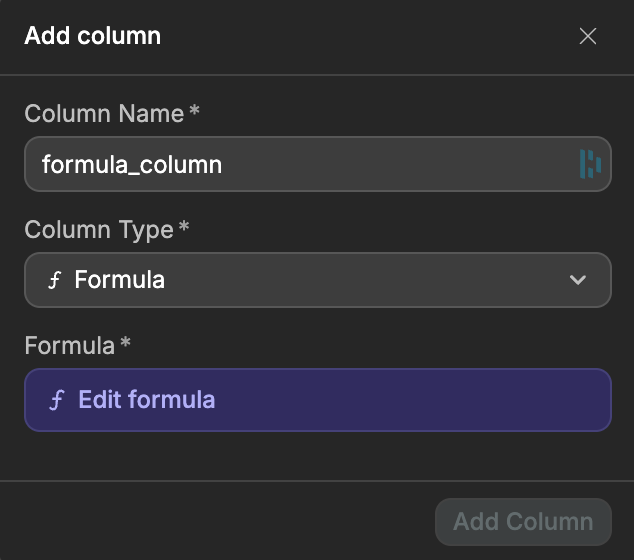
The calculated value appears in the table. When a value used by the formula changes, the formula result is updated automatically.
Build your formula
In the formula editor, open Row to find the columns available for the current row. Select a column to add it to your formula, then combine it with text, numbers, operators, or functions.
For example, a line total can multiply the current row's price by its quantity.
You can also use another formula column in a formula. If two formulas would end up depending on each other, WeWeb refuses the save and tells you which formula closes the loop.
WeWeb checks the formula before saving it and shows its result type, such as a number or string. If validation fails, use the message to adjust your formula. A formula that passes validation can still fail for a particular row if that row contains unexpected data.
What you can write in a formula
A formula is written in JavaScript. The binding panel opens in Formula mode, where you write a single expression that produces the value of the column:
js
context.row.price * context.row.quantitySwitch the panel to Javascript when you need more than one expression, for example a condition, a loop, or error handling. In that mode you return the value:
js
if (context.row.amount === null) return null;
return context.row.amount * 2;
Reference a column of the current row with context.row.column_name.
WeWeb's own functions live under wwFormulas, for example wwFormulas.uppercase(context.row.name). Open the Weweb section of the binding panel to browse them by category. The panel only lists the ones that work in a formula column, so anything you can pick there is safe to use.
Standard JavaScript is available too: Math methods and constants, Date, JSON, string and array methods, and regular expressions.
EMPTY VALUES SPREAD
If one of the values a formula uses is empty, the result is usually empty too. Joining first_name and last_name gives an empty full_name for anyone with no last name, rather than just their first name.
Decide what should happen when a value is missing. Adding ?? "" tells the formula to use empty text instead:
js
wwFormulas.concatenate(context.row.first_name ?? "", " ", context.row.last_name ?? "")What a formula can read
Besides the current row, a formula can read three other things:
context.parameters.name(A parameter of the view the formula is queried through, so the calculated value can depend on what the request asks for)context.env.NAME(An environment variable of your project)context.auth.userAndcontext.auth.isAuthenticated(who is making the request)
A formula that reads context.auth.user returns a different value for each signed-in user. That is useful for values like a personalized label, but keep it in mind before you filter or sort on that column, because the result depends on who is asking.
Use formula columns
Once created, a formula column can be used like a regular column in the places where you read table data. You can:
- Show or hide it in a table view
- Filter rows using its calculated value
- Sort rows using its calculated value
- Select it in a
Get rowsaction - Use its result later in an API Endpoint workflow
Use a formula column in a view
Open the view and use:
ColumnsTo show or hide the formula columnFilterTo return only rows whose calculated value matches your rulesSortTo order rows by the calculated value
Filtering and sorting happen before the rows are returned, just as they do for regular columns.
The view returns only the columns selected in its Columns panel. Adding a column to a datagrid in the interface does not automatically include that field in the view's data. If a formula field is missing, check the view's column selection first.
Use a formula column in Get rows
In an API Endpoint workflow, add a Get rows action and select your table. Open Data, then choose the formula columns you want to include under Columns.
You can also use formula columns in the action's filters and sorting rules.
Common troubleshooting
Why does a cell show Error?
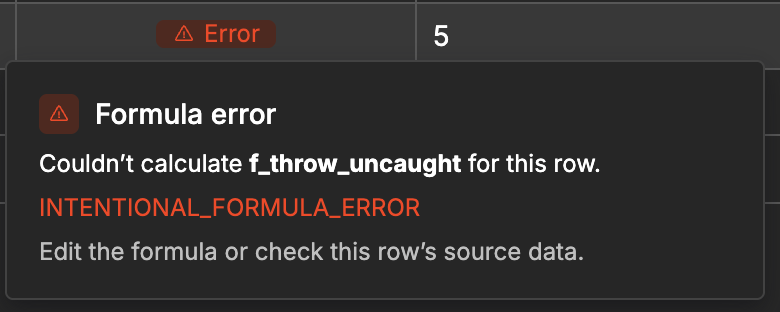
In the editor's Data & API table preview, a formula that cannot calculate a value for a row shows an Error badge in that cell. Hover over it to see the formula name and the reason for the failure. Other rows and columns remain available.
Use the message to check the formula and that row's source data. Common causes include reading a property of a missing object, parsing invalid date text, or a loop that runs too long. An error is different from a formula that successfully returns an empty value.
Why can't the whole table load?
Some failures affect the entire query, such as a query that takes too long, or a formula that fails while it is being used to filter or sort rows. In that case the editor shows an error in the table body instead of the rows. Read the message, correct the cause, then use Try again.
Why is my formula column empty?
Check whether the values the formula uses are empty, since an empty value usually produces an empty result. Check as well that the values suit the calculation, for example that a column used in a multiplication really holds numbers.
In a view or a Get rows result, also check that the formula column is selected in the Columns panel. If the cell shows Error instead of an empty value, hover over the badge for the cause.
Why can't I save my formula?
Read the message shown below the formula. It identifies the part that cannot be used. Try a different function, or simplify that part of the formula.
Why does my formula fail in my app but not in the editor?
The Error badge is an editor convenience. When a formula fails during a published table view request or a Get rows action, the whole request or action fails instead of marking one value.
Handle empty and unexpected values in the formula itself, and test rows that contain them before publishing. Use your workflow's error handling to decide what the app should show when a data request fails.
Why does my published app show a different result than the editor?
A published app keeps the formula exactly as it was when you last published. The editor recalculates your formulas whenever WeWeb updates how a function behaves, so the two can disagree on the same formula until you publish again.
This only applies to the formula itself, not to your data: changing a value in the published database updates the calculated result straight away.
How do I upgrade a legacy formula?
New formula columns are calculated in your database and support filtering and sorting. Formulas created before that keep their previous behavior until you upgrade them, and you cannot filter or sort by their calculated values. You can recognize one by the Legacy formula · Formula V1 note under its Column Type.
To upgrade one:
- Open the column's menu and choose
Edit Formula. - In the legacy formula panel, click
Review upgrade. - Review the compatibility result. If a change is needed, edit the formula and check it again.
- Click
Upgrade formulawhen validation succeeds. - Check the results on representative rows, including rows with missing values.
The upgrade keeps the existing column and its references, so you do not need to recreate bindings or table views. Some results may differ from before, and the upgrade cannot be undone from the upgrade panel.
Why don't I see formula columns on the Users table?
Formula columns are not available on the built-in Users table.
CONTINUE LEARNING
Serve your calculated values to your app through a view, with filters, sorts, and parameters.