

Appearance
Schedule tasks from a workflow
Recurring schedules are great when the same work runs for everyone. But some tasks depend on one user and one moment: a reminder three days before a customer's subscription renews, a follow-up email the day after an order, a report someone asks for.
For these, use the Schedule tasks action in a backend workflow. It saves the task and lets the workflow continue right away, without waiting for the task to finish. If plans change, the Unschedule a task action cancels it.
Schedule a task
In this example, an API Endpoint called Request renewal reminder receives a customerId and a remindAt date, and schedules the Send renewal reminder Scheduled Task workflow for that customer.
- Open the backend workflow that should start the task, for example an API Endpoint.
- Click
Add an action, then chooseSchedule tasksin theScheduled Taskscategory. - Select the
Scheduled Task workflowto run. - Leave
ScheduleonOne scheduled task. - Under
Workflow inputs, fill in or bind the values the task needs, like the customer ID. - Set
Run at:- Leave it empty to run the task as soon as possible.
- Pick or bind a date to run it later, once.
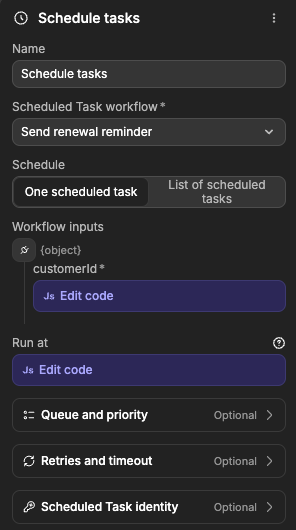
The action returns the task's ID and status. Save the ID if you might need to cancel the task later, for example in a column of your subscriptions table.
To start a task from your app, call an API Endpoint that contains this action, for example from a button. The Schedule tasks action itself is only available in backend workflows.
SCHEDULED IS NOT FINISHED
When the action returns, the task is saved, not done. It runs in the background, and you can follow it in the execution history.
If a required input is missing or has the wrong type (for example abc for a number), the action fails right away and nothing is scheduled. Numbers written as text, like "42", are accepted and turned into numbers.
Schedule a list of tasks
To schedule the same workflow for many records at once, set Schedule to List of scheduled tasks. For example, one reminder per customer whose subscription renews next week.
Under Scheduled Tasks, add one item per task with Add Item, or bind the list to an array, like the result of a table view. Each item has the fields of the workflow's inputs, so you don't need to write any code.
Each item becomes its own task, with its own result and retries: if one fails, the others still run. You can schedule up to 100 tasks at once. For longer lists, split them into several actions.
The action returns the list of IDs, one per task.
Dates and timezones
Run at only affects the tasks created by this action. It doesn't change the workflow's recurring schedules. If a workflow runs every Monday and you schedule one run on a Tuesday, both happen.
When you bind Run at to a date, include its timezone so there's no doubt about the time, for example 2026-10-12T09:00:00+02:00.
Cancel a scheduled task
Use the Unschedule a task action to cancel a task before it runs. For example, if a customer renews early, you no longer need to send their reminder.
- Add the
Unschedule a taskaction, from theScheduled Taskscategory. - In
Scheduled Task ID, pass the ID thatSchedule tasksreturned when you scheduled the task.
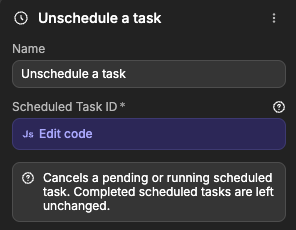
The action cancels a task that is waiting to run or waiting for a retry. If the task is already running, it stops as soon as it can, but the actions it already ran are not undone. A task that has already finished stays as it is.
To stop a recurring schedule, turn it off on its workflow instead. Learn more about recurring schedules →
You can also cancel a task by hand from the execution history.
Advanced options
These options are optional. Most tasks work well without them.
Queue and priority
Queue: tasks with the same queue name run one at a time. Use it when tasks must not change the same data at the same moment, for example all the tasks that update one customer's balance.Priority: when many tasks are waiting, the ones set toHighstart beforeNormal, thenLow. It never stops a task that's already running.
Retries and timeout
Maximum attempts: how many times a failed task is tried, including the first try. The default is 10.Attempt timeout (milliseconds): how long one try can last before it's stopped. Leave it empty to use the default: 5 minutes, or less if your server allows less. For example,120000is two minutes.
Each retry runs the whole workflow again, from the first action. Learn how to make retries safe →
Scheduled Task identity
Scheduled Task name: a name that makes the task easy to find in the history, likeRenewal reminder cus_1042.Scheduled Task key: a label you choose to recognize a task, likerenewal-cus_1042. If you schedule a new task with the same key while the previous one hasn't started yet, WeWeb updates the waiting task instead of adding a second one. Once a task has started, a new task with the same key is created separately.If a pending scheduled task has the same key: chooseReplace inputs and scheduled dateto update both, orReplace inputs, keep scheduled dateto keep the original date.
CONTINUE LEARNING
Once your tasks are scheduled, you can follow each run, see its result, and retry or cancel it by hand.