

Appearance
Intro to Scheduled Tasks
Scheduled Tasks run backend logic for you in the background, without anyone clicking a button. Use them to send a weekly report, remind a customer before their subscription renews, clean up old records every night, or start a long job without making your app wait.
There are two ways to run a Scheduled Task:
- On a recurring schedule, like every Monday at 9 AM or on the last day of each month. You set this up once in the editor.
- From another workflow, immediately or once at a specific time. For example, when a customer signs up, you can schedule a reminder for three days later, just for them.
PAID PLANS
Scheduled Tasks are available on paid plans. On a free plan, you'll see an Upgrade plan button instead.
Key words
Three words come up often on these pages:
- A Scheduled Task workflow holds the steps to run, like any other backend workflow.
- A recurring schedule tells WeWeb when to run that workflow again and again.
- A scheduled task is one run of the workflow, with its own inputs, status and result. You can follow each one in the execution history.
| You want to… | Use… |
|---|---|
| Return data to your app while it waits | An API Endpoint |
| Reuse steps inside another backend workflow and get their result | A Function |
| Run the same logic regularly | A recurring schedule on a Scheduled Task workflow |
| Start work now or later, without waiting for it to finish | The Schedule tasks action |
Set up Scheduled Tasks
The first time you open Scheduled Tasks, WeWeb asks where to keep your tasks and their history:
- Open the
Data & APItab, then open theScheduled Taskssubtab in the left sidebar. - Choose where to store them:
WeWeb Tablesis the recommended option. WeWeb creates and manages everything for you.Supabasekeeps them in your own Supabase database. Select a connection, then clickNext. WeWeb creates the tables it needs, so the connection needs a server secret and permission to create tables.
- If WeWeb asks for a server region, pick the one closest to your users and continue.
Not sure which one to pick? Hover the help icon next to Choose where to store your scheduled tasks and execution history. for a short comparison. You can switch later, but switching deletes your history.
Once setup is done, the Scheduled Tasks subtab has three tabs: Recurring schedules, Execution history and Settings. The environment selector at the top lets you switch between Editor, Staging and Production.
Create your first Scheduled Task workflow
- In the
Data & APItab, open theBackend Workflowssubtab, thenScheduled Tasks. - Click
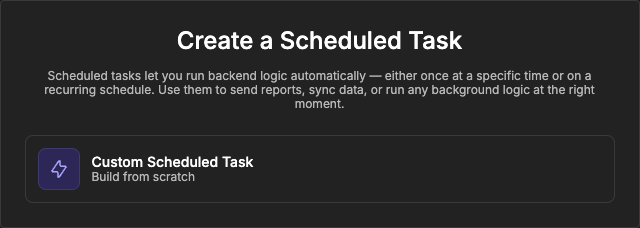
Add, then chooseCustom Scheduled Task.
- Name the workflow, for example
Generate sales report. - Add the parameters it needs, for example a
periodparameter. Each run receives its own values for them. - Add the actions to run, like any other backend workflow. If you want to keep a final value in the history, such as a report link, end with a
Workflow resultaction. - Decide how it should start:
- Click
Add recurring schedulein theSchedule triggersblock to run it regularly. Learn more about recurring schedules → - Or use the
Schedule tasksaction from another workflow. Learn more about scheduling from a workflow →
- Click
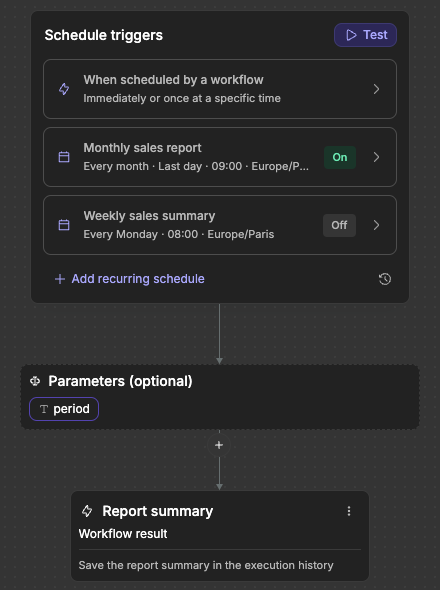
Creating the workflow does not run anything. New recurring schedules start turned off, so nothing runs until you turn one on.
TEST BEFORE YOU SCHEDULE
Click Test in the Schedule triggers block to try the workflow with test values, the same way you test other backend workflows. It's the quickest way to check its actions before you schedule anything.
Give each task the data it needs
A scheduled task starts on its own. It doesn't know which user was signed in or what the workflow that scheduled it was doing. Anything it needs, like a customer ID or a date, has to be passed through its parameters.
These values are saved when the task is scheduled. If a record changes afterwards, the task still has the values it was given. For big data, pass an ID or a file link rather than the whole content, and let the task fetch the rest.
Environments and publishing
Each environment (Editor, Staging, Production) has its own scheduled tasks and its own history, even when they all use the same Supabase connection. A task always runs the latest version of its workflow in its environment: your current changes in the editor, and the last published version in staging or production.
RECURRING SCHEDULES ALSO RUN IN THE EDITOR
A schedule that's turned on runs in the editor too. It can send real emails or change real records. Use test data and environment variables while you build, and turn schedules off when you don't need them.
To stop tasks right away in any environment, without publishing, you can pause one schedule or all tasks at once. Learn more about pausing →
To run your schedules in staging or production, publish your project. If Scheduled Tasks are not installed yet in that environment, you'll see a Scheduled Tasks are not installed yet message: publishing installs them with the same storage as the editor, or you can click Install now.
PAUSE EDITOR SCHEDULES ONCE YOUR APP IS LIVE
Once your app is published and running in production, your schedules still run in the editor too. A monthly report could then be sent twice: once by production, once by the editor.
To stop them in the editor only, select Editor in the Recurring schedules tab and click Pause next to each schedule you don't need there, or use Pause all tasks in the Settings tab. Don't turn them Off in the workflow: they would also stop in production at your next publication. A pause only applies to the editor and stays in place when you publish. Learn more about pausing →
If your environment is hibernating, scheduled tasks don't wake it up. When it wakes up, tasks that were due run, and recurring schedules catch up on the runs they missed (within 24 hours by default). This catch-up doesn't apply to a pause: when you resume, schedules start again from their next run.
COPYING A DATABASE ALSO COPIES SCHEDULED TASKS
With WeWeb Tables, using Copy Environment also copies the scheduled tasks waiting to run and the execution history. They replace those of the environment you copy to.
CONTINUE LEARNING
The most common way to use Scheduled Tasks is to run a workflow regularly. Learn how to set the frequency, time and timezone of a recurring schedule.