

Appearance
Database settings
Choose when your database goes to sleep, copy your data between environments, and check how much your database uses.
This page lives under the Database panel in the top-level Settings tab. It's where you choose when your database goes to sleep, refresh one environment with data from another, and keep an eye on how much your database uses.
When to use this
Common reasons to open the database settings:
- You want
Stagingto matchProductionfor testing. - You want to copy your
Editordatabase to another environment while you debug. - You want to change how long your database waits before going to sleep.
- You want to check how close you are to your plan's limits.
Open the Database settings page
- Go to the
Settingstab in the top bar. - Open
Database.
Auto-suspend
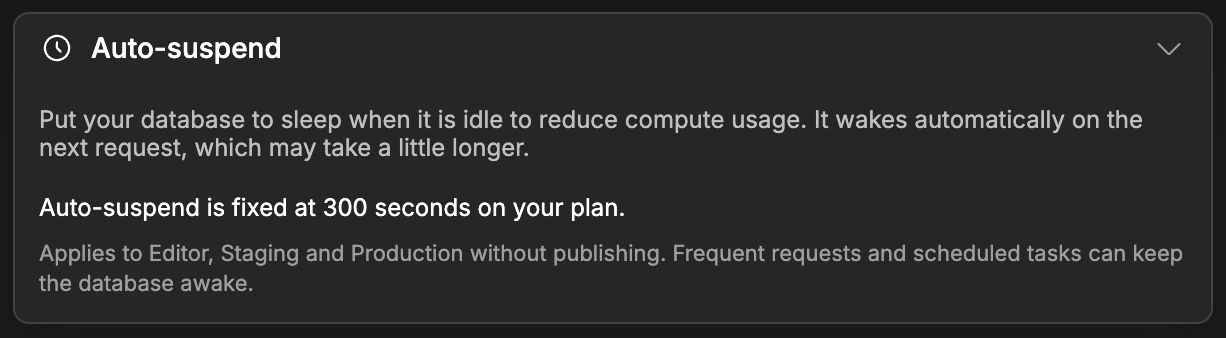
When nobody uses your app for a while, your database goes to sleep so it stops using computing resources. The next request wakes it up on its own. That first request takes a little longer while the database starts again.
Auto-suspend sets how long the database waits without any request before it goes to sleep:
- On the Free plan, it's fixed at 300 seconds and you can't change it.
- On paid plans, it's 60 seconds by default. You can enter another delay in
Inactivity timeout (seconds), as long as it's within the range your plan allows.
To change it:
- In
Inactivity timeout (seconds), enter the delay you want, in seconds. - Click
Save.
The new delay applies to Editor, Staging and Production at the same time, without publishing.
If your plan allows it, you'll also see Keep database awake. Check it to stop the database from ever going to sleep, so no request has to wait for it to wake up. The database then uses computing resources all the time, even when nobody uses your app.
WHY IS MY DATABASE STILL AWAKE?
Frequent requests and scheduled tasks count as activity, so they can keep your database awake even when nobody is using your app.
Copy between environments
Copy between environments copies your database, your files, or both, from one environment to another. It's useful when you want Staging to have the same data as Production for testing, or when you want to start an environment over with the data from your editor.
What gets replaced depends on what you copy:
Database (data, schema & users)replaces the whole database of the target environment: its records, its table structure and its users.Storage (files & assets)copies your files to the target environment. Files with the same name are overwritten, and files that only exist in the target environment are kept.
Copy one environment into another
- In
Source, choose the environment you want to copy from. - In
Target, choose the environment you want to overwrite. - Under
What to copy, checkDatabase (data, schema & users),Storage (files & assets), or both. - Read the warning under the checkboxes: it tells you what will be replaced in the target environment.
- Click
Copy to <Target>, for exampleCopy to Production. - In the confirmation popup, type
Copy to <Target>exactly as shown, then clickCopy.
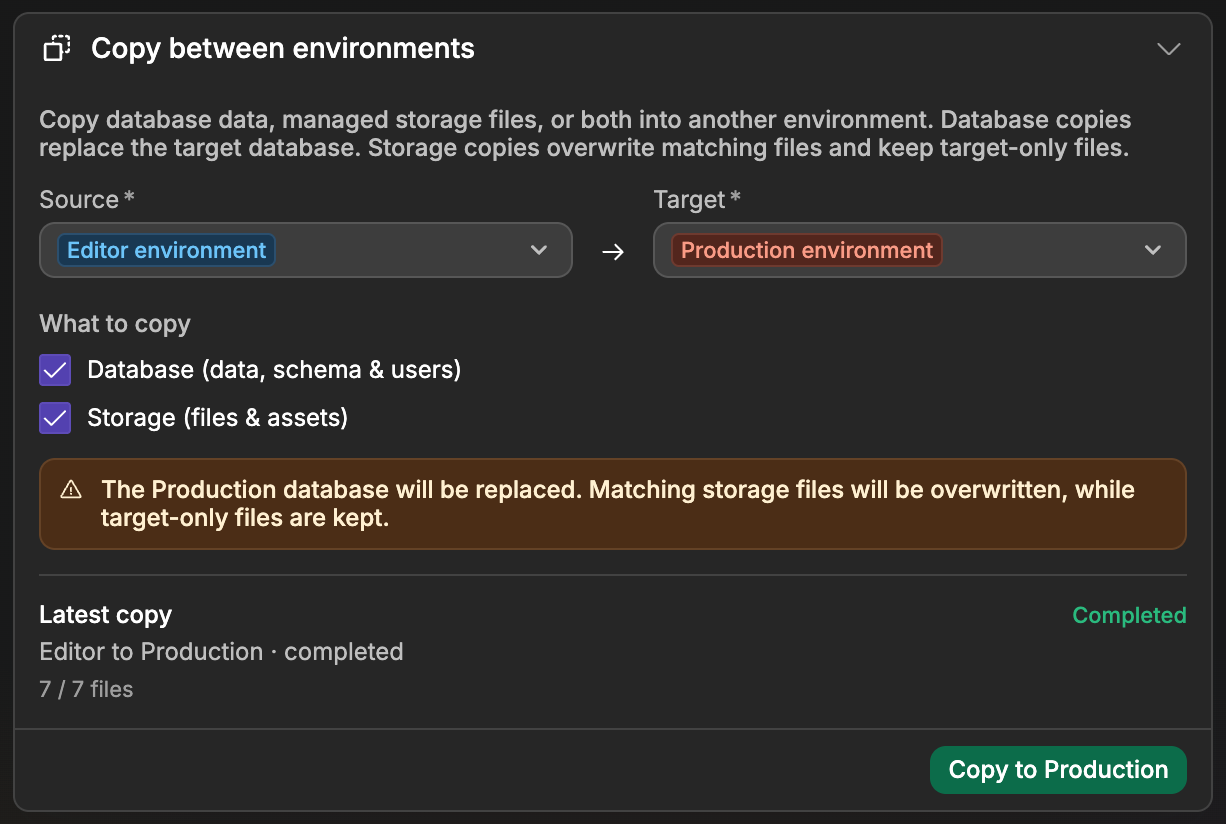
Once the copy starts, Latest copy shows where it's at and, for files, how many have been copied so far. If something goes wrong, the error appears there with a Retry button.
Copying a database overwrites the target
Copying the database replaces all the data in the target environment with the data from the source environment.
If you copy Production to Staging, your current Staging data will be replaced.
Usage
The Usage section shows how much your database uses compared to what your plan includes:
Compute Unitis the computing time your database operations have used.Sizeis the amount of data stored in your database.Storageis the number and size of the files stored across all your environments.
If you need more room, Upgrade Plan lets you move to a bigger plan.
Common pitfalls
The copy button is disabled
You can't start a new copy while another one is still running: wait for Latest copy to finish. The button also stays disabled when nothing is checked under What to copy. If you don't have the permission to copy to that environment, hover the button to see why.
Storage (files & assets) is grayed out
Copying files only works with WeWeb storage. If your project stores its files with another provider, you can still copy the database, but you'll need to copy the files on that provider's side.
The copy fails because of the storage limit
Editor, Staging and Production share one storage quota. If copying your files would go over it, the copy stops with a message about the storage limit. Free up space or upgrade your plan, then retry.
FAQs
Does copying the database include the table structure?
Yes. Copying the database copies your records, your table structure and your users, and replaces the target database completely.
Which environments can I copy between?
You can choose between Editor, Staging, and Production, depending on what's available for your project.
Can I restore my database to an earlier point in time?
Not from this page. Editor backups restore how your project is built, not the data stored in it.
CONTINUE LEARNING
Learn how environments work in WeWeb (Editor, Staging, and Production).