

Appearance
S3 compatible storage
Many storage providers work the same way as AWS S3 and can be reached at their own address, for example MinIO or other cloud storage services. WeWeb calls them S3 compatible. You can connect one to WeWeb so your project keeps its Public and Private files in your own buckets instead of in WeWeb Storage.
If you use AWS S3 itself or Cloudflare R2, use their dedicated providers instead: AWS S3 or Cloudflare R2.
What you need before you start
Everything below comes from your storage provider:
- Two separate buckets, one for private files and one for public files. The bucket is the only thing that separates private from public, so you cannot use the same bucket for both. WeWeb refuses two identical bucket names.
- An access key ID and a secret access key that can read and write files in those buckets.
- The S3 API endpoint of your provider (the address WeWeb sends your files to), for example
https://s3.example.com. - The region your provider asks you to sign requests with. Some providers use
auto.
THE PUBLIC BUCKET IS OPTIONAL
If your app never needs files that anyone can open with a link, set up the private bucket only and leave Public bucket (optional) empty.
Step 1: create your buckets and your keys in your provider
- In your storage provider, create a bucket for your private files.
- Create a second bucket for your public files.
- Create access keys with read and write access to those buckets. Copy the access key ID and the secret access key.
- Note the S3 API endpoint and the region from your provider's docs or dashboard.
Step 2: add the connection in WeWeb
- Go to the
Data & APItab, then open theIntegrationssubtab. - Open
S3 compatibleand clickAdd Connection. - Give it a name in
Connection Name. - Choose the environment you are configuring (
Editor,StagingorProduction), then fill inAccess Key ID,Secret Access KeyandS3 endpoint. - Pick your provider's region in
Region. The list offersAutoand the usual region names. If your region is not in the list, openAdvancedand type it inCustom region(for examplefr-par). - Repeat for each environment you use, then click
Save.
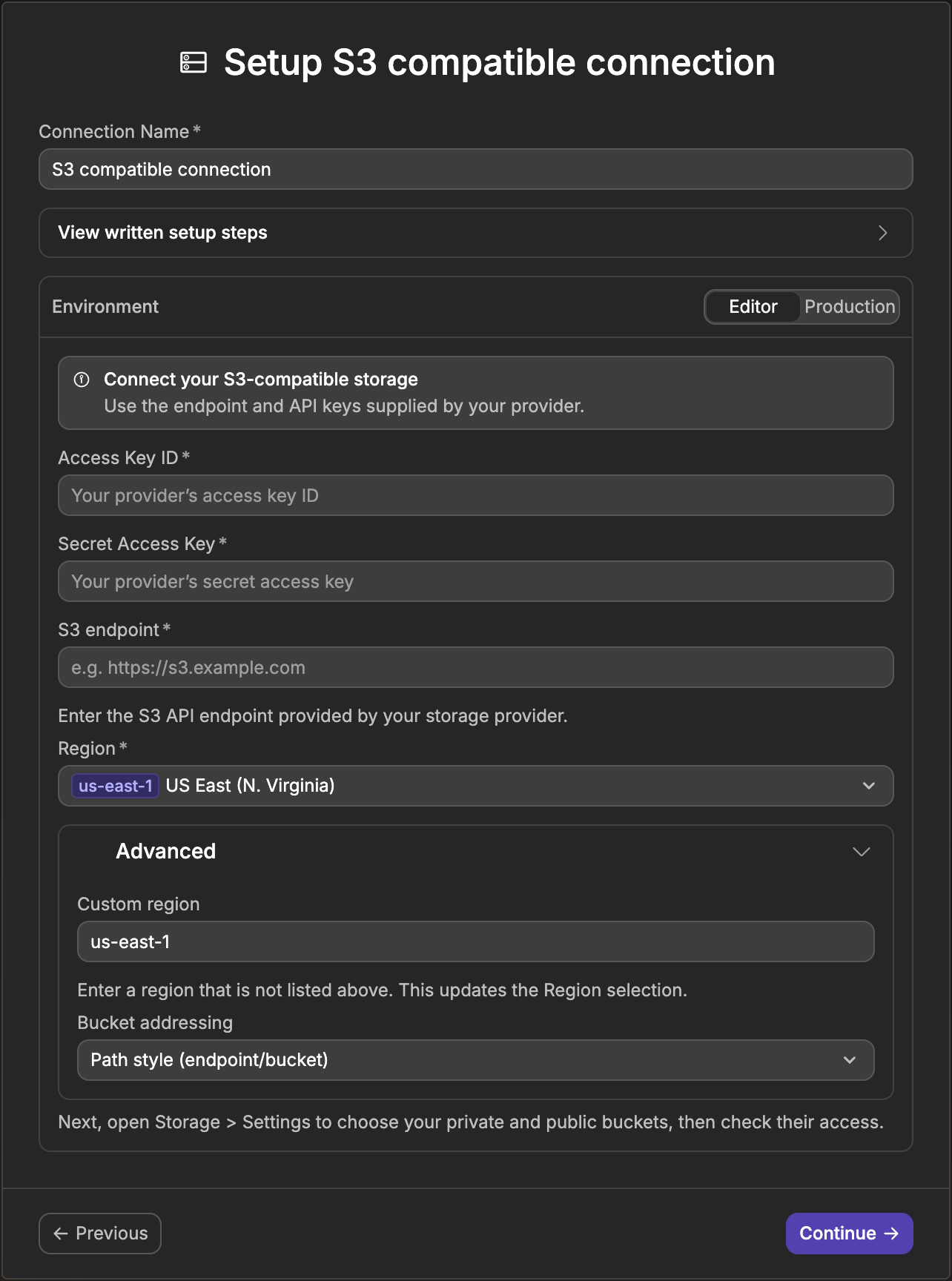
Bucket addressing
There are two ways to reach a bucket at your provider's address, and providers do not all accept both:
- Path style puts the bucket name after the address, for example
https://s3.example.com/my-bucket. WeWeb uses it by default. - Virtual hosted puts the bucket name before the address, for example
https://my-bucket.s3.example.com.
If your provider asks for virtual hosted addressing, open Advanced and change Bucket addressing to Virtual hosted (bucket.endpoint).
EMPTY ENVIRONMENTS REUSE ANOTHER CONNECTION
If you leave Staging or Production empty, your published app uses the connection of another environment instead: Production uses the Staging one if you filled it in, otherwise the Editor one. To run the bucket checks in an environment, though, it needs its own keys.
Step 3: select S3 compatible as your storage
- Go to the
Data & APItab, then open theStoragesubtab. If another provider is already set up, go toSettingsand useSwitch Storage Providerfirst. - In
Connect your storage, chooseS3 compatible. If you have not created a connection yet, WeWeb asks for it now, with the same fields as in step 2. - Pick your connection in
Connection. - Choose the environment, then fill in
Private bucketand, if you created one,Public bucket (optional). - Leave
CDN URL (optional)empty unless your provider serves public files from another address. See Public file URLs below. - Click
Continue.
To change these settings later, open the Settings tab of the Storage subtab. The S3 compatible Configuration panel shows the same fields, with a Save button.
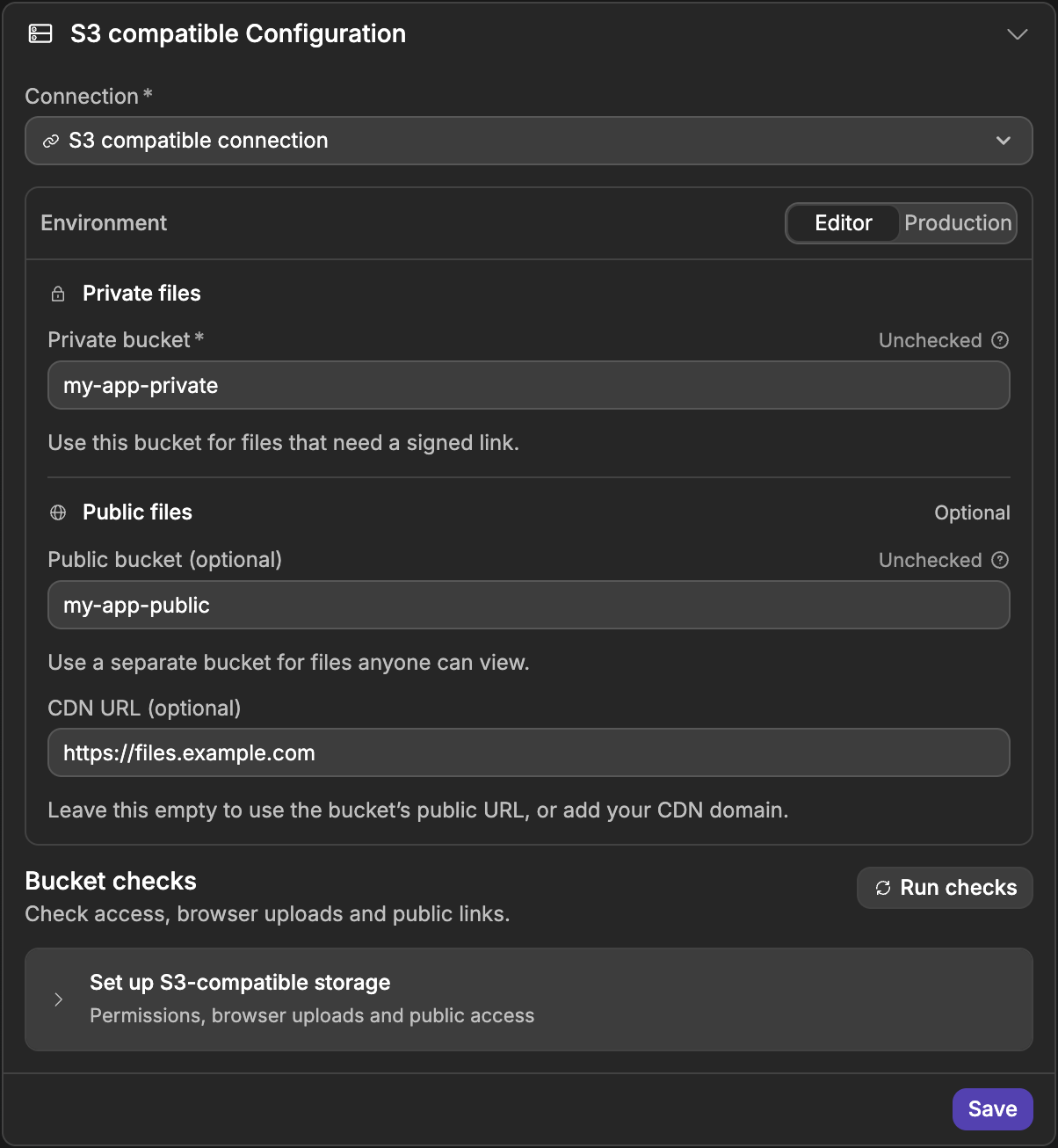
Step 4: set up uploads and public access in your provider
Your provider needs two settings. In Settings, below Bucket checks, expand Set up S3-compatible storage to get the first one.
- The CORS rule, on both buckets. When you upload a file, your browser sends it straight to your provider, which refuses it unless the bucket has a CORS rule (a list of the addresses allowed to upload) that lets your app in. Under
Allow uploads from your app, clickCopy CORS rulenext to a bucket, then add it to that bucket in your provider. The rule is already filled with the address of the editor and the domains of your published app. - Public access, on the public bucket only. This is what makes files in that bucket openable by anyone with the link. Each provider does this its own way, so follow its docs.
NEVER MAKE THE PRIVATE BUCKET PUBLIC
Turn on public access for the public bucket only. Anything in a public bucket can be opened by anyone who has the link.
If you later publish your app on a new domain, copy the CORS rule again. A domain that is not in the list cannot upload.
Step 5: check your buckets
In Settings, click Run checks. WeWeb connects to your provider with your keys, reads the CORS rule of each bucket, then loads an image from your public bucket through its public URL.
The results are grouped by bucket, with one line per check:
- Bucket access shows
Connectedwhen WeWeb can reach the bucket with your keys. - Browser uploads shows
CORS verifiedwhen the CORS rule lets your app upload. - Public links shows
Verifiedwhen an image in your public bucket opens with its public URL. This line only appears for the public bucket.
Each bucket also gets a badge next to its name in the bucket fields: Unchecked before you run the checks, Ready when nothing is left to fix, Warning when something needs a look, and Blocked when the bucket cannot be used as it is.
When something is missing, the panel tells you what it is. Click Check again after each change you make in your provider.
BROWSER UPLOADS SHOWS NOT VERIFIED
If your keys are not allowed to read the CORS settings of a bucket, the check shows a warning (Browser uploads aren’t verified yet) instead of an error, with the message from your provider under Technical details. Make sure you added the CORS rule from step 4, then upload a file from your app to confirm it works.
The public links check needs an image to load. If your public bucket is empty, upload one from the Public tab of the Storage subtab, then run the checks again.
Public file URLs
WeWeb builds the public URL of a file from your endpoint, your public bucket and the bucket addressing of your connection. With path style, a file looks like https://s3.example.com/my-public-bucket/photo.png. You never have to write that address yourself.
To get the URL of a public file, add the url column to a table view joined on your public files, then bind your Image element (or your link) to it.
The value can be empty, for example when the project has no public bucket, so bind it with a fallback rather than assuming it is always there.
Serving public files from another address
Some providers serve public files from a different address than the S3 API endpoint, and you can also put a CDN in front of your public bucket. In both cases, paste that address in CDN URL (optional) in Settings. It takes precedence over the address WeWeb builds from the endpoint.
Private files
Private files are never openable with a plain link. Your app asks for a short-lived signed URL when a user needs to view or download the file, exactly as it does with WeWeb Storage.
Learn more about using files in your app →
Common pitfalls
The endpoint is refused
S3 endpoint takes one full address that starts with http:// or https://, without a username, a password, a ? part or a # part. Spaces before or after the address are removed for you.
If the address contains a comma (for example two addresses pasted together), the field shows an error, and the bucket check stops with Invalid S3-compatible endpoint URL before it contacts your provider. Keep only the address your provider gives for its S3 API.
The bucket cannot be reached
If the check shows Bucket couldn’t be reached, check the endpoint, the keys and the bucket permissions. If they are right, your provider may expect the other bucket addressing: change Bucket addressing in Advanced and run the checks again. Bucket not found means the bucket name or the selected connection is wrong.
Uploads fail in the editor or in your app
This is a CORS problem. Copy the CORS rule from Settings again, add it to both buckets, and check that the domain you upload from is in the list.
The file uploaded but the image is broken
The public bucket does not let anyone read its files yet, or your provider serves public files from another address. Turn on public access for the public bucket in your provider, or fill in CDN URL (optional) with the right address. The public links check in Settings tells you when the URL does not answer.
Private files are reachable publicly
Check that Private bucket and Public bucket (optional) are two different buckets, and that only the public bucket has public access turned on.
A file cannot be created at a path that already exists
Overwriting is off by default, so uploading to a path already in use fails. Delete the file first, or turn on Replace if exists in your upload action.
Deleting a file directly from your provider does not remove it from your project's file list, so that path stays blocked until you delete it from WeWeb too.
Files download instead of opening in the browser
A file stored without a type is treated as raw data, and browsers download it instead of displaying it. When your app asks for an upload link with Get file signed upload url, fill in Content Type (for example image/png). When you upload an actual file, for example from a File Upload element, the type travels with the file and there is nothing to do.
Copy URL is greyed out in the Storage panel
That action is only available with WeWeb Storage. With an S3-compatible provider, get the address from the url column of a table view instead.
Good to know
- Signed links expire, so never treat a signed link as permanent.
- Your buckets do not need any per-file permission settings. WeWeb never sets them.