

Appearance
Get rows
Use Get rows to retrieve data from a table inside an API Endpoint workflow.
It’s a good fit when you want to fetch a list (like orders, products, or messages) and then return it from your endpoint.
When to use it
- To fetch a list of rows (with optional filtering and sorting)
- To build custom endpoints (for example “search products” or “list user orders”)
- To fetch data you’ll use later in the workflow (before a
Send Response)
Add the action
- In
Data & API, open your API Endpoint workflow. - Click
Add an action. - Open
Tablesand selectGet rows.
Configuration
Choose a table
Table: Select the table you want to retrieve rows from.
Pick which columns to return
In the Data section, use Columns to choose which regular columns, formula columns, and linked fields you want to include in the result.
Add filters and sorting (optional)
In Filters & Sort you can:
- Add
Filterrules to narrow down which rows are returned - Add
Sortrules to control the order of the rows
You can filter and sort using formula columns as well as regular columns.
Group the rows (optional)
In Grouping, click Configure Group to sort the rows into groups, for example one group per order status. It works like grouping in a view: pick a column, choose the order of the groups, and add up to two subgroups with Add subgroup. Dates can be grouped by period and numbers by range. Learn more about grouping →
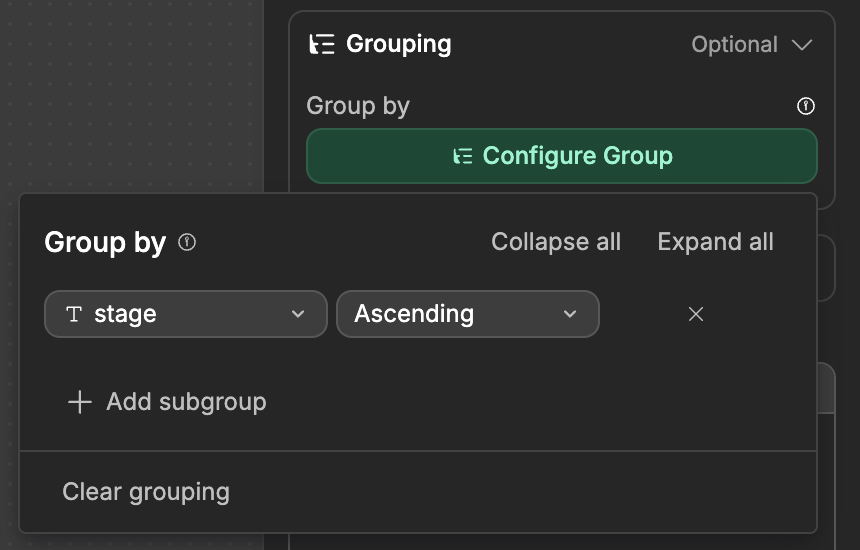
When grouping is on, Limit and Offset count groups instead of rows. Each group returns up to 30 rows at first.
Limit and offset (optional)
In Pagination you can:
- Set
Limitto control how many rows are returned - Set
Offsetto skip a number of rows (useful for paging) - Enable
Include Total Countif you want the total number of matching rows (not shown when grouping is on, the total is always included) - With grouping, use
Group cursorto load the next page of groups, or more rows of one group (see below)
Result
Get rows returns:
data: The list of rowsmetadata: Helpful info likelimit,offset, and (when enabled)total
With grouping, data holds the groups instead of the rows. Each group has a label (its value), a count (how many rows it holds), and its subgroups in children or, at the last level, its rows in rows. metadata then also includes total (the number of groups) and totalRows (the number of rows).
To load more, copy a cursor into Group cursor in another Get rows with the same settings:
- Use
metadata.nextCursorto load the next page of groups. - Use a group's
childrenPageInfo.startCursorto load its subgroups or rows.
You can then use this data in later logic in the endpoint, and/or return this data back to the user via the Send Response action.
If a selected formula fails to calculate, or a formula used in filtering or sorting fails, Get rows can fail. The editor's cell error badges are not returned as row values by this action. See Formula errors for handling missing data and calculation failures.