

Appearance
Environment variables
Environment variables let you store API keys and other sensitive values securely for use in API Endpoints, Event Triggers, and Functions.
When marked as Secure, environment variables live only on the server (in your Secrets). This keeps sensitive credentials like API keys, database connection strings, and authentication tokens hidden from users. You can also create Public environment variables for non-sensitive configuration that can be accessed from the interface.
Why use environment variables?
Environment variables provide several key benefits:
- Security — Secure variables keep API keys and secrets on the server where users cannot access them
- Flexibility — Change values without redeploying your app or updating workflows
- Environment separation — Set different values for Editor (testing) and Production environments
Common uses include:
- API keys for third-party services (OpenAI, Stripe, SendGrid, Twilio)
- OAuth client secrets
- Webhook signing secrets
Adding environment variables
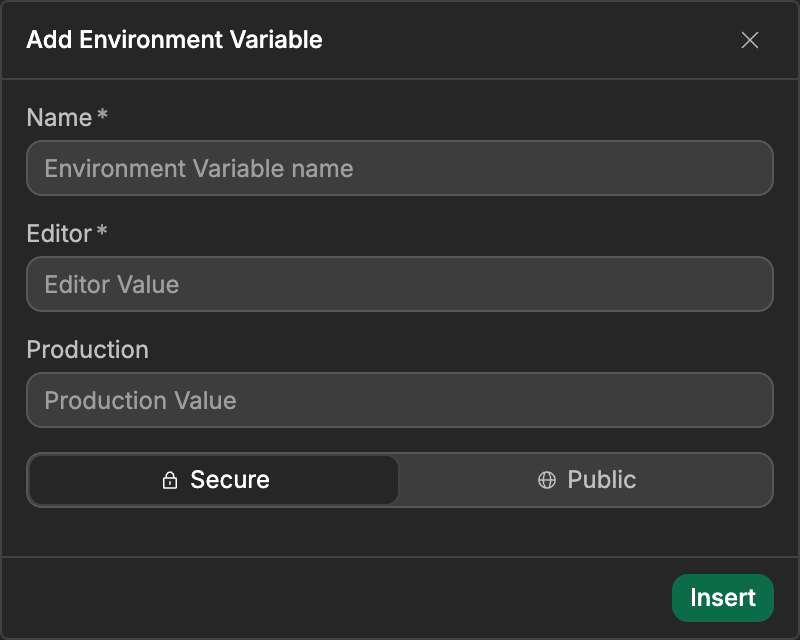
To add an environment variable:
- Go to the
Settingstab in the top bar. - Open the
Environment Variablessubtab. - In the
Customtab, clickInsertto create a new variable - Enter a
Name(for example,OPENAI_API_KEY) - Enter values for
Editor(required) and optionallyProduction(andStagingif your project has a staging environment) - Choose between
SecureorPublicaccess:Secure— Only accessible in API Endpoints, Event Triggers, Functions, and Middleware (recommended for sensitive data)Public— Also accessible in interface workflows and bindings
- Click
Insert
NAMING CONVENTIONS
Follow these best practices when naming environment variables:
- Use UPPERCASE_WITH_UNDERSCORES for consistency (e.g.,
STRIPE_SECRET_KEY) - Be descriptive but concise (e.g.,
SENDGRID_API_KEYnotKEY1) - Include the service name as a prefix (e.g.,
OPENAI_API_KEY,STRIPE_WEBHOOK_SECRET) - Avoid spaces or special characters
- Consider adding suffixes like
_KEY,_SECRET, or_TOKENto identify sensitive values
Finding your variables
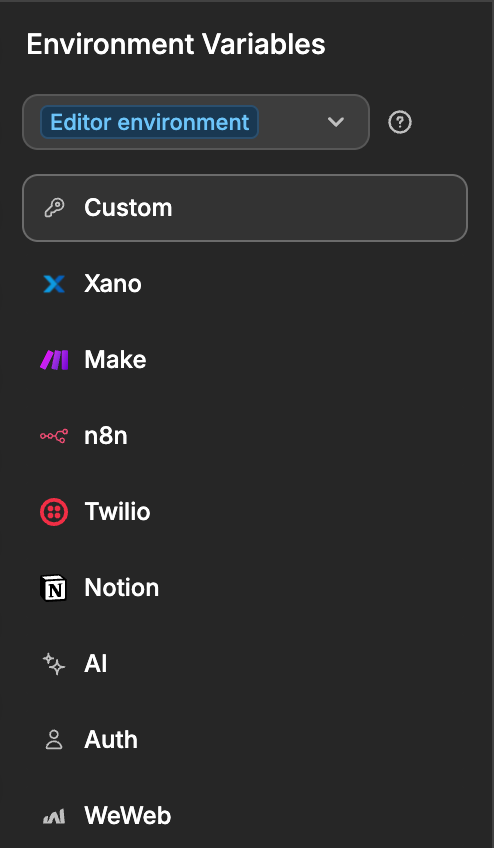
The Environment Variables subtab sorts variables into tabs on the left:
Custom— The variables you create yourself. This is the only tab where you can add new variables.- Integration tabs — One tab per installed integration that uses a connection (for example, Stripe), listing the variables that integration created.
AI,AuthandWeWeb— Variables that WeWeb creates and manages for its own features, such as your authentication settings.
If a workspace connection is added to your project, its variables show in the tab of its integration, with a Workspace label. The tab only shows once the integration is added to the project. Their names start with WORKSPACE_, and you edit them from the dashboard with Edit in dashboard, not from the project. If your project has its own variable with the same name, the project's variable wins. The WORKSPACE_ prefix is kept for workspace connections, so you can't use it for your own variables.
You can't create your own groups or folders. To keep variables easy to find, give related variables the same prefix (for example, STRIPE_SECRET_KEY and STRIPE_WEBHOOK_SECRET) and use the Search bar.
The environment selector at the top of the panel lets you switch between environments (for example Editor and Production) to see the values used in each one.
Using environment variables in API Endpoints
Environment variables are most commonly used in API Endpoints and Event Triggers to securely call external services.
HTTP request example
When making an HTTP request from an API Endpoint or Event Trigger:
- Add an
HTTP Requestaction to your workflow - In the action configuration, look for fields like
Headers,Authorization, orBody - Click the binding icon to open the data selector
- Navigate to
Environment Variables - Select your variable
Example: Setting an authorization header with an API key:
- Header name:
Authorization - Header value:
Bearer [Environment variables > OPENAI_API_KEY]
Secure vs Public environment variables
When creating an environment variable, you choose between two access levels:
Secure (recommended for sensitive data)
Secure variables are only accessible on the server and cannot be accessed from the interface. Use this for:
- API keys and secrets
- Database connection strings
- OAuth client secrets
- Webhook signing secrets
- Any sensitive credentials
Public (for non-sensitive configuration)
Public variables can be accessed both on the server and in the interface. Use this for:
- Feature flags
- Public API endpoints
- Non-sensitive configuration values (e.g., application name, support email)
- Environment-specific settings that don't contain secrets
NEVER MAKE SENSITIVE DATA PUBLIC
Public environment variables are sent to the user's browser and can be inspected by anyone with technical knowledge. Only use Public for non-sensitive configuration values. Always use Secure for API keys, secrets, and any credentials.