

Appearance
Workspace connections
A connection holds the credentials WeWeb uses to talk to an external service, such as your Airtable or HubSpot API key. Usually, you create it inside a project. A workspace connection is created once for the whole workspace, then added to each project that needs it.
This saves you from pasting the same API key in ten projects, and from updating ten projects when the key changes. It also lets you keep secrets with the people in charge of them: someone can use a connection in their project without ever seeing its API key.
Create a workspace connection
Any member or guest can create a workspace connection.
- In your workspace dashboard, click
Connectionsin the menu on the left. - Click
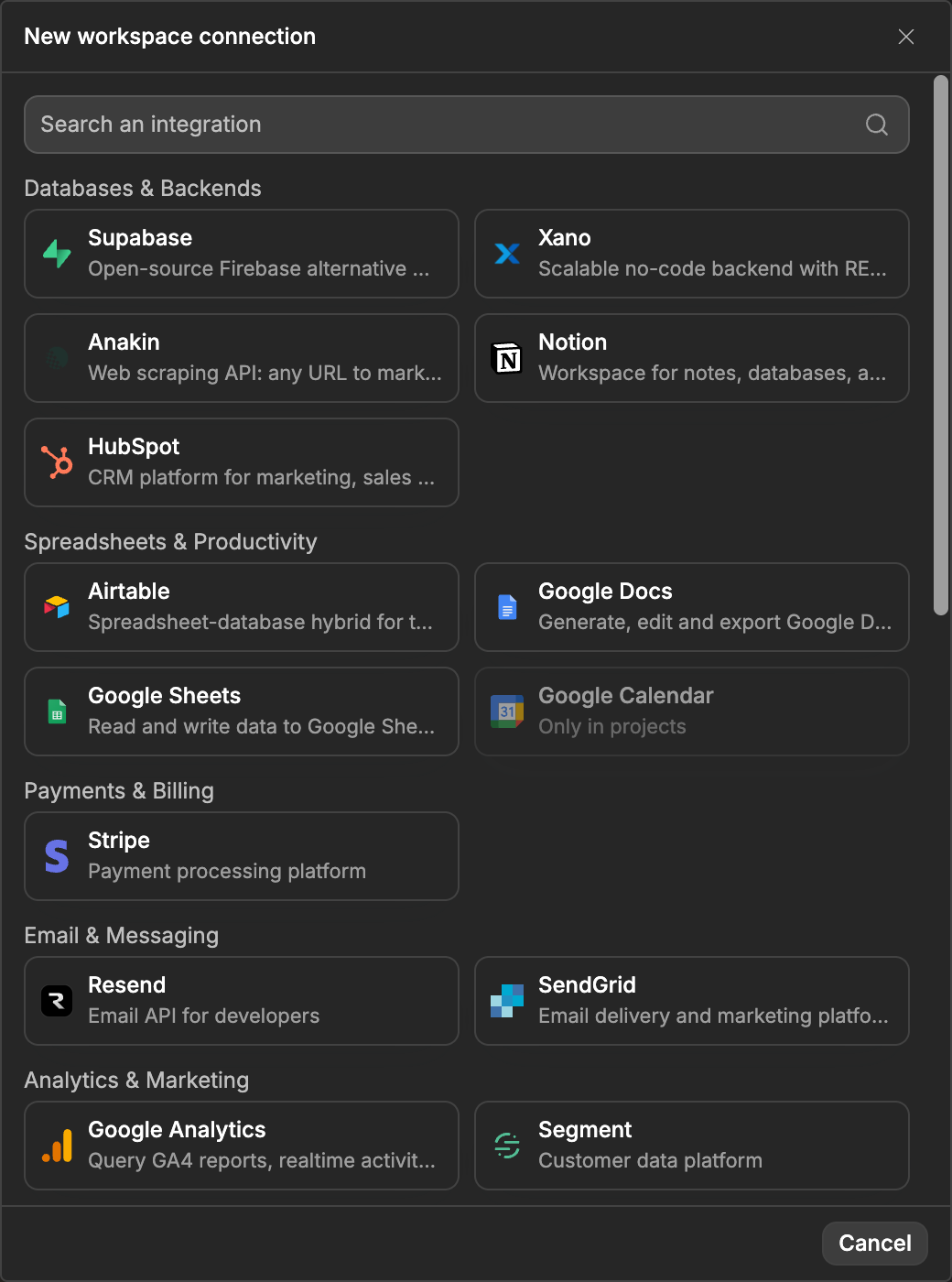
New connection. - Pick an integration from the list.
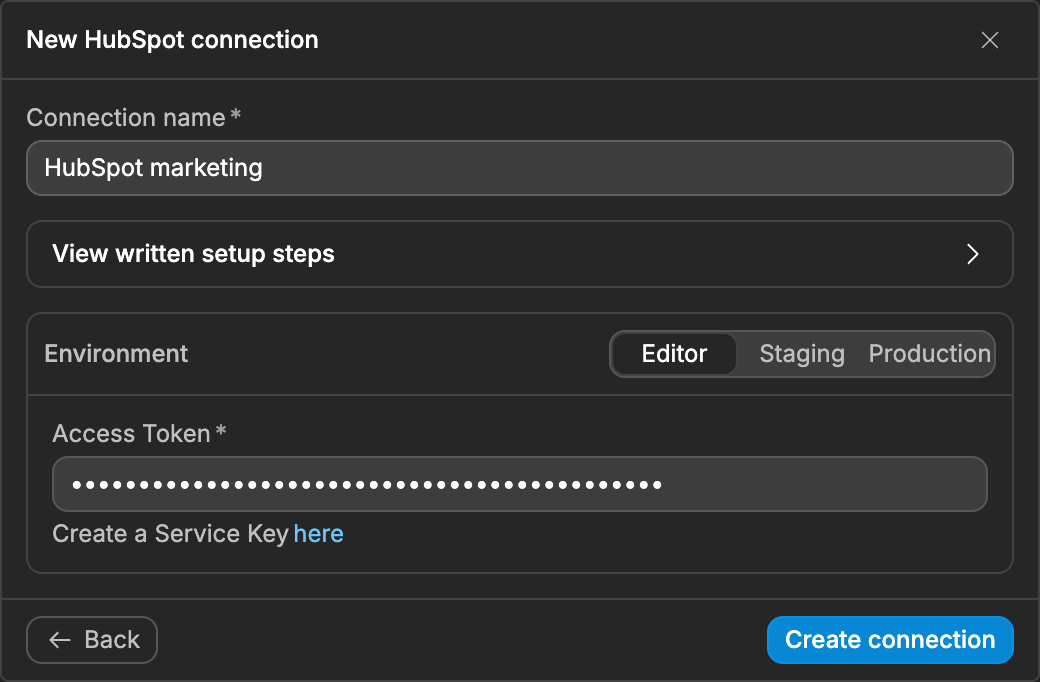
- Give the connection a
Connection name. - Fill in the settings the integration asks for. Like in the editor, you can enter different values for
Editor,StagingandProduction. - Click
Create connection.
You get access to the connections you create.
Integrations that need a project
Some integrations can only be connected inside a project, because their setup depends on the project's URLs or services. They show Only in projects in the list:
- Auth0
- Google Calendar
- OpenID
Integrations that receive events from the service through webhooks (Stripe, Intercom, Telegram and WhatsApp) can be workspace connections, but their events can't trigger workflows through one. To use those events, add a connection of that integration to the project itself.
Add a connection to a project
To use a workspace connection in a project, add its integration to the project, then select the workspace connection. You need to be able to open the project and use the connection.
- In the editor, open the
Integrationssubtab ofData & API, or theIntegrationspanel of theInterfacetab. - Open the integration and click
Add Integration, if the project doesn't have it yet. - Under
Workspace connections, clickAdd to projectnext to the connection. Once added, it showsIn this project. - Select this connection where you use the integration in the project, as you would a project connection.
Connections that belong to the project itself are listed under Project connections. Use Manage in the dashboard to open the workspace connections page.
You can also open a connection to projects from the dashboard: from the connection's access on the Access page, add projects in its Projects tab, or from a project's Access page, add connections in its Connections tab. The connection then shows In this project in the editor, but you still add its integration to the project and select the connection.
The editor only lists the workspace connections you can use. If none shows, ask a workspace admin to share one with you, or create one in the dashboard.
USING VS SEEING
Everyone who can open a project can use the workspace connections added to it, even without access to the connections themselves. They can't see the connections' secret values.
Who can do what with a connection
| To... | You need |
|---|---|
| Use it in your projects | Access to the connection |
| Change its settings and see its secret values | The Edit connection permission |
| Choose who can use it | The Share access connection permission. Click the three dots on the connection's row in the Connections page, then Manage access |
| Delete it | To have created it, to be the workspace owner, or a role that reaches every connection |
Learn more about roles and permissions →
You can't delete a connection while a project uses it for its authentication or its storage.
Environment variables
A workspace connection stores its values as environment variables whose names start with WORKSPACE_. In a project's Environment Variables subtab (in Settings), they show in the tab of the connection's integration (for example HubSpot), with a Workspace label. That tab only shows once the integration is added to the project. Edit them from the dashboard, with Edit in dashboard, not from the project.
If a project has its own variable with the same name (upper or lower case doesn't matter), the project's variable wins.
The WORKSPACE_ prefix is kept for workspace connections, so you can't use it for your own variables. Learn more about environment variables →
Good to know
- A change to a connection's settings reaches a published app the next time you publish that app.
- Transferring a project to another workspace removes the workspace connections it was given.
CONTINUE LEARNING
Let your team sign in with their company account, and build apps only they can use.