

Appearance
Library guidelines
In WeWeb, your project library includes Guidelines, where you can write down the design rules of your project: which colors to use for what, how to name tokens, which spacing goes where, how buttons should look, etc.
These guidelines live in your library, next to your colors, typographies, spacings, classes and components. They help everyone who works on the project, your team and WeWeb AI alike, build screens that look like they belong together.
Why write guidelines
Your library holds the building blocks of your design system. Guidelines explain how to use them.
For example, your guidelines can describe:
- Which color to use for primary buttons, and which one for destructive actions like
Delete - Which text color goes on which background, in both light and dark mode
- How tokens are named and organized in folders, for example
colors/primaryorspacing/md - Which spacing to use between sections, inside cards, or for border radius
- The overall look you're aiming for, such as "clean and minimal, with rounded corners and soft shadows"
Without written rules, each new page tends to drift a little from the previous one. Guidelines help you keep a consistent look-and-feel as your project grows.
Open the guidelines
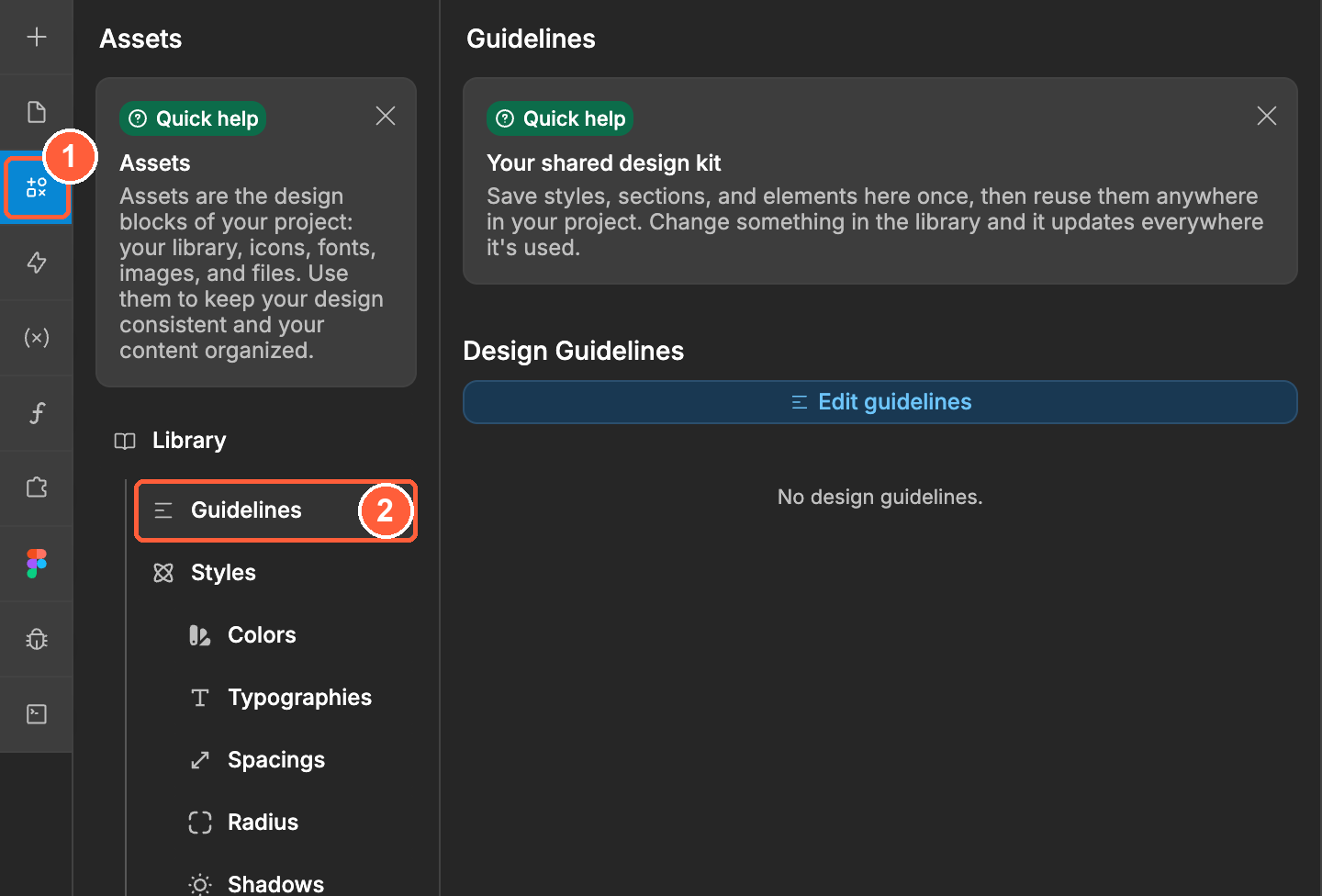
To access the guidelines of your project:
- In the
Interfacetab, open theAssetspanel from the left sidebar - Under
Library, click onGuidelinesto open theDesign Guidelinessection
TIP
Guidelines is only available in the library of your own project. When you browse a library from your workspace or the marketplace, you will see its components, templates, classes and styles, but not its guidelines.
Write and edit guidelines
To write or edit your guidelines:
- Click on
Edit guidelines - Type your guidelines in the editor
- Click on
Save guidelinesto keep your changes, orCancelto discard them
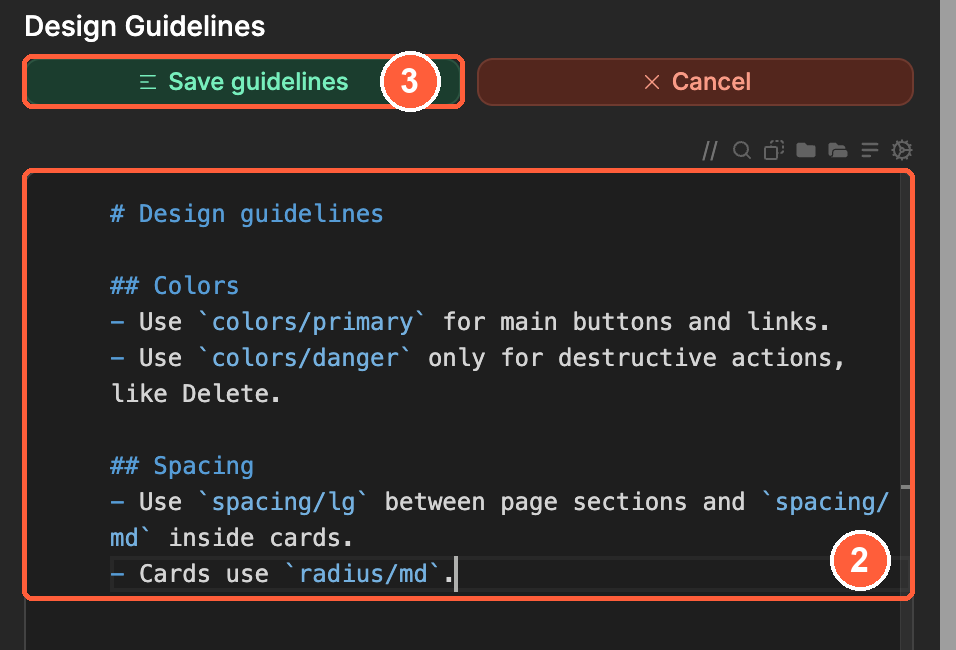
Guidelines are written in Markdown, a simple way to format text: start a line with # for a title, - for a bullet point, and wrap words in ** to make them bold.
Once saved, the tab will show your guidelines formatted. If you haven't written any yet, it shows No design guidelines.
Here is an example to get you started:
markdown
# Design guidelines

## Colors
- Use `colors/primary` for main buttons and links.
- Use `colors/danger` only for destructive actions, like Delete.
- On `colors/background`, always use `colors/text` for body text.

## Spacing
- Use `spacing/lg` between page sections and `spacing/md` inside cards.
- Cards use `radius/md`.

## Style
- Clean and minimal. No gradients.
How WeWeb AI uses your guidelines
When WeWeb AI builds or restyles a page, it reads your guidelines before applying any style, then looks at your existing tokens and classes so it can reuse them. Your guidelines are the design source of truth for the project: if they set a direction, the AI will follow it over its own preferences.
The AI also keeps your guidelines up to date. When it creates new tokens or sets a new convention, for example a new button style, it can add it to the guidelines so the next screens follow the same rule. You can review and edit what it wrote at any time in Guidelines.
TIP
WeWeb AI focuses on the parts of your guidelines that relate to design and to the use of tokens. Keep them short and concrete: a clear rule like "Use colors/danger only for destructive actions" helps more than a long description.
If you don't want AI to change your library, you can protect it. Learn more about protecting resources from AI.