

Appearance
Component versions
By default, your project uses the active version of each coded component. Component versions lets you fix the version of a component in your project, so the project keeps using that version even when another version of the component becomes active.
This is useful when a new version of a component changes something your project relies on, and you want time to test it before using it.
Accessing component versions
To view and manage component versions:
- Click on the
Developmenticon (terminal icon) in theInterfacesection sidebar - Under the
Advancedsection, clickComponent versions
This opens the Project's coded component versions window. It lists the coded components that have a fixed version in your project.
Fixing the version of a component
- Choose the type of component:
Elements,SectionsorPlugins. - In
Choose element fixed version(orChoose section fixed version,Choose plugin fixed version), select the component. It appears in the list, with the menu of its versions next to its name. Select the version your project should use. - Click
Save.
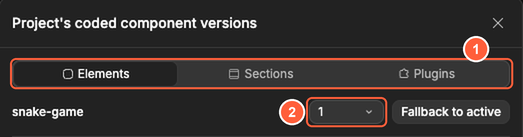
If the window shows a message such as No coded element available., there is no coded component of that type to fix in your project.
Going back to the active version
To stop fixing the version of a component, click Fallback to active next to it, then click Save. Your project uses the active version of the component again.
WARNING
You can't use Fallback to active on a component shared from another workspace. The button is disabled for these components.
CONTINUE LEARNING
Learn about other development tools and settings: