

Appearance
Single sign-on
Single sign-on (SSO) lets your team open your WeWeb workspace with their company account instead of a WeWeb password. Your company directory, the list of people and groups your IT team manages in Google Workspace or Microsoft Entra ID, then decides who joins the workspace and who leaves.
This is useful for larger teams: new hires show up in WeWeb without anyone sending invitations, and someone who leaves the company loses access within minutes, without anyone having to remember to remove them.
Single sign-on is also what makes internal apps possible: apps that only the people you choose in your company can use.
ENTERPRISE FEATURE
Single sign-on is an Enterprise feature. If your plan doesn't include it, the Single sign-on page offers to contact us.
What changes with single sign-on
- People of your company sign in with Google or Microsoft, not with a password. The workspace owner is the only exception.
- Everyone your directory allows shows up as a member right away, ready to be given projects and put in groups.
- Your directory's groups become groups of the workspace, kept up to date by the directory.
- WeWeb syncs your directory every few minutes. Someone suspended or removed in your directory is suspended in the workspace.
- You can't invite people or guests by hand anymore: your directory manages who is in the workspace.
- A member only takes a seat once they can open at least one project or connection.
Supported providers
- Google Workspace
- Microsoft Entra ID
Connect your company directory
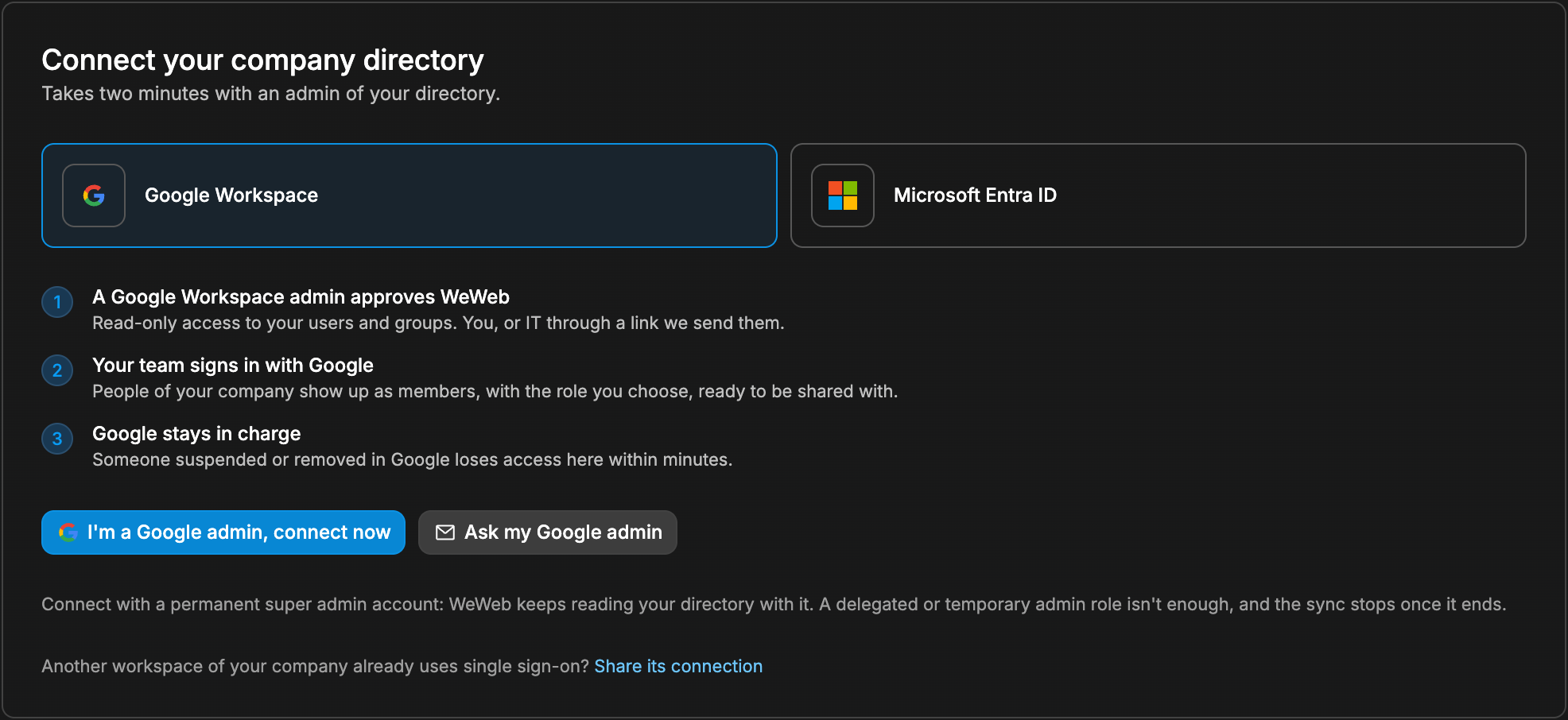
Only an admin of your directory can approve WeWeb for your company. WeWeb only asks for read-only access to your users and groups.
- In your workspace dashboard, click
Single sign-onin the menu on the left. You see this page with theSettingsworkspace permission, but only someone with full access to the workspace can connect it or change its settings: the owner, or a role withFull accesssuch asAdmin. - Choose Google Workspace or Microsoft Entra ID.
- If you're an admin of your directory, click
I'm a Google admin, connect now(orI'm a Microsoft admin, connect now) and approve WeWeb. - If you're not, click
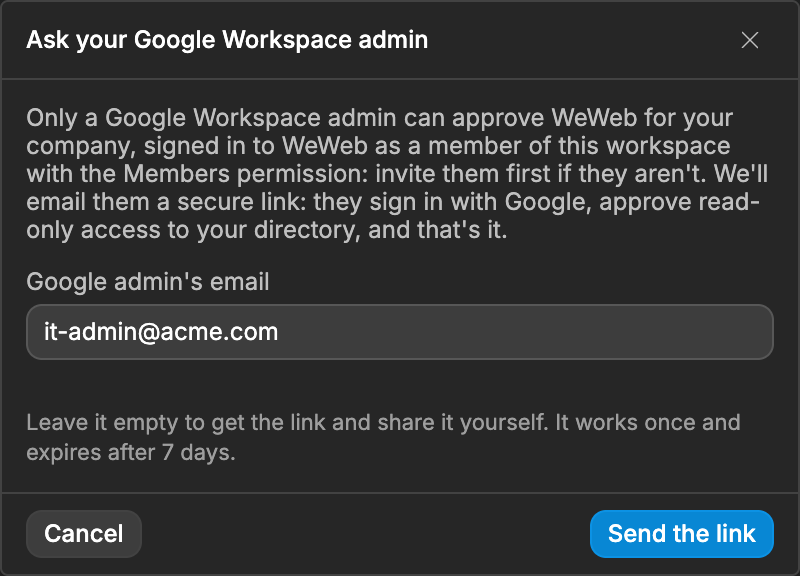
Ask my Google admin(orAsk my Microsoft admin). Enter their email and clickSend the link, or leave the email empty and clickCreate the linkto share it yourself.
WHICH ADMIN ACCOUNT TO USE
WeWeb keeps reading your directory with the account that approved it, so the sync stops if that account loses its admin role.
- For Google Workspace, connect with a permanent super admin account. A delegated or temporary admin role isn't enough.
- For Microsoft Entra ID, connect as a Global Administrator or Privileged Role Administrator. A role that's only eligible in Privileged Identity Management must be activated first.
The admin you ask must be a member of the workspace with the Members permission. Invite them first if they aren't. The link works once and expires after 7 days.
Your company already uses SSO in another workspace
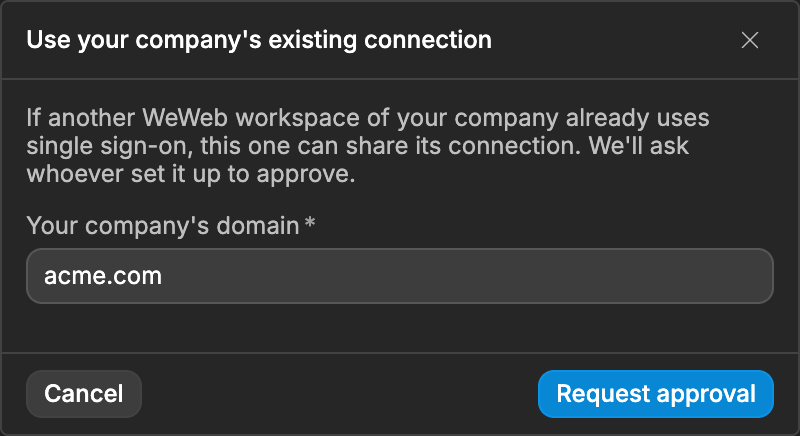
If another WeWeb workspace of your company is already connected, this one can share its connection. Click Share its connection, enter Your company's domain and click Request approval. WeWeb asks whoever set up the first workspace to approve.
Choose who joins
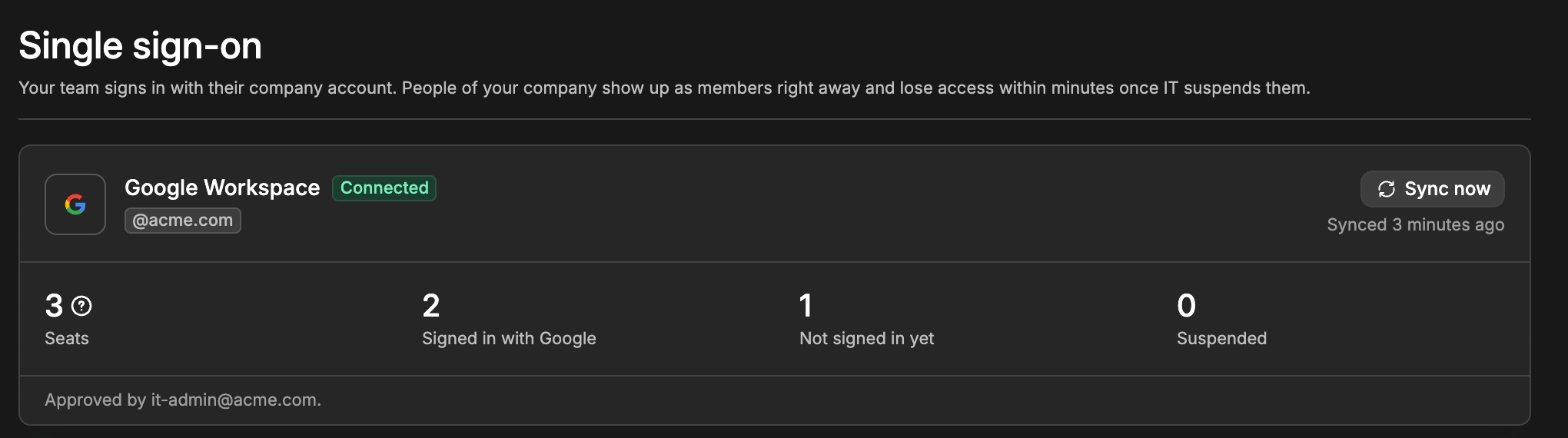
Once connected, the Single sign-on page shows your domains, the last sync, and how many members have signed in.
In the Who joins section, choose:
Everyone atfollowed by your domains: Anyone in your company with an account can join.Members of specific Google groups(or Microsoft groups): Only people in the groups you pick. Leaving those groups removes them from the workspace.
Then choose the role people get when they join. Admin is never given automatically: admins can change anyone's role afterwards on the Members page.
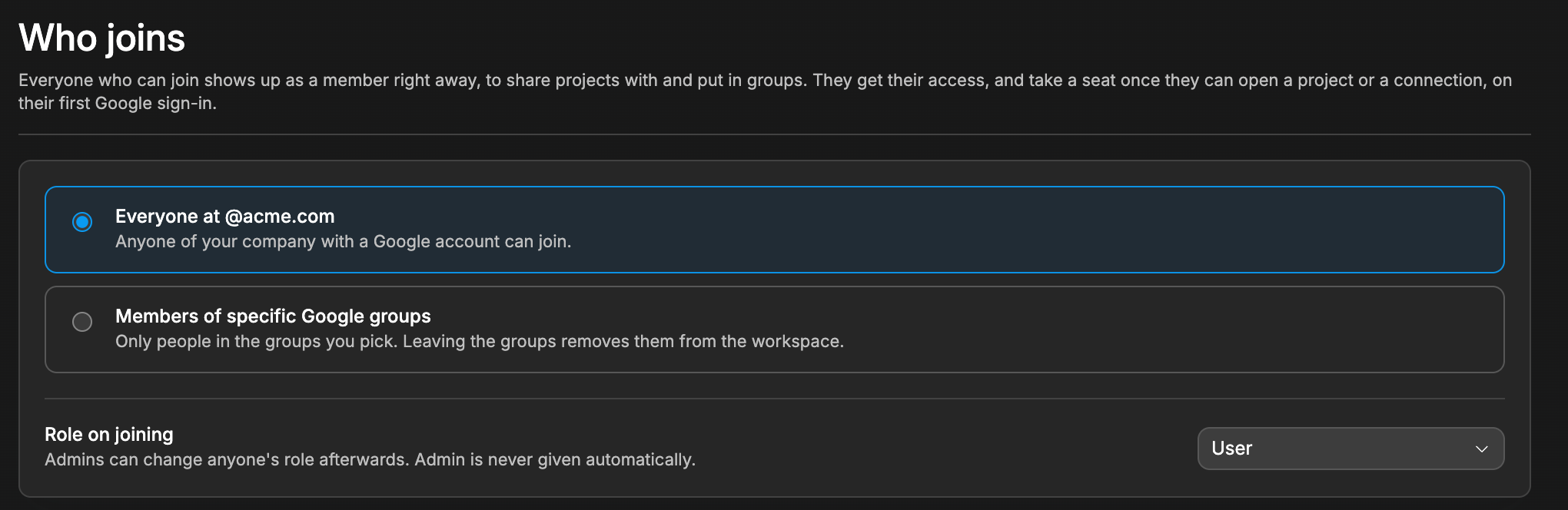
Click Save changes. The sync applies your settings within minutes, or right away with Sync now.
The domains are the ones Google or Microsoft verified for your company. WeWeb reads them again at every sync.
Sign-in
People of your domains open the workspace by signing in with Google or Microsoft. On the WeWeb sign-in page, WeWeb recognizes their company email and sends them to the right place.
If they signed in to WeWeb another way, for example with a password, the workspace still shows in their list of workspaces, with a lock and Requires signing in with Google (or Microsoft). Opening it asks them to sign in again with their company account, with Continue with Google (or Continue with Microsoft).
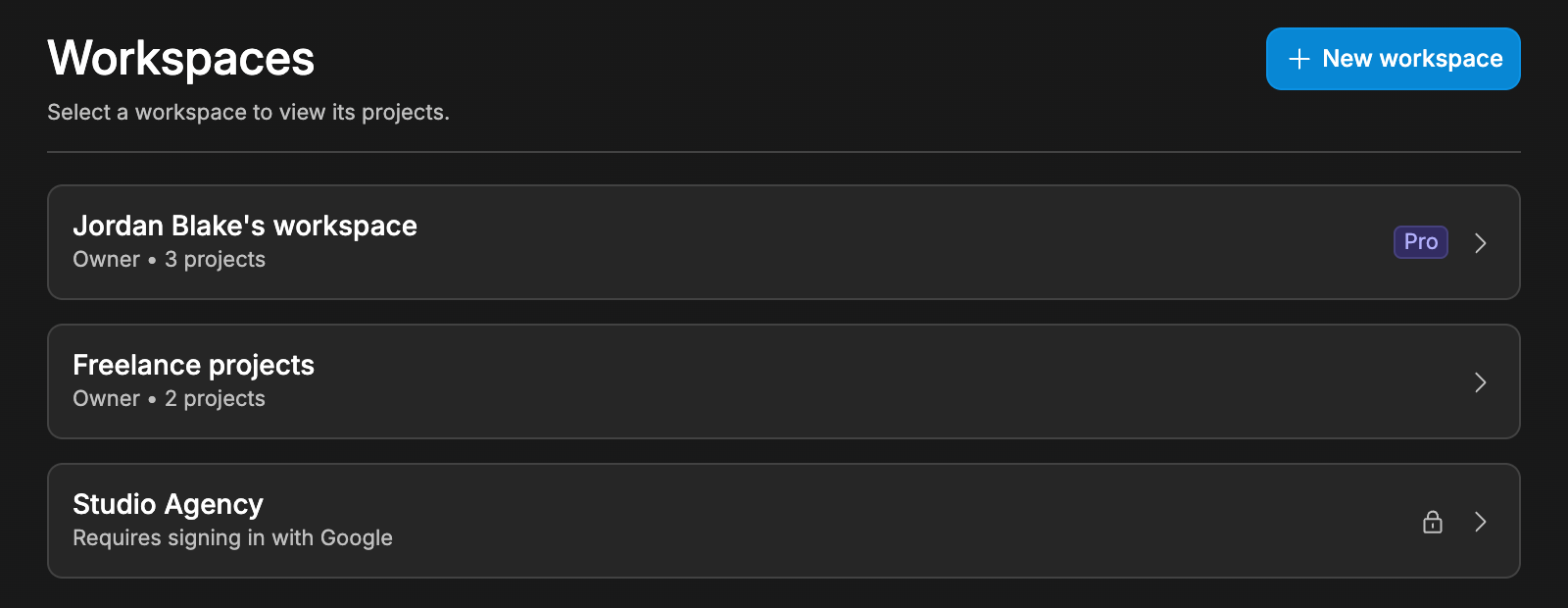
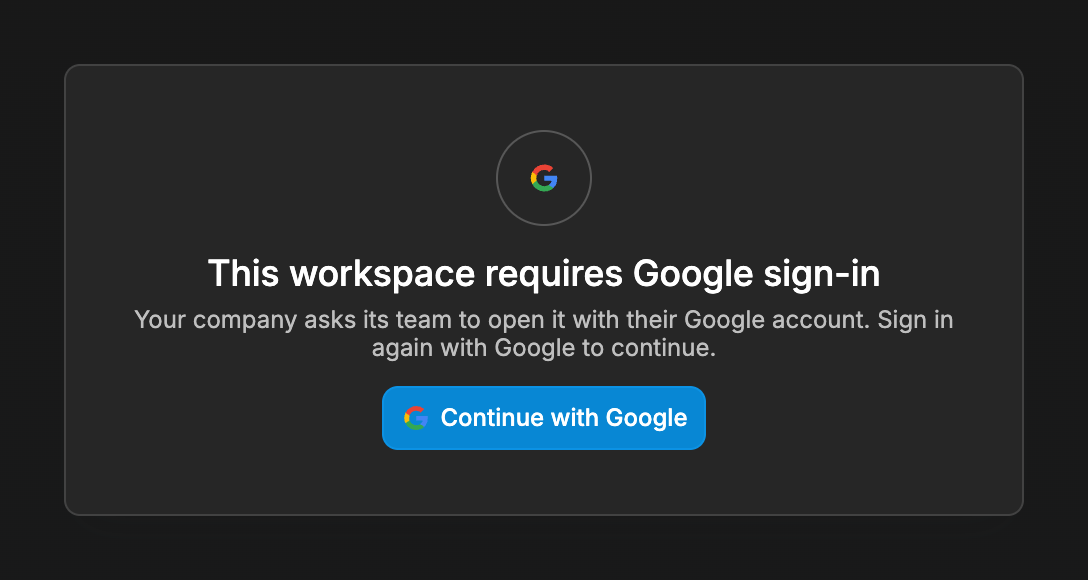
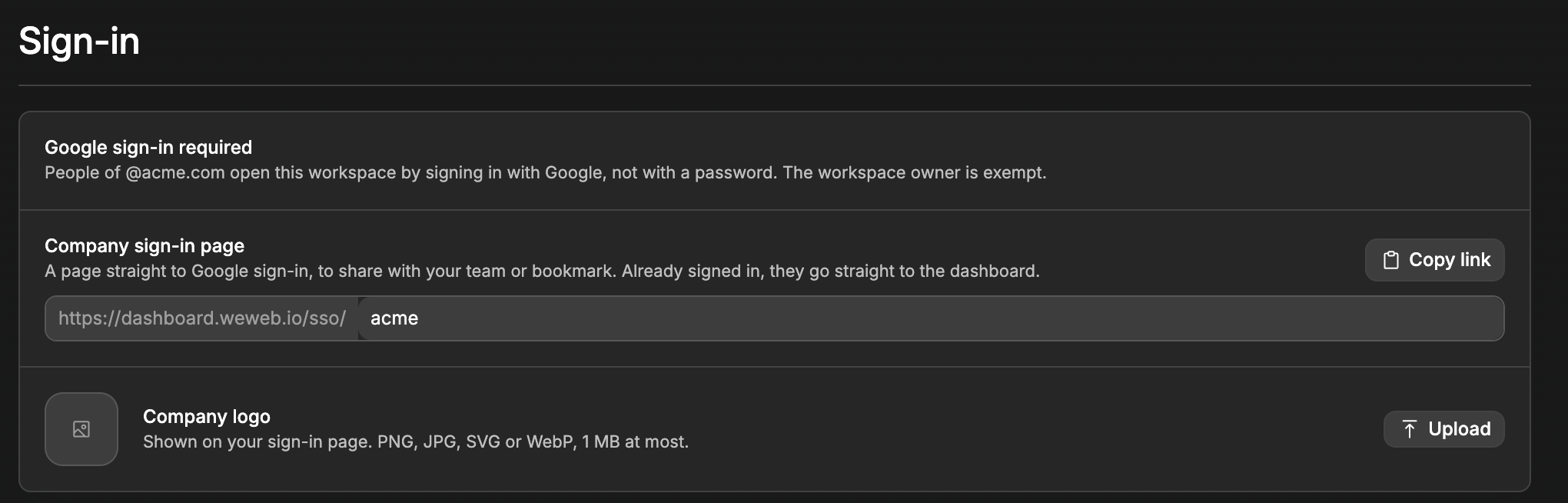
The Sign-in section also gives you a sign-in page for your company, with your company logo. Use Copy link to share it with your team or have them bookmark it. You can change the end of that link (for example, yourcompany), but the old link stops working once you save.
Published apps
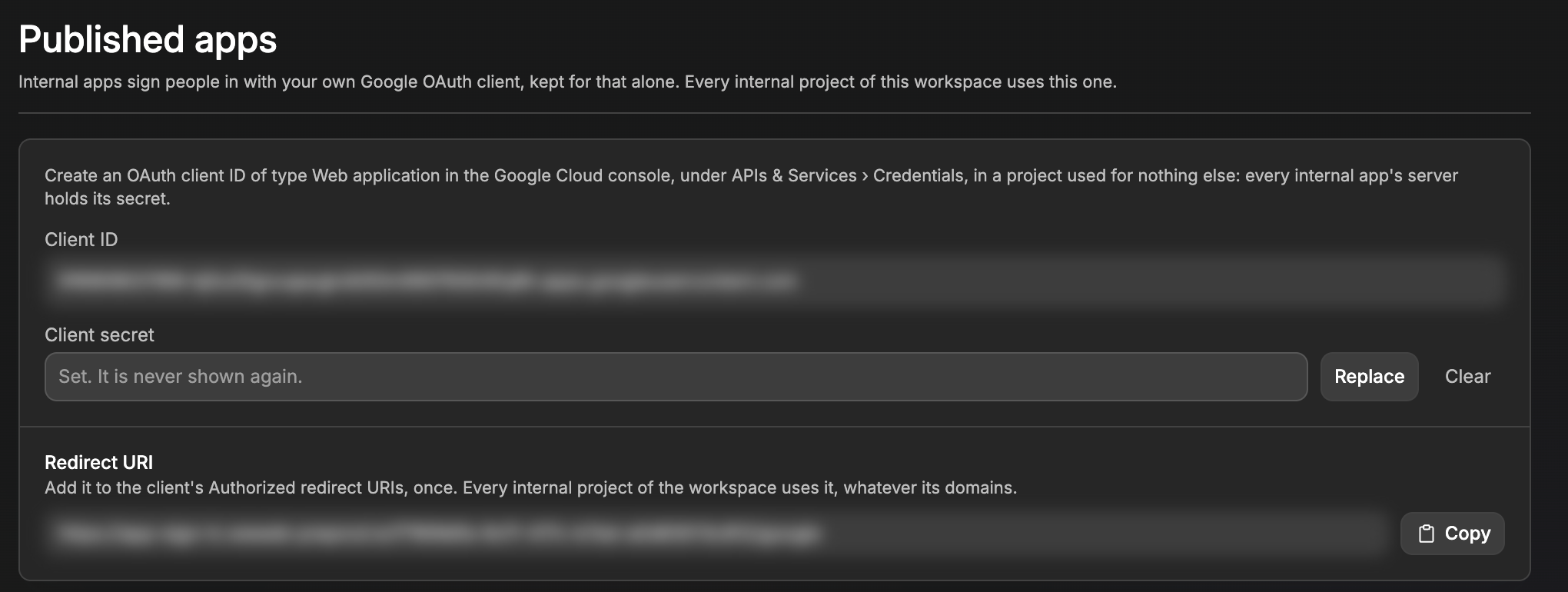
This section shows once your directory is connected. Internal apps sign people in with your own Google or Microsoft OAuth client, an app you register in your directory only for this.
- Create the client:
- For Google, create an OAuth client ID of type
Web applicationin the Google Cloud console, underAPIs & Services›Credentials, in a project used for nothing else. - For Microsoft, register an app in the Microsoft Entra admin center, under
App registrations, and create a client secret for it. Give it no API permissions beyond sign-in (User.Read).
- For Google, create an OAuth client ID of type
- Paste its
Client ID(Google) orApplication (client) ID(Microsoft) and itsClient secret. - Copy the
Redirect URIshown on the page, and add it to your client: in Google, underAuthorized redirect URIs, in Microsoft, as aWebredirect URI in the app'sAuthenticationsettings. Depending on your setup, the page shows one URI for the whole workspace, or one per internal project and per domain. - Click
Save changes.
Every internal project of the workspace uses this client. Once saved, the client secret is never shown again.
Learn more about internal apps →
Disconnect
In the Danger zone section, Disconnect stops the sync. Members stay as regular members, directory groups become regular groups, and people can sign in with a password again.
Troubleshooting
Nobody can sign in with Google or Microsoft
The page shows Disconnected. The admin who approved WeWeb may have left the company or revoked its access. People already signed in stay signed in, but nobody new can sign in until an admin clicks Reconnect.
Settings don't apply right away
After you save, members may still follow the previous settings for a few minutes. Click Sync now to apply them right away.
Your AI tool can't work on a project through the WeWeb MCP
You connected the WeWeb MCP while signed in to WeWeb another way, for example with a password. You still have access to the project: the AI tool tells you the workspace requires signing in with Google (or Microsoft). Sign in to WeWeb with your company account, then reconnect the WeWeb MCP in your AI tool and try again.
Someone was removed from the workspace
They're no longer in your directory, or no longer in the groups allowed to join. Their access comes back if they're added again.
CONTINUE LEARNING
With single sign-on set up, you can build apps that only the people you choose in your company can use.