

Appearance
Internal apps
When you create a project in a workspace whose plan includes single sign-on, you choose who can use its published app:
Public: Anyone with the link can use it. You protect pages, backend workflows and table views yourself, with the access rules you set in the editor.Internal: Only the people you choose can use it, signing in with their company account.
Internal apps are made for tools your team uses at work, such as a back office, a sales dashboard or an HR portal. You don't build a sign-in page, nobody creates a password, and someone who leaves your company loses access to the app along with the rest of their company accounts.
YOU CHOOSE ONCE
A project is public or internal from the moment you create it. You can't change it afterwards.
Before you start
Internal apps sign people in through your workspace's single sign-on. You need:
- Single sign-on connected for your workspace (an Enterprise feature).
- Your sign-in client added in the
Published appssection of theSingle sign-onpage. You can do this after creating the project, but you can't publish until it's done.
Create an internal app
- In your workspace dashboard, click
New project. - Enter a
Project name. - Under
Who can use the published app?, chooseInternal. - Under
Server location, pick the region where its backend and data are kept. - Click
Create project.
WeWeb then sets up the app for you. This usually takes 1 to 5 minutes, and you don't need to do anything. WeWeb:
- Prepares the project in the region you chose.
- Creates its database.
- Sets up sign-in with your company account.
- Creates its server.
- Prepares staging and production, and copies your company directory into them.
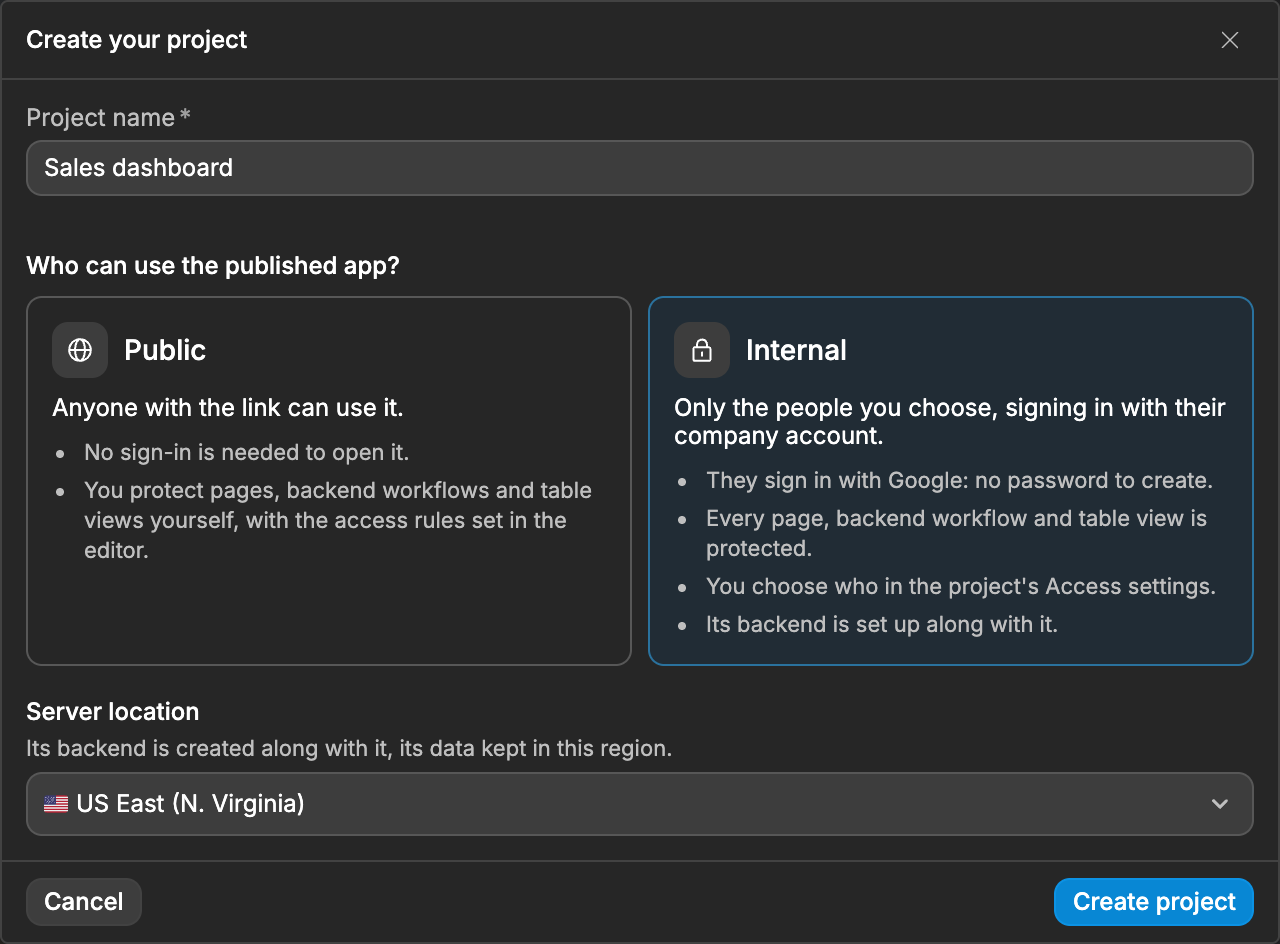
If Internal is greyed out, single sign-on isn't connected yet. Use the Set up single sign-on link below the choice.
Choose who can use the app
Opening the project in the editor doesn't give access to its published app. You choose who can use the app separately, for production, and for staging if your plan includes it.
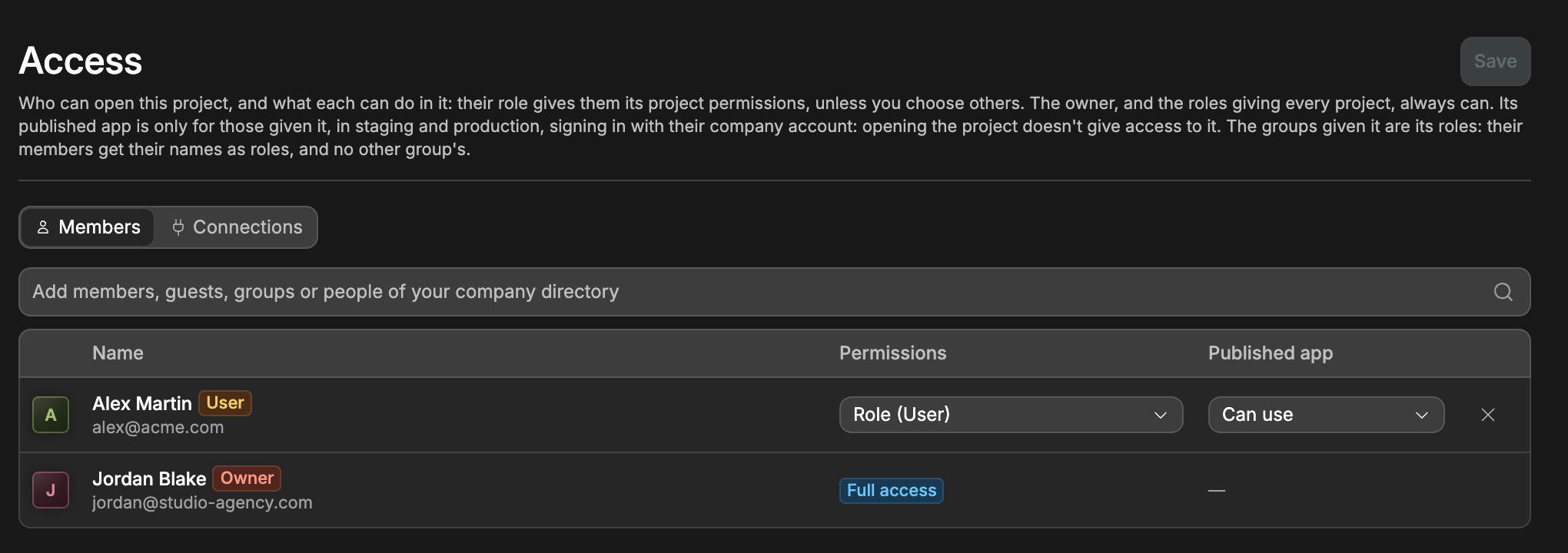
- Open the project from your workspace dashboard, then click
Accessin the menu on the left. - In the
Memberstab, add people or groups from your company directory. - In the
Published appcolumn, chooseCan useorNo access. If your plan includes staging, you can also allow staging only, or production only. - Click
Save.
If your plan no longer includes staging, people who could still use staging keep showing there: you can take them away, but you can't give staging to anyone else.
You can add people from your directory who aren't members of the workspace. They can only use the published app, not open the project. For workspace members, set Permissions to No access if they should use the app without opening the project.
The workspace owner, and people whose role opens every project, can always use the app, as long as they're in your company directory. Someone who isn't shows — in the Published app column: they can't sign in to the app.
USE GROUPS AS ROLES
The directory groups you give the app become its roles: each member gets the names of their groups as roles. You can use them to show pages only to some teams, for example a Finance page for the Finance group. Learn more about roles →
Publish the app
Publish from the editor as usual. Before publishing, WeWeb shows who can sign in to the app in that environment.
WeWeb refuses to publish while something is missing. The publish window and the project's Access page tell you what:
- Single sign-on isn't connected, or the sign-in client isn't added: go to the
Single sign-onpage. - The backend, database or sign-in wasn't fully set up: open the editor to finish it.
How the app is protected
- Every page, backend workflow and table view is protected. People who aren't signed in are sent to the company sign-in.
- The app's server checks access on every request, and doesn't accept webhooks from other services.
- Search engines don't list its pages.
- Sign-in is set up by WeWeb, so you can't change it in the editor's
Authenticationsettings. - WeWeb copies your company directory into each environment's database, with only the people who have access. The published app never calls WeWeb to check who can sign in.
WHAT STAYS PUBLIC
The files that make up your app's interface can still be downloaded by anyone who has the link. Your data can't: it stays behind sign-in.
FAQs
Can I turn an existing public project into an internal app?
No. A project is public or internal from its creation. Create a new internal project instead.
Can someone use the app without being a member of the workspace?
Yes, as long as they're in your company directory. Add them on the project's Access page: they can sign in to the published app, but can't open the project.
What happens when someone leaves the company?
Once your IT team suspends or removes them in your directory, WeWeb's next sync removes their access, usually within minutes.
Can I self-host an internal app?
Yes. A self-hosted internal app gets who has access from WeWeb's public API.
CONTINUE LEARNING
Learn how to publish your app to staging and production.