

Appearance
Account Settings
In this article, you'll learn:
- How to change your account settings (name, email, two-factor authentication and password)
To find your account settings, click on your avatar at the top right of the dashboard, then on your name:
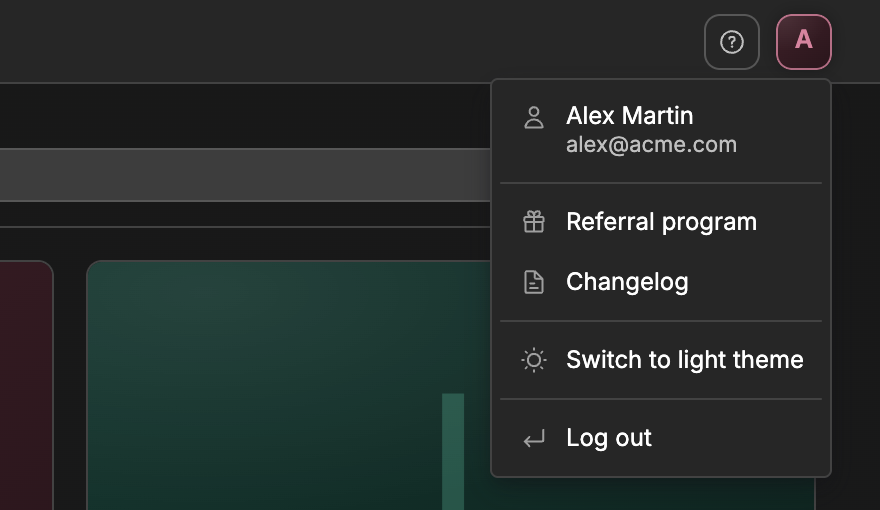
The Account settings page opens. It has 4 sections:
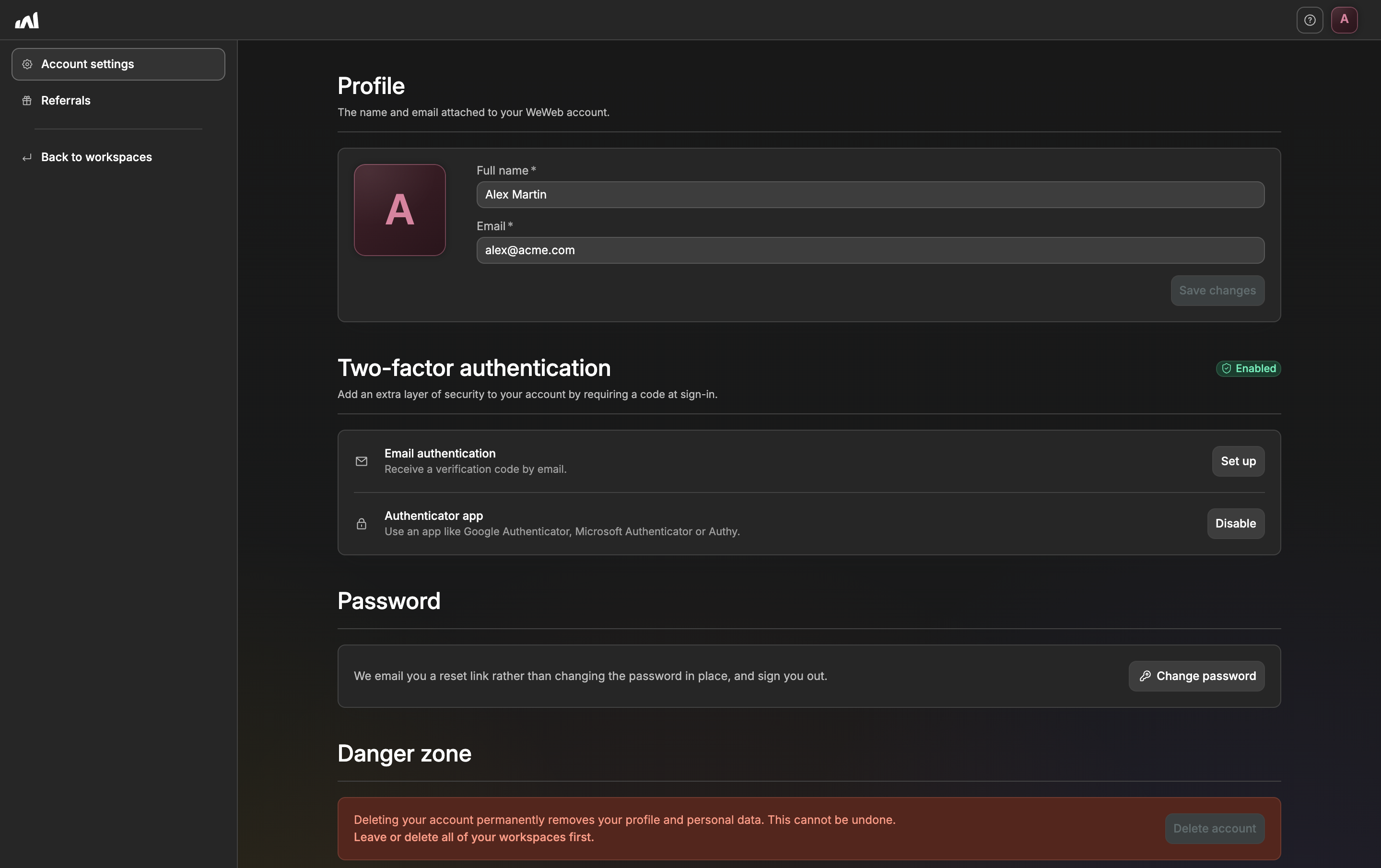
Profile
Change your Full name or Email, then click Save changes.
WARNING
Changing your email logs you out. If email is one of your two-factor methods, you will need to set it up again.
Two-factor authentication
Two-factor authentication asks for a code at sign-in on top of your password, so someone who finds your password still can't open your account.
You can receive the code by email (Email authentication) or in an app like Google Authenticator, Microsoft Authenticator or Authy (Authenticator app). Click Set up next to the method you want to use.
Password
Click Change password. Rather than changing your password on the spot, WeWeb emails you a link to set a new one, and signs you out.
Danger zone
Click Delete account to permanently remove your profile and personal data. You first need to leave or delete all of your workspaces.
TIP
The Referrals tab, in the menu on the left, opens your referral program. Back to workspaces takes you back to the dashboard.