

Appearance
Cloudflare R2 storage
Cloudflare R2 is a storage service for files (images, PDFs, uploads). You can connect it to WeWeb so your project keeps its Public and Private files in your own Cloudflare account instead of in WeWeb Storage.
R2 has its own provider in WeWeb. You give WeWeb your account ID and your R2 keys, and it fills in the R2 address and region for you.
What you need before you start
- A bucket for your private files. If your app also needs files that anyone can open with a link, a second bucket for your public files. The bucket is the only thing that separates private from public, so you cannot use the same bucket for both. WeWeb refuses two identical bucket names.
- An R2 API token with
Object Read & Writeaccess to those buckets. Creating it gives you an access key ID and a secret access key. - Your Cloudflare account ID.
- For public files only: a public address for your public bucket, either your own domain or the
r2.devaddress that Cloudflare can turn on.
ONLY STORING PRIVATE FILES?
Leave the public bucket and its URL empty. You only need the private bucket and your keys.
Step 1: create your buckets and your keys in Cloudflare
- In the Cloudflare dashboard, open
R2 object storageand create a bucket for your private files. - If you need public files, create a second bucket for them.
- On the R2
Overviewpage, underAccount Details, clickManagenext toAPI Tokens. - Click
Create Account API token. UnderPermissions, selectObject Read & Write. You can limit the token to your buckets. - Create the token, then copy the
Access Key IDand theSecret Access Key. Cloudflare only shows the secret once. - Copy your account ID. In the dashboard, press
Ctrl + K(Cmd + Kon Mac) and search forCopy account ID.
USE THE R2 KEYS, NOT A CLOUDFLARE API TOKEN
WeWeb needs the access key ID and the secret access key of your R2 token. A regular Cloudflare API token does not work in these fields.
Learn more about R2 API tokens in the Cloudflare docs →
Step 2: give your public bucket a public address
Skip this step if you only store private files.
R2 does not make a bucket readable by anyone by default, and the address WeWeb uses to send and manage your files cannot serve public links. Give your public bucket a public address, in its Settings in Cloudflare:
- Your own domain (recommended). Under
Custom Domains, clickAdd, enter a domain you manage in the same Cloudflare account, then clickConnect Domain. - The
r2.devaddress. UnderPublic Development URL, clickEnable, typeallowto confirm, then copy the address. Cloudflare limits the traffic on this address and only recommends it for testing.
Do this on the public bucket only. Your private bucket must stay without a public address.
Learn more about public buckets in the Cloudflare docs →
Step 3: add the connection in WeWeb
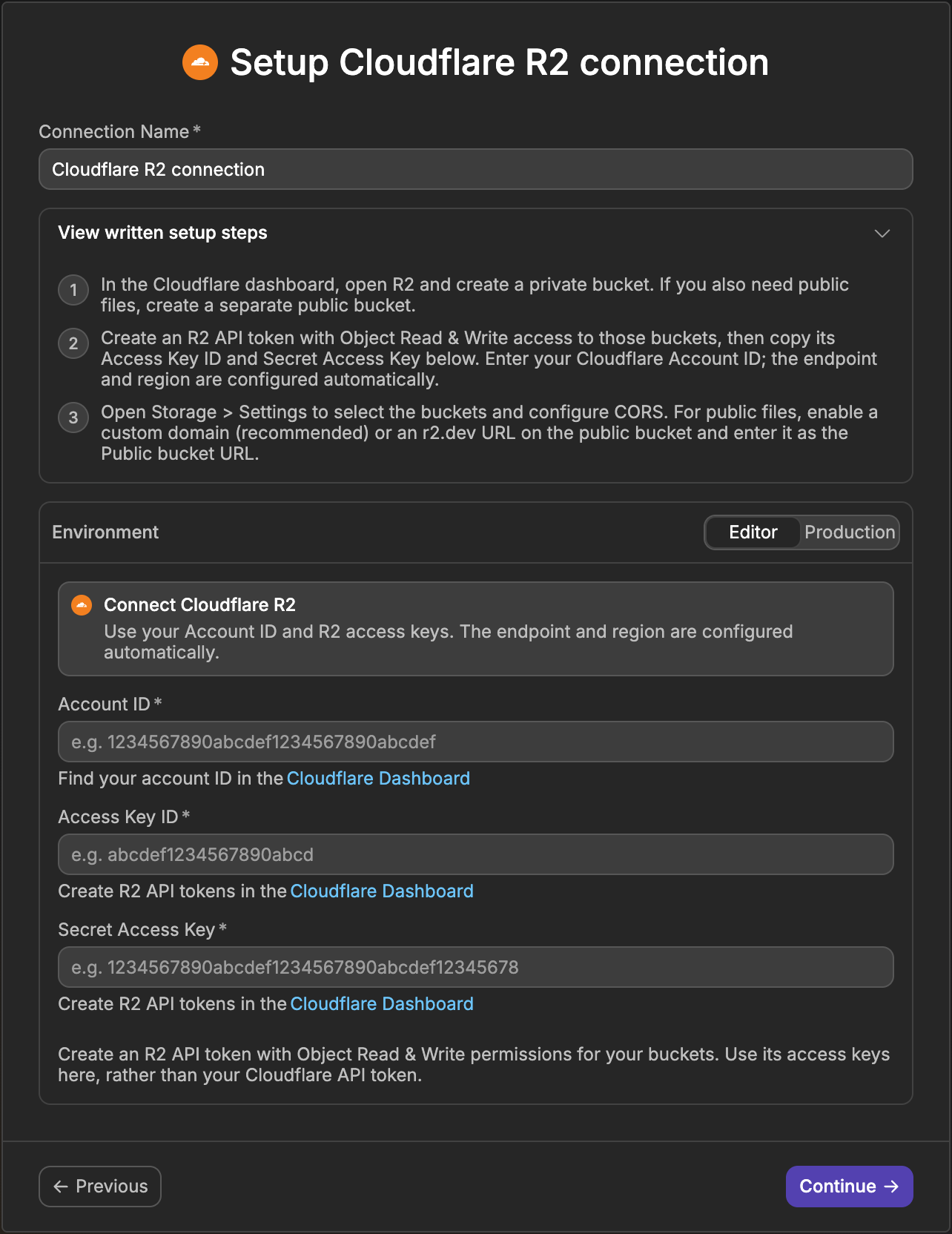
- Go to the
Data & APItab, then open theIntegrationssubtab. - Open
Cloudflare R2and clickAdd Connection. - Give it a name in
Connection Name. - Choose the environment you are configuring (
Editor,StagingorProduction), then fill inAccount ID,Access Key IDandSecret Access Key. - Repeat for each environment you use, then click
Save.
There is no address or region to fill in. WeWeb builds the R2 address from your account ID and uses the region R2 expects.
EMPTY ENVIRONMENTS REUSE ANOTHER CONNECTION
If you leave Staging or Production empty, your published app uses the connection of another environment instead: Production uses the Staging one if you filled it in, otherwise the Editor one. To run the bucket checks in an environment, though, it needs its own keys.
Step 4: select Cloudflare R2 as your storage
- Go to the
Data & APItab, then open theStoragesubtab. If another provider is already set up, go toSettingsand useSwitch Storage Providerfirst. - In
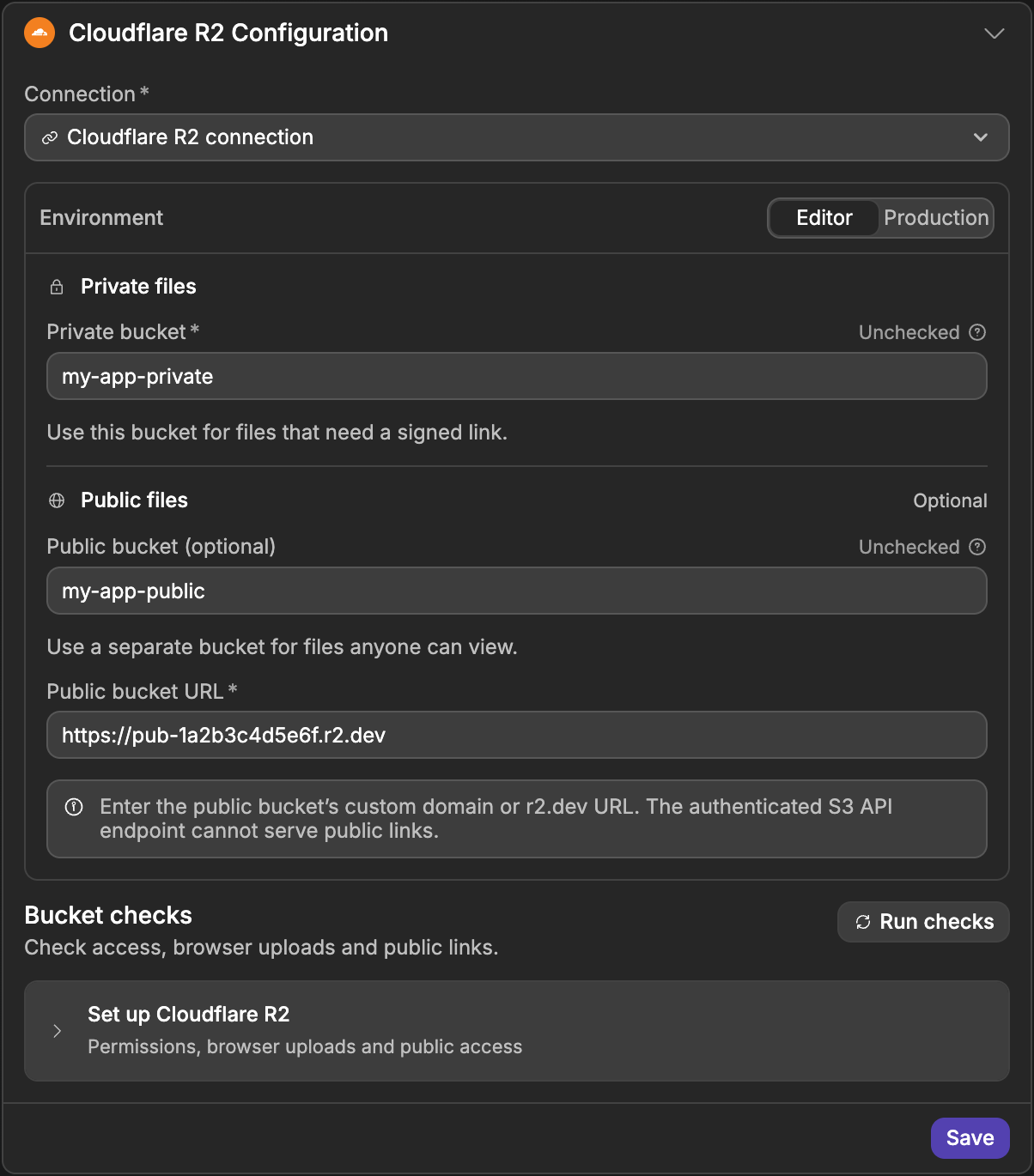
Connect your storage, chooseCloudflare R2. If you have not created a connection yet, WeWeb asks for it now, with the same fields as in step 3. - Pick your connection in
Connection. - Choose the environment, then fill in
Private bucket. - If you created a public bucket, fill in
Public bucket (optional)and paste its public address from step 2 inPublic bucket URL. WeWeb requires this address as soon as you enter a public bucket. - Click
Continue.
To change these settings later, open the Settings tab of the Storage subtab. The Cloudflare R2 Configuration panel shows the same fields, with a Save button.
Step 5: add the CORS rule to your buckets
When you upload a file, your browser sends it straight to R2. R2 refuses it unless the bucket has a CORS rule (a list of the addresses allowed to upload) that lets your app in.
- In
Settings, belowBucket checks, expandSet up Cloudflare R2. - Under
Allow uploads from your app, clickCopy CORS rulenext to a bucket. The rule is already filled with the address of the editor and the domains of your published app. - In Cloudflare, open that bucket, go to
Settings, then underCORS PolicyclickAdd CORS policy. - In the
JSONtab, paste the rule and clickSave. - Do the same for your other bucket.
If you later publish your app on a new domain, copy the CORS rule again. A domain that is not in the list cannot upload.
Learn more about CORS on R2 in the Cloudflare docs →
Step 6: check your buckets
In Settings, click Run checks. WeWeb connects to R2 with your keys, reads the CORS rule of each bucket, then loads an image from your public bucket through its public address.
The results are grouped by bucket, with one line per check:
- Bucket access shows
Connectedwhen WeWeb can reach the bucket with your keys. - Browser uploads shows
CORS verifiedwhen the CORS rule lets your app upload. - Public links shows
Verifiedwhen an image in your public bucket opens with its public address. This line only appears for the public bucket.
Each bucket also gets a badge next to its name in the bucket fields: Unchecked before you run the checks, Ready when nothing is left to fix, Warning when something needs a look, and Blocked when the bucket cannot be used as it is.
When something is missing, the panel tells you what it is. Click Check again after each change you make in Cloudflare.
BROWSER UPLOADS SHOWS NOT VERIFIED
If your keys are not allowed to read the CORS settings of a bucket, the check shows a warning (Browser uploads aren’t verified yet) instead of an error, with the message from Cloudflare under Technical details. Make sure you pasted the CORS rule from step 5, then upload a file from your app to confirm it works.
The public links check needs an image to load. If your public bucket is empty, upload one from the Public tab of the Storage subtab, then run the checks again.
Public file URLs
WeWeb builds the URL of a public file from the Public bucket URL you entered and the path of the file. You never have to write that address yourself.
To get the URL of a public file, add the url column to a table view joined on your public files, then bind your Image element (or your link) to it.
The value can be empty, for example when the project has no public bucket, so bind it with a fallback rather than assuming it is always there.
THE FILE UPLOADED BUT THE IMAGE IS BROKEN
This almost always means the public bucket has no public address yet, or that Public bucket URL does not match it. The public links check in Settings tells you when the address does not answer.
Private files
Private files are never openable with a plain link. Your app asks for a short-lived signed URL when a user needs to view or download the file, exactly as it does with WeWeb Storage.
Learn more about using files in your app →
Common pitfalls
The account ID is refused
Account ID only accepts the 32-character ID of your Cloudflare account. If you see Enter your 32-character Cloudflare Account ID., copy the ID again from the Cloudflare dashboard and check that no other text came with it.
Public bucket URL is refused
This field needs the public address of your public bucket: your custom domain or its r2.dev address. The address that ends in r2.cloudflarestorage.com (the one WeWeb uses to manage your files) cannot serve public links, so WeWeb refuses it.
Uploads fail in the editor or in your app
This is a CORS problem. Copy the CORS rule from Settings again, paste it in both buckets, and check that the domain you upload from is in the list.
Private files are reachable publicly
Check that Private bucket and Public bucket (optional) are two different buckets, and that only the public bucket has a custom domain or an r2.dev address.
A file cannot be created at a path that already exists
Overwriting is off by default, so uploading to a path already in use fails. Delete the file first, or turn on Replace if exists in your upload action.
Deleting a file directly from the Cloudflare dashboard does not remove it from your project's file list, so that path stays blocked until you delete it from WeWeb too.
Files download instead of opening in the browser
A file stored without a type is treated as raw data, and browsers download it instead of displaying it. When your app asks for an upload link with Get file signed upload url, fill in Content Type (for example image/png). When you upload an actual file, for example from a File Upload element, the type travels with the file and there is nothing to do.
Copy URL is greyed out in the Storage panel
That action is only available with WeWeb Storage. With Cloudflare R2, get the address from the url column of a table view instead.
Good to know
- Signed links expire, so never treat a signed link as permanent.
- Your buckets do not need any per-file permission settings. WeWeb never sets them.