

Appearance
Monitor Scheduled Tasks
Scheduled tasks run in the background, so you need a place to see what's planned, what ran and what went wrong. That place is the Scheduled Tasks subtab of the Data & API tab. It has three tabs:
Recurring scheduleslists every recurring schedule in your project.Execution historylists every scheduled task, one row per run.Settingscontrols storage, how many tasks run at once, pausing all tasks, history cleanup and uninstalling.
Use the environment selector at the top to switch between Editor, Staging and Production. Each environment has its own schedules and history.
See all recurring schedules
The Recurring schedules tab shows the schedules of all your Scheduled Task workflows in one place, even the ones that have never run yet.

| Column | What it shows |
|---|---|
Schedule | The schedule's name and its workflow. Click the workflow name to open it and edit the schedule. |
Frequency | When it runs, in the schedule's timezone. |
Next run | The date of the next run, or why there isn't one: Disabled (the schedule is off), Paused, All tasks paused or Fix this schedule to resume. |
Activation | On, Off or Needs attention, as set on the workflow. Learn more about schedule status → |
Execution | A Pause or Resume button. |
In Editor, the list shows your current schedules. In Staging and Production, it shows the schedules from your last publication in that environment.
Click Create a Scheduled Task to start a new Scheduled Task workflow, and Refresh to update the list.
Pause a schedule
Sometimes you need to stop a schedule right away: a bug sends wrong emails, or an external service is down. Turning the schedule off means editing the workflow and publishing. Pausing is immediate.
In the Recurring schedules tab, click Pause next to the schedule. It stops creating new runs in the selected environment, straight away, without publishing. Tasks already waiting or running continue.

Click Resume to start again. The schedule picks up at its next scheduled time: the runs it skipped while paused don't run.
A few things to know:
- You can pause in
Editor,StagingandProduction. Each environment has its own pause. - A pause stays in place when you publish. Only
Resumeremoves it. - Pausing doesn't change
On/Off. You can't pause a schedule that's off. - If the schedule has a problem (a required input is empty, for example),
Resumeshows an error until you fix it.
To stop every task in an environment at once, use Pause all tasks in the Settings tab.
Follow your scheduled tasks
The Execution history tab lists your scheduled tasks, from recurring schedules and from the Schedule tasks action alike. Each row shows the task's name, its workflow, its status, when it's scheduled, how many attempts it used and its queue.
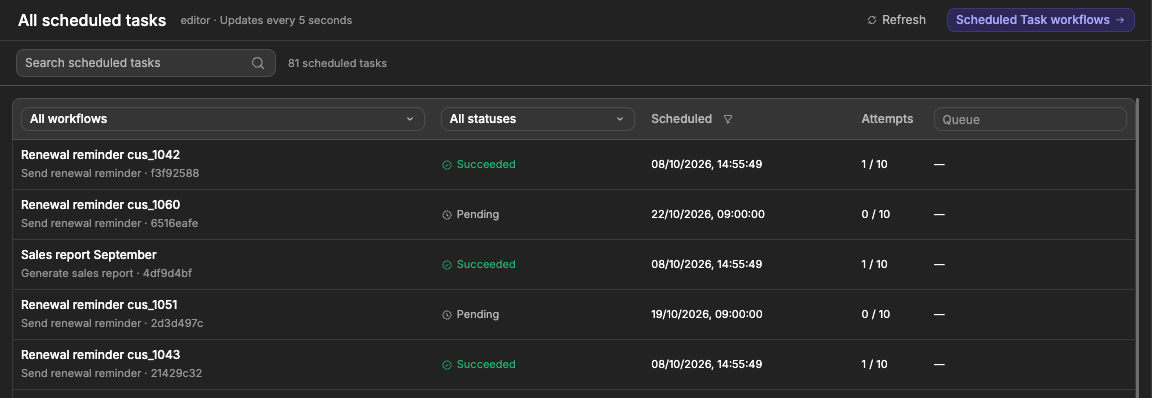
To find a task, type in Search scheduled tasks, or filter by workflow, status, scheduled date or queue. The list updates every 5 seconds. Click Refresh to update it right away.
To see one workflow's tasks only, open the workflow and click the history icon (View scheduled tasks) in its Schedule triggers block.
| Status | What it means |
|---|---|
Pending | The task is saved and waiting for its date, or for a free slot to run. |
Running | The task is running now. |
Waiting for retry | A try failed. Another one is planned. |
Succeeded | The workflow finished without errors. |
Failed | Every try failed. The task won't run again on its own. |
Cancelled | The task was cancelled. |
Look at one task
Click a row to open its details. You'll find:
- When it was scheduled and when it finished.
- Its ID, which you can pass to the
Unschedule a taskaction. Inputs: the values it received.Result: what the workflow returned, if it ends with aWorkflow resultaction.Error: what went wrong, if it failed.Attempt history: one line per try. Open a try to see how long it took, which version of the workflow ran, and its logs.
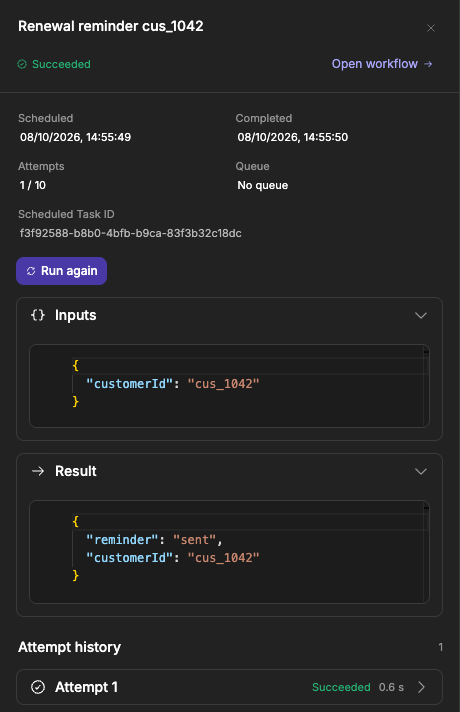
Click Open workflow to jump to the workflow that ran.
Cancel, reschedule or run again
The buttons in the details depend on the task's status:
Cancel scheduled taskcancels a task that is waiting to run or waiting for a retry.Request stopasks a running task to stop. It stops as soon as it can, but actions that already ran are not undone.Reschedulechanges the date of a task that hasn't started yet. Pick a new date, then clickSave date.Run againcreates a new task with the same inputs, from a task that succeeded, failed or was cancelled. It uses the latest version of the workflow, and the new task shows which one it replays.
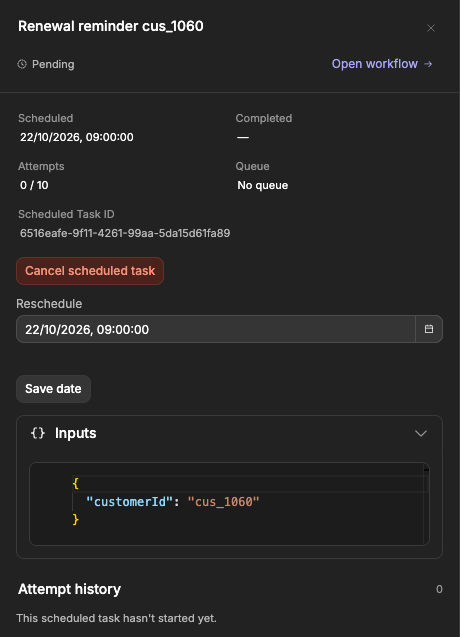
Cancelling a task doesn't turn off the schedule that created it. To stop future runs, turn the schedule off.
Automatic retries
When a task fails or takes too long, WeWeb tries again, up to 10 times in total by default. It waits a bit longer between each try, so a service that's briefly down has time to come back.
Each try runs the whole workflow again, with the latest version of the workflow in that environment. So if you fix a bug in the editor, the next try in the editor uses your fix. For staging or production, publish the fix.
Don't delete a workflow that still has tasks waiting to run: they'll fail when they start.
Make retries safe
Imagine a task that sends an email, then updates a record. If the update fails, the retry starts again from the beginning, and the customer gets the email twice.
To avoid this, design your actions so that running them twice is harmless. For example, check whether the email was already sent before sending it, or use the "idempotency key" option some services offer (a unique value that tells them "this is the same request as before").
If you prefer not to retry a task at all, set Maximum attempts to 1.
Do something when a task fails for good
When a task has used all its tries, you can react to it with an Event Trigger. For example, notify your team on Slack or mark the record as failed.
- In the
Data & APItab, open theBackend Workflowssubtab, thenEvent Triggers. - Create an Event Trigger and choose
On Scheduled Task final failure. - Add the actions to run. You can use the failed task's ID, its workflow ID, its inputs and its error.
This workflow runs once per failed task. It is not retried if it fails itself.
Settings
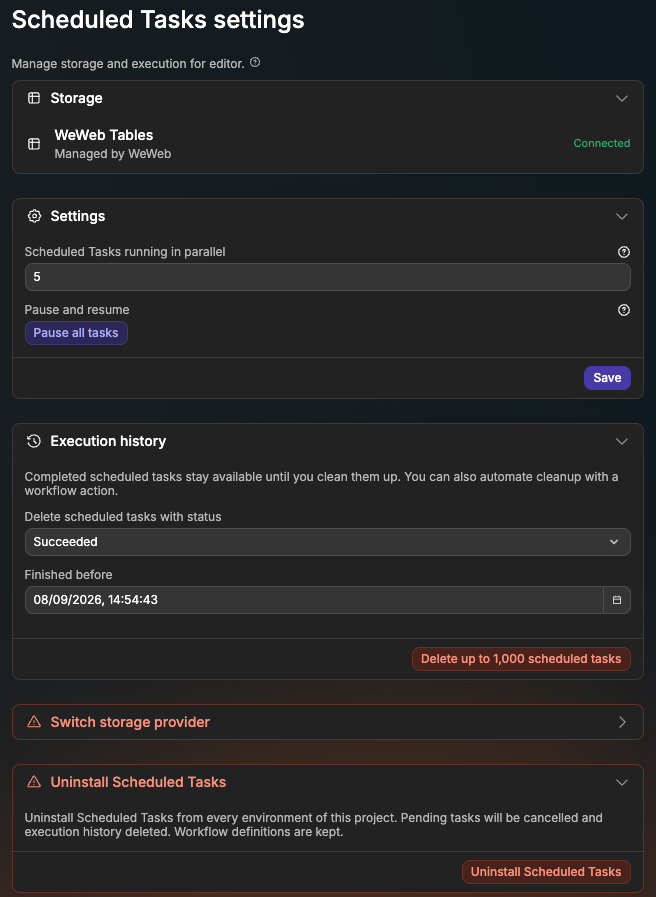
The Settings tab applies to the environment selected at the top.
Run several tasks at once
In the Settings section, Scheduled Tasks running in parallel sets how many tasks can run at the same time: 5 by default, from 1 to 100. Click Save to apply it.
Tasks that share a queue name still run one at a time, whatever this number is. A task also waits if its timeout is longer than the time left on the server: give short tasks a short Attempt timeout so they can start sooner.
Pause all tasks
Pause all tasks, in the Settings section, stops every scheduled task in the selected environment right away, without publishing. Use it in an emergency, for example while you fix a bug in production.
While tasks are paused:
- Tasks that are already running finish normally.
- No new task starts. Tasks waiting to run, and new tasks scheduled with the
Schedule tasksaction, wait until you resume. - Recurring schedules don't create runs.
- A banner reminds you in the
Recurring schedulesandExecution historytabs.

The pause stays in place after you reload the editor or publish. Click Resume tasks to start again: waiting tasks run, and recurring schedules start again from their next run, without catching up on the runs they skipped.
Clean up the history
Finished tasks stay in the history until you delete them. Their inputs, results and logs take space in your database, so clean up regularly.
- Open
Execution historyin theSettingstab. - In
Delete scheduled tasks with status, chooseSucceeded,FailedorCancelled. - In
Finished before, pick a date. - Click
Delete up to 1,000 scheduled tasksand confirm.
Deleted tasks can't be recovered. Tasks that are waiting or running are never deleted. If more than 1,000 tasks match, repeat the cleanup.
To clean up automatically, add the Clean up Scheduled Task history action to a Scheduled Task workflow with a daily schedule. Set Delete completed scheduled tasks before (for example, 30 days ago) and the Status to delete. Each run deletes up to 1,000 tasks.
Backend usage limit
If your backend usage goes over your plan's limit, you'll see Backend usage limit reached in the Settings tab and scheduled tasks stop running. Upgrade your plan with Upgrade plan, or wait for the monthly reset.
Switch storage provider
Under Switch storage provider, click Switch provider to move from WeWeb Tables to Supabase, or the other way around.
SWITCHING DELETES YOUR HISTORY
Switching cancels the tasks that haven't run yet and deletes the previous tables and their history. Nothing is moved to the new provider.
Uninstall Scheduled Tasks
To remove Scheduled Tasks completely, open Uninstall Scheduled Tasks, click Uninstall Scheduled Tasks, then confirm with Uninstall.
- From
Editor, it uninstalls Scheduled Tasks from every environment of your project. - From
StagingorProduction, it only uninstalls that environment.
Tasks waiting to run are cancelled and the execution history is deleted. Your Scheduled Task workflows and their schedules are kept, so you can set up Scheduled Tasks again later.
CONTINUE LEARNING
WeWeb AI can build Scheduled Task workflows and schedules for you, and help you understand why a task failed.