

Appearance
Recurring schedules
A recurring schedule runs a Scheduled Task workflow again and again, at the times you choose: every morning at 8, every Monday, on the last day of each month. You set it up once on the workflow, and WeWeb takes care of the rest.
One workflow can have several schedules. For example, a Generate sales report workflow can have a monthly schedule for the full report and a weekly one for a short summary, each with its own inputs.
Add a recurring schedule
In the
Data & APItab, open theBackend Workflowssubtab, thenScheduled Tasks, and select your workflow.In the
Schedule triggersblock, clickAdd recurring schedule.Give it a clear
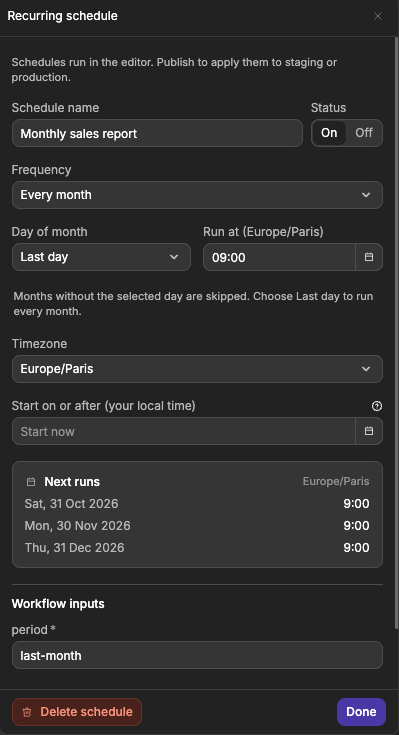
Schedule name, such asMonthly sales report.Pick a
Frequency:Every minute,Every 5 minutes,Every hour,Every day,Every week,Every monthorCustom cron.Set when it runs:
- For
Every day, set the time inRun at. - For
Every week, pick theDayand setRun at. - For
Every month, pick theDay of monthand setRun at.
Run atshows the schedule's timezone, for exampleRun at (Europe/Paris).- For
Check the
Timezone. New schedules use your browser's timezone.Fill in the
Workflow inputs. Required inputs must have a value before the schedule can run.Look at
Next runsto check the dates, then setStatustoOn.Click
Done. Your changes are saved automatically.
Each schedule then appears in the Schedule triggers block, with a summary of when it runs and its status.
Monthly schedules
With Every month, choose a day from 1 to 31, or Last day.
If you pick a day that some months don't have, like the 31st, those months are skipped. To run every month, including February, pick Last day.
Start date
By default, a schedule starts with its next run as soon as you turn it on. To start later, fill in Start on or after (your local time). Nothing runs before that date, even when the schedule catches up on missed runs. Leave it empty (Start now) to start with the next run.
The start date doesn't add a run. For example, a schedule that runs every day at 9:00 with a start date of October 20 at 14:00 runs for the first time on October 21 at 9:00.
This is useful when you prepare a schedule in advance, for example a monthly report that should only start in January.
Timezones and daylight saving time
The time you set always follows the schedule's timezone. A schedule set to 9:00 in Europe/Paris stays at 9:00 Paris time all year, even when the clocks change.
When the clocks change:
- If your time doesn't exist that day (clocks jump forward), that run is skipped.
- If your time happens twice (clocks go back), it runs only once.
Next runs shows the upcoming dates in your browser's timezone, and names that timezone. Check it whenever you change the frequency or the timezone.
The date of a run is when it becomes ready to start. If many tasks are running at the same time, it can start a little later.
Schedule status
| Status | What it means |
|---|---|
On | The schedule runs at the times shown in Next runs. |
Off | The schedule doesn't run. Turn it back on to resume. |
Needs attention | The schedule is turned on but can't run, for example because a required input is empty or a cron expression is invalid. The panel tells you what to fix. |
Turning a schedule off stops its future runs. When you turn it back on, it starts again from the next scheduled time: the runs it missed while off don't run. Tasks already created stay in the history, and you can cancel them there.
To remove a schedule, open it and click Delete schedule.
PUBLISH TO APPLY YOUR CHANGES
Schedules run in the editor as soon as they're turned on. Staging and production only get your changes, including a schedule you turned off or deleted, when you publish.
Need to stop a schedule in production right now, without publishing? Pause it from the Recurring schedules tab instead. Learn more about pausing a schedule →
If you duplicate a Scheduled Task workflow, its schedules are copied turned off, so the copy doesn't start running on its own.
Custom cron expressions
When the presets aren't enough, choose Custom cron and type a Cron expression. A cron expression is a short code that describes a schedule with five values, in this order:
text
minute hour day-of-month month day-of-week| Expression | Runs |
|---|---|
*/15 * * * * | Every 15 minutes |
0 9 * * 1-5 | Every weekday at 9:00 |
0 9 1 * * | On the first day of each month at 9:00 |
0 18 L * * | On the last day of each month at 18:00 |
Type only the five values, without seconds. If the expression is invalid, an error appears and the schedule won't run until you fix it. The help icon next to Cron expression reminds you of the format.
LET AI WRITE IT
Not sure how to write a cron expression? Describe the schedule to WeWeb AI, for example "every first Monday of the month at 10 AM", and check the result in Next runs.
Advanced schedule settings
Open Advanced schedule settings at the bottom of the panel when you need more control. Most schedules work well with the defaults.
Catch up missed runs
If scheduled tasks couldn't run for a while (for example while your environment was hibernating), WeWeb runs the ones it missed when it starts again. Catch up missed runs (hours) sets how far back it looks: 24 hours by default.
Choose what fits the task. Catching up on an hourly data sync is useful. Sending ten missed reminder emails at once probably isn't: set the value to 0, and only a run that was due in the last minute still happens.
Runs skipped while a schedule or all tasks were paused are never caught up, whatever this setting.
When a previous run is unfinished
Sometimes a run takes longer than the time between two runs. When a previous run is unfinished decides what happens:
| Option | What happens |
|---|---|
Allow parallel runs | The new run starts anyway. This is the default. |
Wait for previous run | The new run waits until the previous one is done, including its retries. |
Skip new occurrence | The new run is skipped. |
Other options
Queue: tasks with the same queue name run one at a time. Use it when two tasks must not change the same data at the same moment.Priority: when many tasks are waiting, the ones set toHighstart beforeNormal, thenLow.Maximum attempts: how many times a failed run is tried, including the first try. The default is 10. Set it to 1 to never retry.Attempt timeout (minutes): how long one try can last before it's stopped. Leave it empty to use the default: 5 minutes, or less if your server allows less.
These settings only apply to the runs of this schedule. Learn how retries work →
CONTINUE LEARNING
Recurring schedules run the same work for everyone. To schedule a task for one user, at a time that depends on them, schedule it from a workflow.